Ever stared at the back of your router, squinting at tiny letters, only to realize the sticker is gone? Or maybe you just typed in a password once months ago and your brain did a factory reset. Don’t worry — you’re not alone. This guide is for anyone who needs to recover a WiFi password they already saved on a device. By the end, you’ll have the key to your network, ready to share with guests, add a new gadget, or just write down for safekeeping.
We’ll cover Windows, Mac, Android, iPhone, and even the trusty old router admin panel. No special tools or hacking skills required. Just follow the steps for the device you have handy. Let’s dig in.
What You’ll Need
- A device already connected to the WiFi network (Windows PC, Mac, Android phone, iPhone, or iPad).
- Administrator or owner access to that device (most personal devices qualify).
- Optional: Your router’s admin login credentials (usually printed on the router).
- A few minutes of patience.
Step 1: Recover WiFi Password on Windows 10 / 11
This is the easiest method if you have a Windows laptop or PC connected to the network. You don’t need to install anything — it’s built right into the OS.
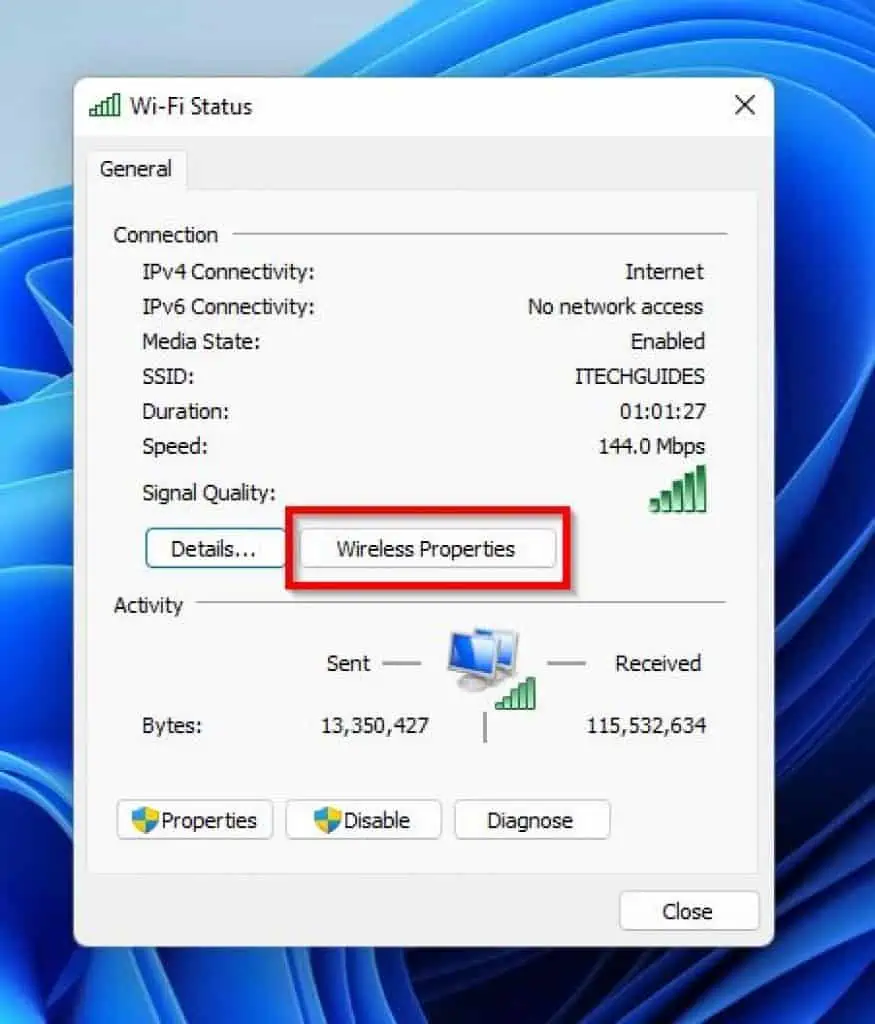
- Click the network icon in the system tray (bottom-right) and select ‘Network & Internet settings’.
- Go to ‘Advanced network settings’ > ‘More network adapter options’.
- Right-click your active WiFi adapter and choose ‘Status’.
- Click ‘Wireless Properties’, then switch to the ‘Security’ tab.
- Check the box ‘Show characters’ — your password appears in the ‘Network security key’ field.
- Copy it down or take a photo.
That’s it. If you prefer a command-line approach, you can also use a quick PowerShell command. Check out our wifi password recovery powershell script for an automated export.
Step 2: Recover WiFi Password on Mac
On a Mac, all saved passwords live in the Keychain Access app. This method also works for MacBook Air, MacBook Pro, and iMac. For a dedicated walkthrough, see free wifi password recovery for mac.
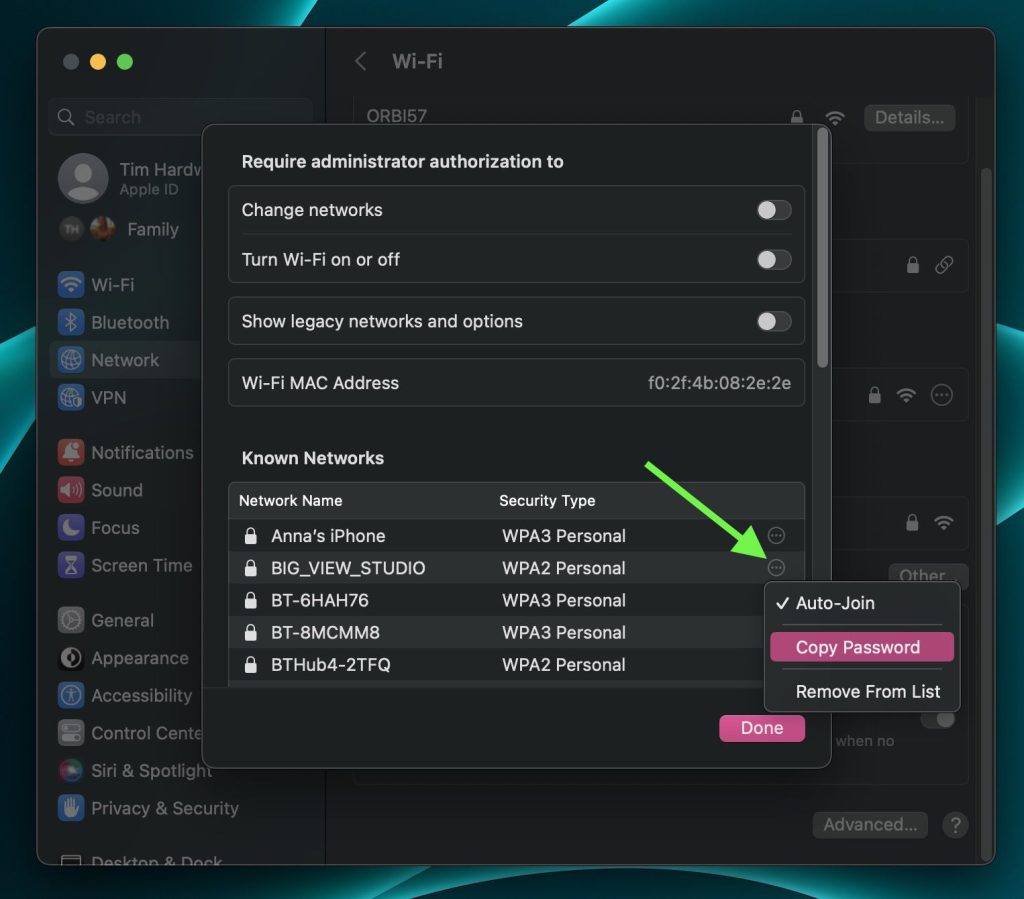
- Open ‘Keychain Access’ (search via Spotlight or find it in Applications > Utilities).
- In the search bar, type your WiFi network name (SSID).
- Double-click the entry for your network.
- Check the box ‘Show password’ and enter your Mac’s admin username and password.
- Your WiFi password is revealed in the field. Copy or note it.
Step 3: Recover WiFi Password on Android
Android keeps saved WiFi passwords, and you can view them easily on modern versions (Android 10 and up). The exact steps vary by manufacturer, but this works on most phones including Samsung Galaxy. For Samsung-specific instructions, see wifi password recovery for samsung galaxy.
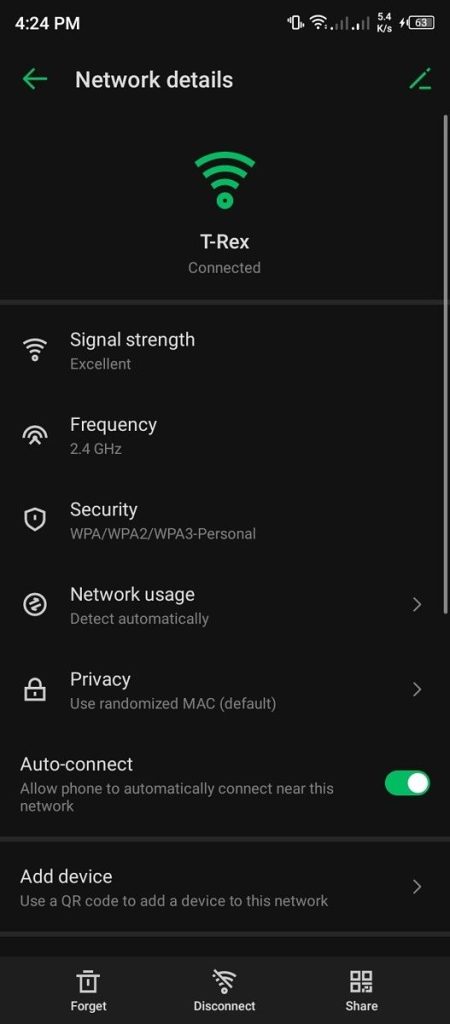
- Open ‘Settings’ > ‘Network & Internet’ > ‘Internet’ or ‘WiFi’.
- Tap the gear icon next to your connected network.
- Look for ‘Share’ or a QR code icon — tap it.
- Authenticate with your PIN, pattern, or fingerprint.
- A QR code appears with your network name and password. The password is shown below the code. You can screenshot or write it down. Another option: view saved wifi password android using third-party apps, though this built-in method is safest.
Step 4: Recover WiFi Password on iPhone / iPad
iPhones don’t reveal passwords in plain text directly in settings, but there’s a workaround using iCloud Keychain and a Mac, or you can use the router method. The easiest? Ask Siri: ‘What’s my WiFi password?’ — on recent iOS versions, Siri can show it after authentication. Alternatively, go to Settings > WiFi, tap the info (i) next to your network, then tap the password field — use Face ID or Touch ID to reveal it.

- Open ‘Settings’ > ‘WiFi’.
- Tap the blue info (i) icon next to your connected network.
- Tap the ‘Password’ field.
- Authenticate with Face ID, Touch ID, or device passcode.
- Your password appears and can be copied. This is one of the easiest free wifi password recovery no install methods for Apple users.
Step 5: Last Resort — Recover via Router Admin Page
If you don’t have any device connected, or the above methods don’t work, you can log into your router’s admin interface. This is also a good way to how to recover wifi password from saved network if you’ve changed it before.

- Connect a computer to the router via Ethernet cable (or WiFi if you’re still connected).
- Open a browser and type your router’s IP address (common: 192.168.1.1, 192.168.0.1, or 192.168.1.254).
- Log in with the admin username and password — often printed on a sticker on the router.
- Navigate to ‘Wireless’ or ‘WiFi’ settings.
- Look for ‘Security’ or ‘Password’ — the current password is displayed in plain text or masked with a show option.
- Write it down.
Common Pitfalls
- **Forgetting admin credentials**: If you changed your router’s admin password and don’t remember it, you’ll need to factory reset the router (press the reset button for 10 seconds). That erases all settings, including your WiFi password, so only do this as a last step.
- **Viewing the wrong network**: On Windows and Mac, make sure you’re looking at the network you’re actually connected to, not a neighbor’s or old one. Double-check the SSID.
- **No admin rights on shared computers**: If you’re on a work or school machine, you may not have permission to view passwords. In that case, use a personal device or the router method. For school networks, see our guide on wifi password recovery on school network.
Where to Next?
Now that you’ve recovered your WiFi password, consider saving it in a password manager so you never lose it again. You can also export all your saved networks using PowerShell or sync them via cloud backup. Check out our related articles for more tips: free wifi password recovery no install, how to recover wifi password from saved network, and wifi password recovery powershell script. Stay connected!



