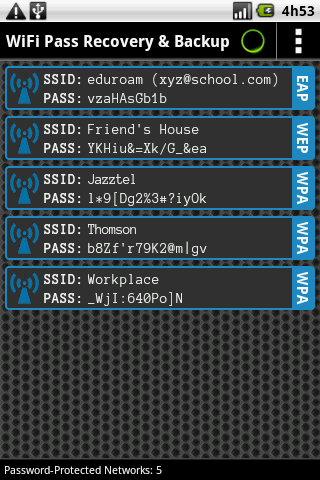
If you’ve ever forgotten your WiFi password and don’t want to reset your router (which kicks everyone off), there’s a sneaky way to get it back: dig it out of your router’s backup file. This method works because most routers let you save a configuration backup—and that backup contains your WiFi password, often in plain text or easily decoded. This guide is for anyone who has that backup file sitting on their computer, or who can create one from the router admin panel. By the end, you’ll have your WiFi password in hand without a single reset.
You don’t need any special tools—just a text editor and maybe an online decoder. This is one of the most reliable ways to perform a wifi password recovery without reset. And if you’re on a Mac, I’ll even point you to a free wifi password recovery for Mac option if the text editor route feels too manual. Let’s dive in.
What You’ll Need
- Your router’s configuration backup file (usually a .cfg, .bin, .conf, or .txt file)
- A plain text editor (Notepad on Windows, TextEdit on Mac in plain text mode, or VS Code)
- Optional: an internet connection for Base64 decoding if the password is encrypted
Step 1: Locate Your Router Backup File
First, find the backup file on your computer. If you’ve ever saved a router config, it’s probably in your Downloads folder or Documents. Common names include ‘router.cfg’, ‘backup.bin’, or ‘config.conf’. If you haven’t created one yet, log into your router’s admin page (usually 192.168.1.1 or 192.168.0.1), find the ‘Backup’ or ‘Save Configuration’ option, and download the file. Hold onto it—this is your password recovery ticket.

Step 2: Open the Backup File in a Text Editor
Right-click the backup file and choose ‘Open with’ → Notepad (Windows) or TextEdit (Mac). If the file is huge or looks like gibberish, that’s normal—it’s just a structured text file. Don’t worry about the chaos; you only need to search for a few keywords.
Step 3: Search for the WiFi Password
Press Ctrl+F (Windows) or Cmd+F (Mac) and search for terms like ‘SSID’, ‘WPA’, ‘Passphrase’, ‘PreSharedKey’, or ‘Key’. The WiFi password is often stored right next to your network name. For example, you might see MyNetwork and MyPassword123. Copy the password exactly as it appears—sometimes it’s in quotes or between tags.
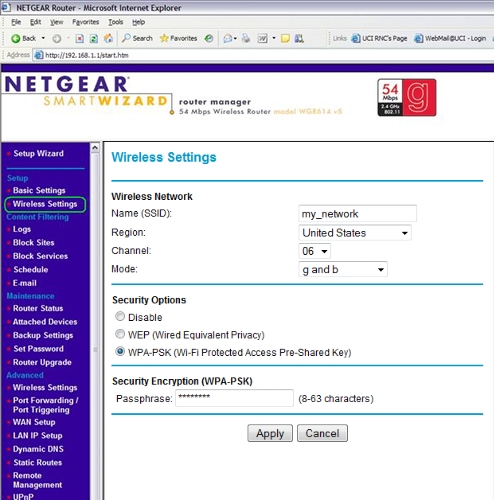
Step 4: Decode the Password if Encrypted
Some routers store the password in Base64 or other encoding. If the value looks like a random string of letters and numbers (e.g., ‘TXlQYXNzd29yZDEyMw==’), it’s likely Base64. Copy that string, go to a free online Base64 decoder, and paste it in. The decoded result is your WiFi password. For a more automated approach, you can use a wifi password recovery powershell script that decodes and extracts passwords from backup files.

Common Pitfalls
- The backup file is corrupted or not fully downloaded. Always verify the file size matches what the router reported during download.
- The password is stored as a hash (like MD5 or SHA) that can’t be reversed. In that case, you’ll need to reset the router, but check our guide on personal wifi password recovery first for other options.
- You open the file in a rich text editor like Word, which hides special characters. Use a plain text editor to avoid missing any data.
Where to Next
Now that you’ve recovered your password, you might want to save it somewhere safe. Consider using a password manager or trying wifi password recovery with cloud sync so you never lose it again. If the backup method didn’t work for your router, check out our comprehensive guide on how to recover wifi password from backup for other techniques. And if you ever need to recover your wifi password without reset, we’ve got you covered.



