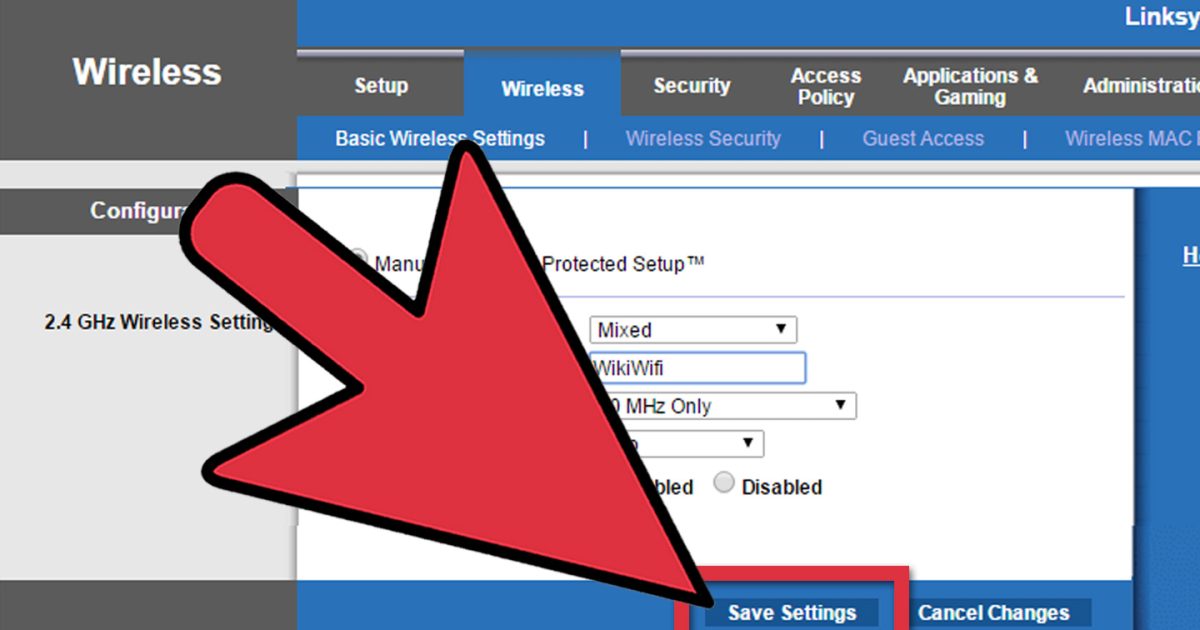
So you just updated your operating system—maybe from Windows 10 to 11 or the latest macOS Sequoia—and suddenly all your saved WiFi networks are gone. You’re staring at a list of forgotten connections, and you can’t remember that one password you set up two years ago. Don’t stress. This happens to the best of us, and the good news is that with a few simple tricks, you can restore those passwords without calling your ISP or resetting your router.
By the end of this guide, you’ll have all your WiFi passwords back in your system’s memory. We’ll cover both Windows and macOS, plus show you how to recover WiFi password after an upgrade if the normal methods don’t work. Whether you’re a casual user or a techie, these steps are easy to follow—no third-party apps required (though I’ll mention a few if you prefer). Let’s dive in.
What You’ll Need
- Administrator access on your computer (or know the admin password)
- A working internet connection to download tools (optional)
- Your router’s login credentials (admin username/password) if you plan to check there
- A USB drive or cloud backup if you want to save your recovered passwords
Step 1: Restore WiFi Passwords on Windows Using Command Prompt
Windows stores saved WiFi passwords in the system. Even after an upgrade, the profiles often remain hidden. You can dig them out with a simple command-line method. This is the fastest way to get all your passwords back.
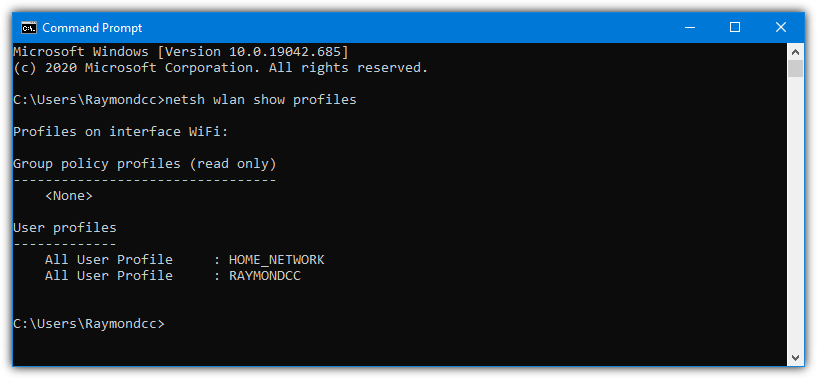
Open Command Prompt as an administrator (right-click Start > Windows Terminal (Admin) or Command Prompt (Admin)). Then run the following command to list every WiFi profile your computer has ever connected to:
netsh wlan show profiles
You’ll see a list of network names. For each one you want the password of, run:
netsh wlan show profile name=”YourNetworkName” key=clear
Look for the “Key Content” line—that’s your password. Write them down or copy them to a safe place. If you have many networks, consider using a batch script or a free WiFi password recovery software like WirelessKeyView to export all at once. For more details, check out our guide on personal WiFi password recovery.
Step 2: Restore WiFi Passwords on macOS Using Keychain Access
macOS stores passwords in the Keychain. After an upgrade, your keychain should still be intact unless you did a clean install. Here’s how to view saved WiFi passwords on Mac.
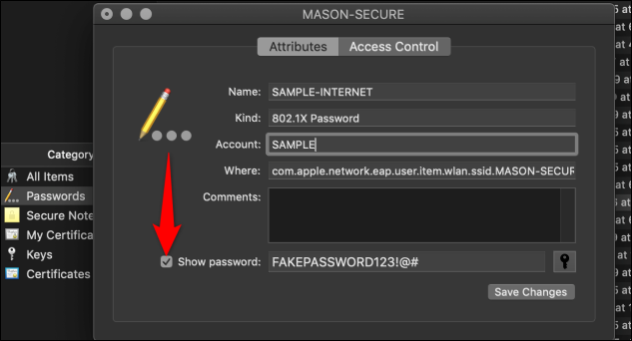
Open Keychain Access (search in Spotlight or go to Applications > Utilities > Keychain Access). In the search bar, type the name of your WiFi network. Double-click the entry that appears (it’ll be in the “System” or “Login” keychain). A window pops up—check the box “Show password.” Enter your Mac’s admin credentials when prompted, and the password will display. Repeat for each network you need.
If your Keychain got wiped during the upgrade (rare but possible), you’ll have to use the router method or check if you have a backup. For an alternative approach, our guide on WiFi password recovery after a Windows update also applies to macOS if you use Boot Camp, but stick with Keychain for native macOS.
Step 3: Recover WiFi Passwords from Your Router’s Admin Panel
If the above methods fail—maybe your profiles were deleted entirely—you can always get the password directly from your router. This works for any device since the password is stored there.
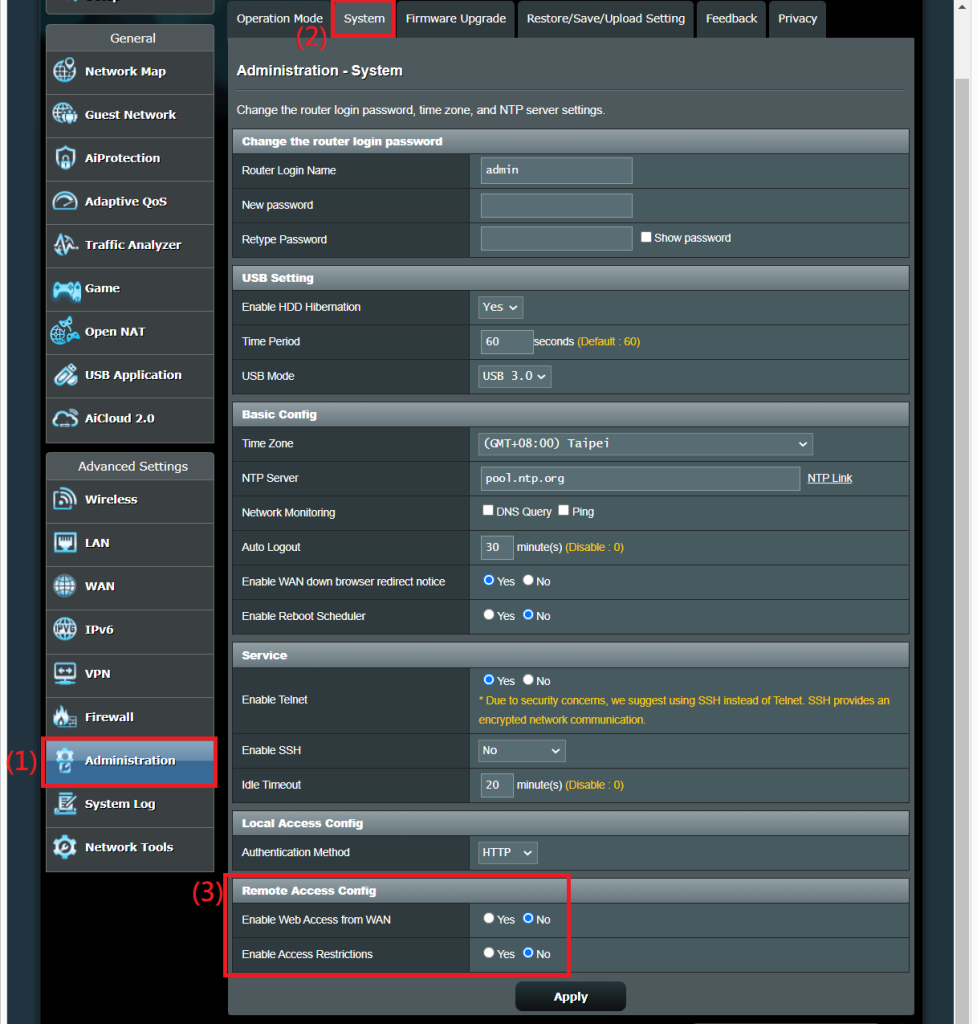
Open a browser and enter your router’s IP address (typically 192.168.0.1 or 192.168.1.1). Log in with the admin credentials (if you never changed them, check the sticker on the router). Navigate to the WiFi or Wireless section. Look for “Wireless Security,” “Pre-Shared Key,” or “Passphrase.” There you’ll find the current password (often masked, but there’s a show/hide option). Write it down, then re-add the network on your computer.
For mesh WiFi systems, the process is similar but may be app-based. Check out our guide on wifi password recovery on mesh wifi for exact steps. And if you have a router backup, you can recover it from there too—see how to recover wifi password from backup.
Common Pitfalls
- **Profiles not showing up**: If netsh shows zero profiles, your upgrade may have deleted all WiFi profiles. In that case, you’ll need to use the router method or a Windows backup. Also, make sure you’re running the command as administrator.
- **Keychain password forgotten**: If you don’t remember your Mac’s admin password, you won’t be able to view the WiFi password. Reset your admin password using Recovery Mode, or use the router method as a workaround.
- **Router login changed**: Many people forget their router admin password. If you can’t log in, you’ll need to factory reset the router (hold the reset button for 10 seconds)—but that will also reset all settings, so only do that as a last resort. Alternatively, try default credentials (admin/admin or admin/password).
Where to Next
Now that you’ve restored your passwords, consider saving them in a password manager to avoid this headache in the future. If you want to dig deeper, check out our ultimate guide on wifi password recovery ultimate guide for more advanced tips. And if you’re on Linux, we’ve got you covered with wireless password recovery linux. Happy surfing!



