
So you just upgraded your operating system — maybe Windows 11, macOS Ventura, or even Android 14 — and suddenly your WiFi network is asking for a password you swore you remembered. Don’t panic. System upgrades sometimes wipe saved network profiles, but that doesn’t mean your password is lost forever. This guide is for anyone who’s locked out after an upgrade and needs to recover their WiFi password using devices that still have it, the router itself, or a few clever workarounds.
By the end of this tutorial, you’ll have your WiFi password back in hand — without resetting the router or calling your ISP. We’ll cover multiple methods: checking other devices that might still remember the network, diving into your router’s admin panel, using command-line tools on Windows and Mac, and even a lightweight recovery app if you’re stuck. Pick the method that fits your situation and you’ll be back online in minutes.
What You’ll Need
- A device that still connects to the WiFi (e.g., phone, tablet, another computer) — optional but helpful
- Access to your router’s admin interface (usually via a web browser at 192.168.1.1 or similar)
- Router admin username and password (often printed on the router sticker)
- A Windows, Mac, or Linux computer (for command-line methods)
- A USB drive (if you need to use a portable recovery app)
Step 1: Check a Device That Still Has the Password
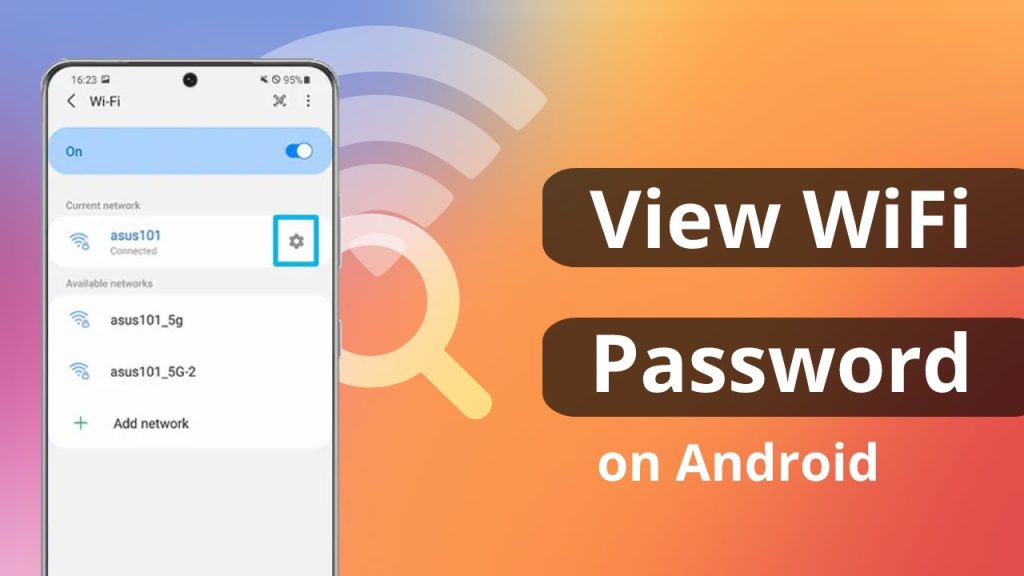
If you have a phone, tablet, or another computer that’s still connected to the same WiFi network, you can easily view the saved password. On Android 10+ (with a QR code), go to Settings > Network & Internet > WiFi, tap the network name, and select ‘Share’ to reveal a QR code and the password below it. On iOS, go to Settings > WiFi, tap the info (i) icon next to the network, and use Face ID/Touch ID to view the password. On a Mac, open Keychain Access (covered in Step 4). On Windows, if that device hasn’t been upgraded, run the command in Step 3. If you don’t have any other device, jump to Step 2.
Step 2: Recover via Router Admin Interface
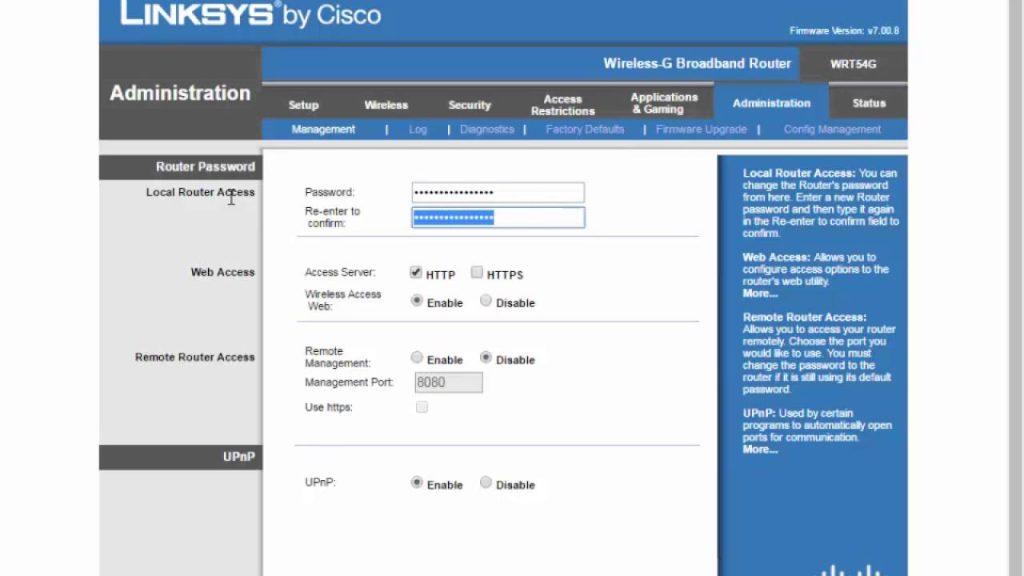
Your router holds the WiFi password in its configuration. To access it, open a browser and enter your router’s IP address (commonly 192.168.1.1, 192.168.0.1, or 192.168.2.1). Log in with the admin credentials (check the router sticker). Once inside, look for a ‘Wireless’ or ‘WiFi’ section. The password is usually labeled as ‘Pre-Shared Key’, ‘Passphrase’, or ‘Network Key’. You can copy it or change it. For detailed step-by-step instructions, check our recover wifi password from router admin guide.
Step 3: Use Windows Command Line (If Profile Still Exists)
Sometimes a Windows upgrade preserves the WiFi profile but removes the password from the visible UI. Open Command Prompt as Administrator and run: netsh wlan show profiles. Find your network name, then run: netsh wlan show profile name="YourNetworkName" key=clear. Look for ‘Key Content’ — that’s your password. If you see ‘Key Content’ blank, the profile was cleared; proceed to Step 2. For more on this method, see our wifi password recovery after windows update article.
Step 4: Use Mac Keychain Access
On macOS, saved WiFi passwords are stored in the Keychain. Open Keychain Access (from Utilities or Spotlight), select ‘System’ in the left sidebar, and find your network name. Double-click it, check ‘Show password’, and enter your Mac’s admin password. The WiFi password will appear. Note: if you upgraded macOS and your login keychain is locked or migrated, the password might be lost. In that case, use the router method. For a more in-depth guide, read our wifi password recovery on mac article.
Step 5: Use a Lightweight Recovery App (Windows)
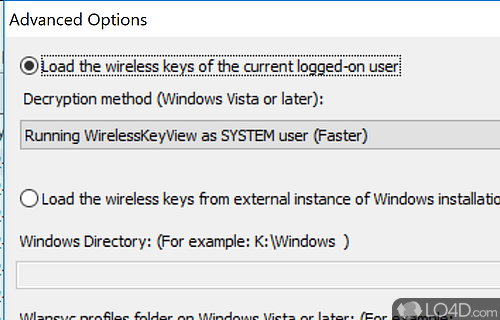
If you can’t access the router and your upgrade wiped everything, try a portable recovery tool like WirelessKeyView. Download it on a different computer, copy it to a USB drive, then run it on your upgraded Windows machine. It will list all saved WiFi networks and their passwords — if any remain. This is a free wifi password recovery no install solution that works on most versions of Windows.
Common Pitfalls
- Router admin password unknown – If you never changed it, check the sticker. If you did, you may need to reset the router, which will also reset the WiFi password. In that case, you’ll need to reconnect all devices with the new password.
- Upgrade changed the router’s firmware – Rare, but some router updates reset the admin password to default. Try the default credentials before factory resetting.
- Assuming the password is the same as before the upgrade – Some ISPs or router firmware updates change the default SSID/password. Check the router sticker for the current default.
Where to Next
You’ve recovered your WiFi password – now what? Consider storing it in a password manager to avoid future headaches. If you want a broader overview of methods, check out our ultimate guide. For a scenario-specific approach, our personal wifi password recovery article covers the fastest methods for home users. And if you ever upgrade again, you’ll know exactly what to do.



