Ever been stuck when a friend asks for your WiFi password and you have no idea what it is? Maybe you set it years ago and never wrote it down. If you have a laptop or PC that’s already connected to the network, you can pull the password from the system in seconds using built-in command-line tools. This guide is for anyone who needs a quick, software-free way to recover a saved WiFi password on Windows, macOS, or Linux. By the end, you’ll have the password in plain text ready to share or reconnect.
For a broader overview of methods, check out our wifi password recovery guide that covers all platforms. But if you prefer the command line, you’re in the right place. Let’s dive into the commands that can save the day.
What You’ll Need
- A computer already connected to the WiFi network you want the password for.
- Administrator or root access (required on all three systems).
- Basic comfort with opening a terminal or command prompt.
Step 1: Windows – Use the netsh Command
Windows stores WiFi profiles in the system. Open Command Prompt as Administrator (right-click Start > Command Prompt (Admin)). Then run the following command to list all saved profiles:
Look for the network name (SSID) you need. Then run this command, replacing “YourNetwork” with the actual SSID:
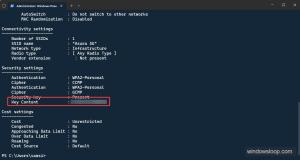
Scroll down to the “Security settings” section. You’ll see “Key Content” – that’s your WiFi password. Copy it or write it down. This method works on Windows 7 through 11.
Step 2: macOS – Use the security Command
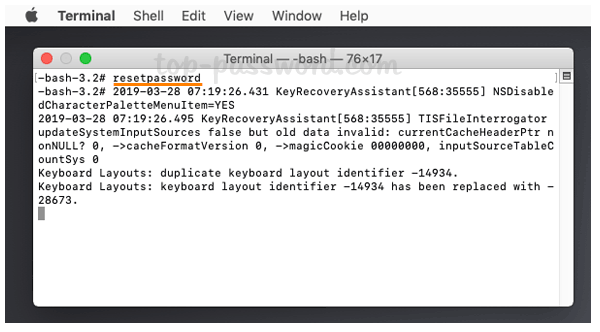
On macOS, WiFi passwords are stored in the Keychain. Open the Terminal app (Applications > Utilities > Terminal). Then run this command:
Replace “YourNetwork” with the exact name of your WiFi network. If prompted, enter your Mac’s admin username and password. The command will output the WiFi password directly. For a more detailed walkthrough, see our guide to view saved wifi password mac.
Step 3: Linux – Use nmcli or Check Configuration Files
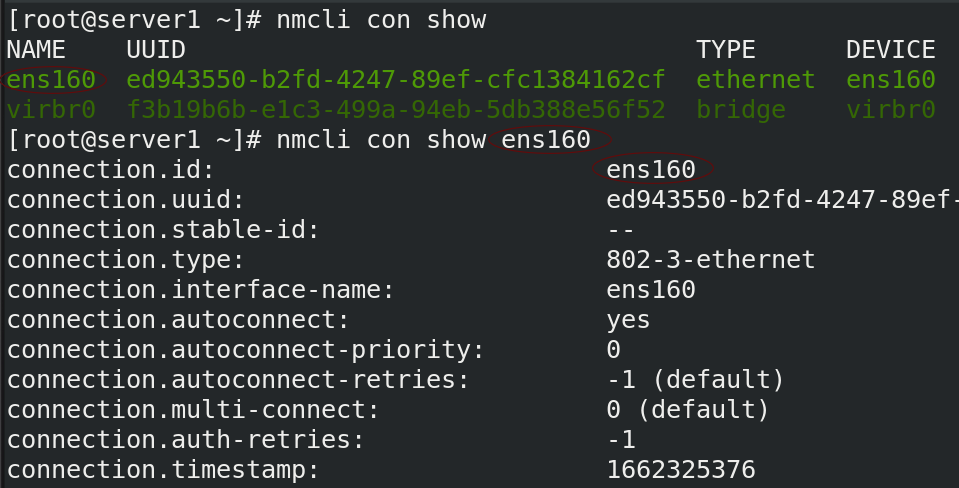
Most Linux distributions use NetworkManager. Open a terminal and run this command to list saved connections:
Identify the connection name (often the SSID). Then display its details:
If that doesn’t work, you can peek directly at the configuration file (requires sudo). The file is usually at /etc/NetworkManager/system-connections/YourNetwork.nmconnection. Open it with a text editor as root – the password is in the psk= line. For a more extensive guide, check out wireless password recovery linux.
Common Pitfalls
- Incorrect permissions: On Windows, running Command Prompt without Admin access will give an error. On macOS/Linux, you might need sudo for certain commands. Always ensure you have the right privileges.
- Network profile not saved: Some public or temporary networks don’t save the password. Make sure the network is actually stored in your system – you can check by looking at saved networks in settings.
- Typo in the SSID: Network names are case-sensitive. If you get an error like “Profile not found”, double-check the spelling and try quoting it exactly. For more advanced recovery options, consider using best free wifi password recovery software if the command line fails.
Where to Next
Now that you have your password back, you might want to explore more recovery methods. Our wifi password recovery ultimate guide covers everything from router admin pages to backup files. If you need to recover a password for a network you’re not currently connected to, check out the personal wifi password recovery article for additional tactics. And remember, always keep a written copy of your passwords in a safe place!



