If you’ve ever stared at your mesh WiFi system, wondering what the heck the password is, you’re not alone. Mesh networks are amazing for coverage, but they often use random passwords printed on the box that are easy to lose. This guide is for anyone who still has physical access to their mesh system — maybe you just bought a new device and can’t find the sticker, or you want to share the network with a guest. By the end, you’ll have your WiFi password back without factory resetting anything. For a deeper look at various methods, check out our wifi password recovery ultimate guide.
We’ll cover the main ways to retrieve the password: using the mesh app, the web interface, or even pulling it from a device that’s already connected. This is what we call personal wifi password recovery — getting back what’s already yours. No hacking, no tricks, just a few clicks.
What You’ll Need
- Your mesh WiFi system (e.g., Google Nest WiFi, Eero, TP-Link Deco, Netgear Orbi)
- A smartphone or computer that is currently connected to the mesh network (or you have physical access to the router)
- The admin credentials for the mesh system (if you don’t know them, we’ll cover that)
- The mesh manufacturer’s app (optional but easiest) or a web browser
If you’ve forgotten the admin password, don’t worry — many mesh systems have a default admin login printed on the device. If you changed it and forgot, you might need to do a factory reset, but that’s a last resort (see Common Pitfalls).
Step 1: Open Your Mesh System’s App or Admin Portal

Most modern mesh systems have a dedicated app for iOS and Android. Eero has the Eero app, Google Nest uses Google Home, TP-Link Deco has the Deco app, and Netgear Orbi uses the Orbi app. Open it up. If you don’t have the app, you can also access the router’s admin interface by typing its IP address into a browser — usually something like 192.168.0.1 or 192.168.1.1. If you’re unsure, check your phone’s WiFi settings for the router’s IP (often listed as “Gateway” or “Router”). For more options, see our forgotten wifi password recovery app article.
Step 2: Log In with Admin Credentials

Enter your admin username and password. For many mesh systems, the default admin username is ‘admin’ and the password is either ‘password’ or blank (check the sticker on the router). If you’ve set a custom admin password, use that. Don’t confuse this with your WiFi password! If you’re locked out, try the password you use for your mesh app — they’re often the same. If all else fails, a factory reset (holding a pinhole button on the router) will reset the admin credentials but also erase your settings. Only do that as a last resort.
Step 3: Find the WiFi Settings Section

Once logged in, look for a section labeled ‘WiFi’, ‘Network’, ‘Wireless’, or ‘Settings’. In the Google Home app, tap on your network and then ‘Settings’, then ‘Wi-Fi’. In Eero, go to ‘Network Settings’ and then ‘Wi-Fi’. In Deco, it’s under ‘WiFi Settings’. You’re looking for the name of your WiFi network (SSID) and the password field. In many apps, the password is displayed in plain text by default; sometimes it’s hidden behind asterisks.
Step 4: View or Reveal the Password

Look for an eye icon or a checkbox that says ‘Show password’. Tap or click it to reveal the password. If the password is displayed in plain text, simply copy it down. Some apps (like the older Orbi app) might require you to tap the password field to see it. If you don’t see any option to show the password, try the web-based admin interface (next step).
Step 5: Use the Web Admin Interface (If App Doesn’t Show)
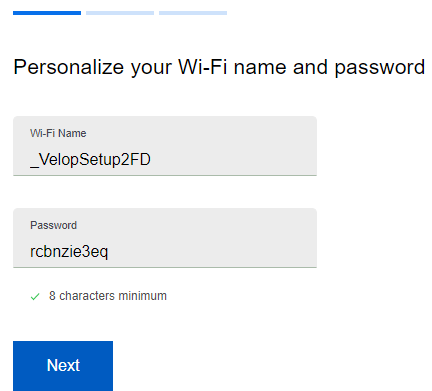
Sometimes the mobile app limits what you can see. Open a browser on a computer connected to the mesh network and enter the router’s IP address. Log in with the same admin credentials. Navigate to the wireless settings. You should see the WiFi password listed — often in a field you can edit or a display-only area. If it’s hidden, look for a ‘Show’ button or check the page source (Ctrl+U) to find it in plain text. Be careful not to change any settings unless you’re sure.
Step 6: Recover from a Connected Device (Backup Method)
If you can’t access the admin interface, you can still recover the password from a device that’s already connected. On Windows, go to Control Panel > Network and Internet > Network and Sharing Center > click on your WiFi network > Wireless Properties > Security tab > check ‘Show characters’. On Mac, open Keychain Access, search for your network name, and double-click it; check ‘Show password’ and enter your Mac login. On Android (if you have root or use the QR share method), go to WiFi settings, tap the network, and scan a QR code or view the password. For specific steps, see our guides on how to recover wifi password without reset and wireless password recovery linux. Also, wifi password recovery software lightweight can help on some platforms.
Common Pitfalls
- **Forgot your admin password?** If you changed the admin login and can’t remember it, you’ll need to factory reset the mesh router. That will erase all your settings, including your WiFi password. Avoid this by storing admin credentials in a password manager.
- **The app won’t show the password.** Some mesh apps deliberately hide the password for security. In that case, use the web admin interface or try the connected device method. If still stuck, the manufacturer may require a reset.
- **You’re not connected to the network.** Many of these methods require you to be on the same network. If you’re locked out completely, you’ll need physical access to the router or a wired connection.
Where to Next
Now that you’ve got your password back, consider writing it down in a safe place or using a password manager to store it. If you’re setting up a guest network, many mesh apps let you create a separate guest network with its own password. And if you ever lose it again, you’ll know exactly how to recover it. For more tips, browse our site’s wifi password recovery ultimate guide.



