If you’re running Linux and you’ve forgotten the password to your own WiFi network, don’t panic. Linux keeps a record of every network you’ve connected to, and the password is stored right there on your system. This guide is for anyone who needs to dig that password out—whether you’re helping a friend, setting up a new device, or just having a brain fart. By the end, you’ll have the password in plain text, no router reset required.
We’ll cover the two most common ways: the terminal method (fast and reliable) and the GUI method (great if you prefer clicking). I’ll also point you to the ultimate wifi password recovery guide for other platforms if you need cross-platform help. Let’s get started.
What You’ll Need
- A Linux computer (Ubuntu, Fedora, Mint, Debian, etc.) with a saved WiFi network
- sudo access (you’ll need your admin password)
- A terminal (Ctrl+Alt+T on most distros)
- Optional: a file manager if you prefer the GUI method
Step 1: Open a Terminal
Press Ctrl+Alt+T on your keyboard, or search for “Terminal” in your applications menu. This is your command-line home base.
Step 2: List Saved WiFi Networks
Most modern Linux distros use NetworkManager to handle WiFi connections. The saved network profiles are stored in /etc/NetworkManager/system-connections/. Run this command to see a list of all saved network names (SSIDs):
ls /etc/NetworkManager/system-connections/
terminal command
You’ll see one file per network. The filename is usually the SSID with any spaces replaced by underscores or escaped. For example, MyHomeNetwork or My_Home_Network.
Step 3: View the Password for a Specific Network
Now pick the network you want and display its configuration file. Replace YourNetworkName with the actual filename (you can usually tab-complete). Run:
sudo cat /etc/NetworkManager/system-connections/YourNetworkName
terminal command
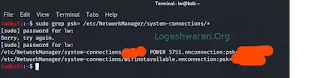
You’ll be prompted for your sudo password. Once entered, the file contents will fly by. Look for a line that starts with psk=. The text after the equals sign is your WiFi password—in plain text. If you see a long hex string instead, it might be a PSK hash, but usually it’s the actual passphrase.
If you prefer a one-liner that greps just the password, use: sudo grep psk= /etc/NetworkManager/system-connections/* to show all passwords at once.
Step 4: Alternative — Using wpa_supplicant (if you don’t use NetworkManager)
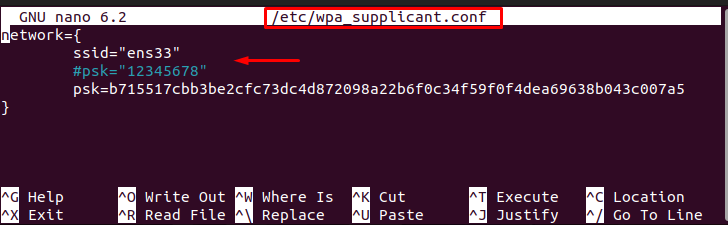
Some Linux setups (especially older ones or lightweight distros) use wpa_supplicant directly. In that case, passwords are often stored in /etc/wpa_supplicant/wpa_supplicant.conf. You can view it with:
sudo cat /etc/wpa_supplicant/wpa_supplicant.conf
terminal command
Look for a psk="YourPassword" line. If the psk value is a hex string, it’s a hash, but the quoted version is the real password.
Step 5: GUI Method (For the Click-Hearted)
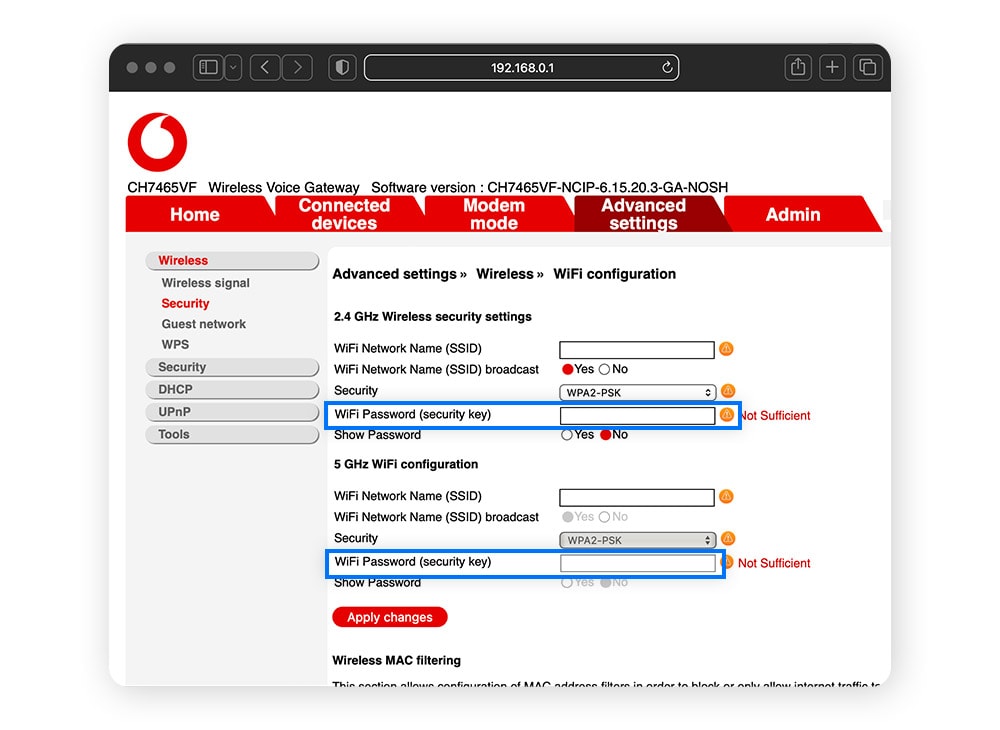
If the terminal gives you hives, you can use the built-in network settings app. On GNOME (Ubuntu, Fedora Workstation), open Settings -> Wi-Fi -> click the gear icon next to your connected network -> click the “Security” tab. The password is hidden behind dots, but there’s usually an “eye” icon or a “Show password” checkbox. Other desktop environments have similar options—look in your network connection editor.
Common Pitfalls
- Permission denied: You forgot the
sudoprefix. Without it, you can’t read the files. Always usesudo catorsudo grep. - Network name with spaces: The filename might use underscores or escaped spaces. Use tab-completion in the terminal to get the exact name, or try
lsfirst to see the list. - Wrong path: Some distros (like older CentOS) might store connections in
/etc/sysconfig/network-scripts/or use a different manager. If you don’t see anything in the default path, check your distribution’s documentation.
Where to Next
Now that you’ve got the password, you might need it for other devices. Check out our guide on how to recover wifi password without reset for Windows and Mac. If you’re looking for a method that doesn’t require installing any software, our free wifi password recovery with no install page has you covered. And for a broader look, don’t miss the personal wifi password recovery guide. Happy surfing!



