Ever needed to connect a new device to your home WiFi but realized you forgot the password? You’re not alone. That long string of random characters is impossible to remember, and the sticker on the router may have faded away. The good news: if a device (phone, laptop, or tablet) is already connected to that network, you can recover the password in seconds—often with a free app. By the end of this guide, you’ll have a working password for any network you’ve ever joined, no router reset required.
This tutorial is for anyone who has access to a device that currently connects (or has connected) to the WiFi network. We’ll focus on Android and Windows because that’s where the best free apps live. Mac users, check out our dedicated post on how to view saved wifi passwords on mac. No technical skills needed—just follow each step.
What You’ll Need
- An Android phone (version 6.0+) or a Windows laptop (7/8/10/11).
- A WiFi network you’ve connected to before (or a friend’s device willing to share).
- Internet access to download the app (if you’re offline, use a friend’s hotspot or a public WiFi).
- Optional: a USB cable if you want to transfer the password between devices.
- Optional: root access on Android (most apps work without it, but some advanced tools need it).
Step 1: Choose a Reliable Free WiFi Password Recovery App
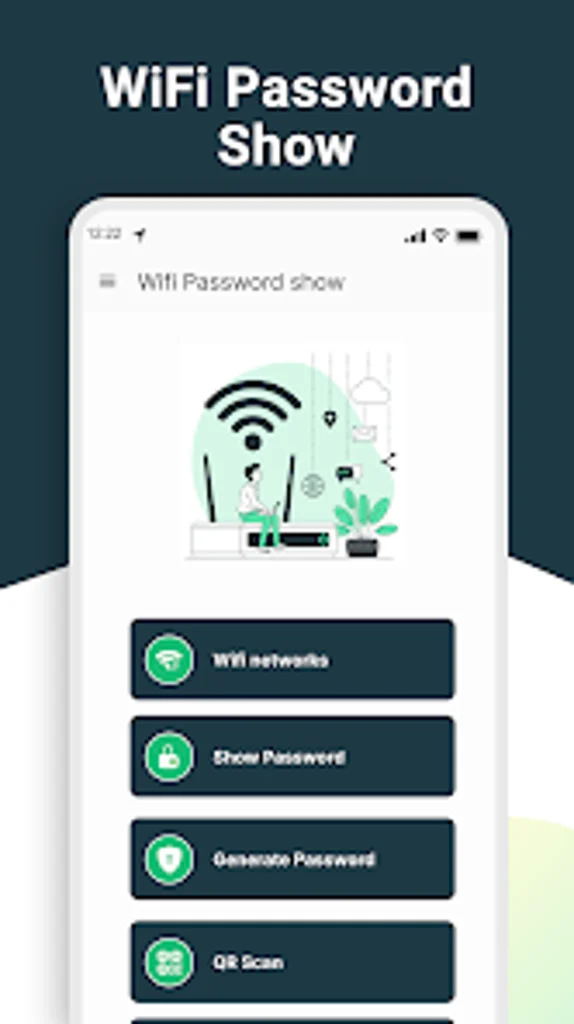
Start by picking a trusted app from the Google Play Store. Look for one with high ratings and recent updates. Avoid anything that asks for unnecessary permissions or has a suspicious name. Our recommended pick is WiFi Password Show (free, no ads). It’s lightweight and works on non-rooted devices. For a broader list, check out our roundup of best free wifi password recovery software.
Step 2: Download and Install the App
Open the Play Store, search for ‘WiFi Password Show’, and tap Install. The app is about 5 MB, so it finishes quickly. After installation, tap Open. If you’re on Windows, you don’t need an external app—the password is stored in the system. But for a simpler interface, you can use a portable tool like WirelessKeyView (free, no install). Just download the executable and run it.
Step 3: Grant Necessary Permissions
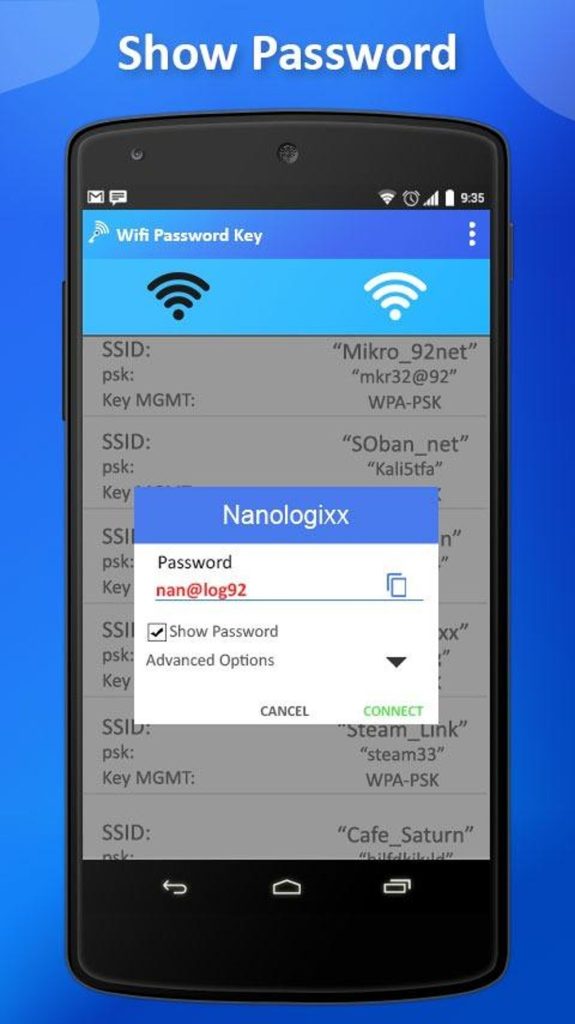
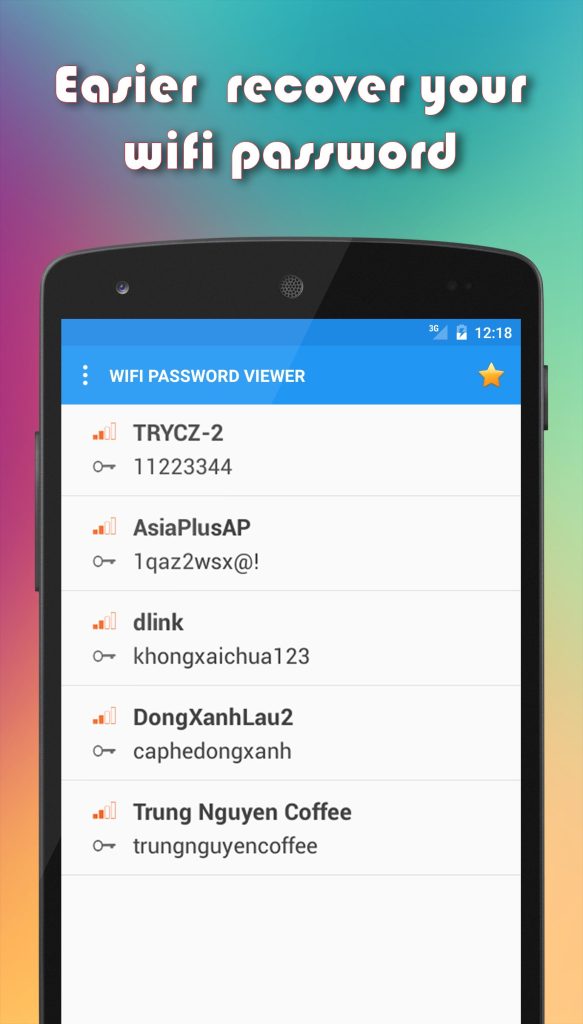
On Android, the app needs location permission to read saved WiFi networks (Google’s security requirement, even though it doesn’t actually locate you). Tap ‘Allow’ or ‘While using the app’. If it asks for ‘Accessibility Service’ or ‘Root’, you can deny those—the basic feature still works. The app will then display a list of all networks you’ve ever connected to, along with their passwords.
Step 4: View and Copy the WiFi Password
In the app, you’ll see each network’s name (SSID) and password. Tap on the password to copy it to your clipboard. Now you can paste it into the WiFi settings of a new device. If you’re using the Windows method, open Command Prompt as administrator, type ‘netsh wlan show profile name=YOUR_NETWORK_NAME key=clear’, and look for ‘Key Content’. That’s your password without extra software.
Step 5: Alternative Method – QR Code on Android
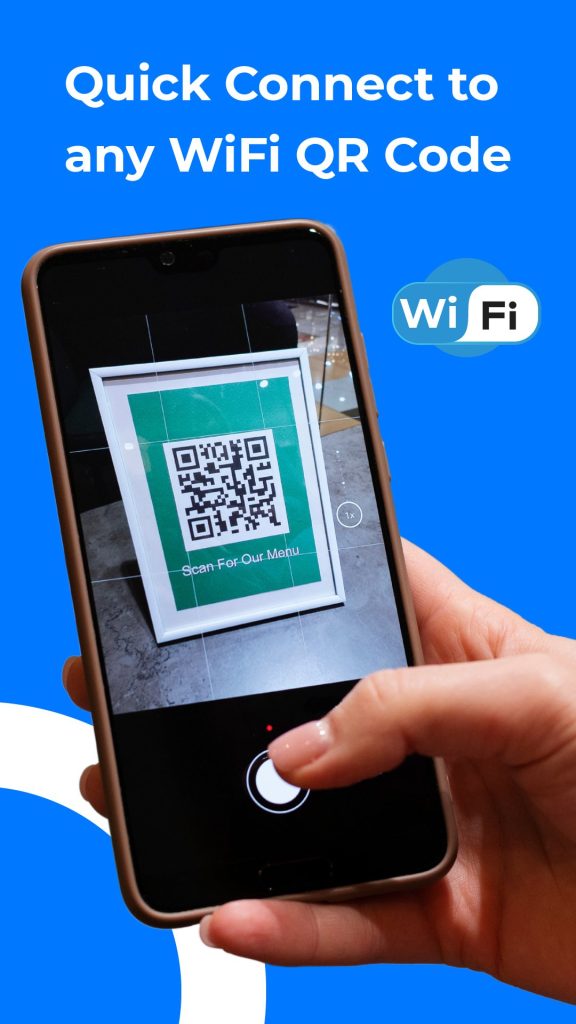
Most Android phones can generate a QR code for the current WiFi network. Go to Settings > Network & Internet > WiFi, tap the gear icon next to your connected network, and select ‘Share’. You’ll see a QR code that anyone can scan with their phone camera to join instantly. This is the simplest way to share without typing passwords—and it’s built-in, so no app needed. For more details, see our guide on wifi password recovery with android qr share.
Step 6: Recover from a Windows Laptop (No App Needed)
If you don’t want to download anything, use the built-in Windows tool. Press Win+R, type ‘cmd’, then right-click and run as administrator. In the command window, type ‘netsh wlan show profiles’ to list all saved networks. Then type ‘netsh wlan show profile name=NETWORK_NAME key=clear’. Look for ‘Key Content’ under Security settings. That’s your WiFi password. This method also works on older Windows 7 machines.
Common Pitfalls
- The app says ‘No root access’ and hides passwords. Most apps don’t need root, but if they do, search for a ‘no root’ version or use the built-in Android QR method. Our guide on free wifi password recovery for android covers no-root options.
- You get a ‘Network not found’ error on Windows. Make sure you’ve actually connected to that network before. If you haven’t, you’ll need to ask someone or use the router sticker. Try our method on how to recover wifi password without reset for more tips.
- The app crashes or shows blank screen. Reboot your phone, clear the app cache, or try an alternative like WiFi Key Recovery. Stick to reputable, lightweight software from trusted sources.
Where to Next
Now that you’ve recovered your password, consider writing it down somewhere safe or using a password manager. If you frequently forget passwords, check out our ultimate wifi password recovery guide for more methods across all devices. For laptop recovery, our wifi password recovery post on Windows and Mac has you covered. And if you ever need to recover passwords from a friend’s device, remember to ask permission first—these tools are for your own networks only.



