
Ever been stuck at a friend’s house or your own router because you can’t remember the WiFi password? You’re not alone. Whether you need to connect a new device, share access with a guest, or just want to get online without resetting the router, a forgotten WiFi password recovery app can save the day. By the end of this guide, you’ll know exactly how to use free, lightweight tools on Windows, Mac, and Android to pull up saved passwords in seconds.
We’ll cover the best free apps, including WirelessKeyView for Windows, Keychain Access for Mac, and WiFi Password Viewer apps for Android. No root required for most Android devices! You’ll also learn how to avoid common mistakes that lock you out of your own network. Let’s dive in.
What You’ll Need
- A computer or phone that has connected to the WiFi network before (password must be saved on it)
- For Windows: a free app like WirelessKeyView (download from a trusted source like NirSoft)
- For Mac: built-in Keychain Access (no download needed)
- For Android: a free app like “WiFi Password Recovery” from the Play Store, or use the built-in QR share feature
- Optional: USB cable if you want to transfer app to a non-internet device
Step 1: Download a Trusted WiFi Password Recovery App

Start by getting a reliable app. On Windows, head to NirSoft’s website and download WirelessKeyView (it’s portable, no install needed). On Mac, you already have Keychain Access in Applications > Utilities. On Android, search the Play Store for “WiFi Password Recovery” and pick one with high ratings and no ads. I recommend “WiFi Password Recovery” by Darken Developers – it’s free and works without root on most phones. If you need a no-install option for Windows or Mac, check our guide on free wifi password recovery no install.
Step 2: Run the App and Scan for Saved Networks

Open the app. On Windows, simply run WirelessKeyView.exe – it will instantly display all saved WiFi profiles and their passwords in plain text. On Mac, open Keychain Access, search for the network name, and double-click it; check “Show password” and enter your Mac password to reveal it. On Android, open the recovery app and grant it location permission if asked. It will scan and list every network your phone has connected to, usually with a “Show” or eye icon to reveal the password. For Samsung Galaxy users, there’s a dedicated method – see wifi password recovery for samsung galaxy.
Step 3: Reveal and Copy the Password
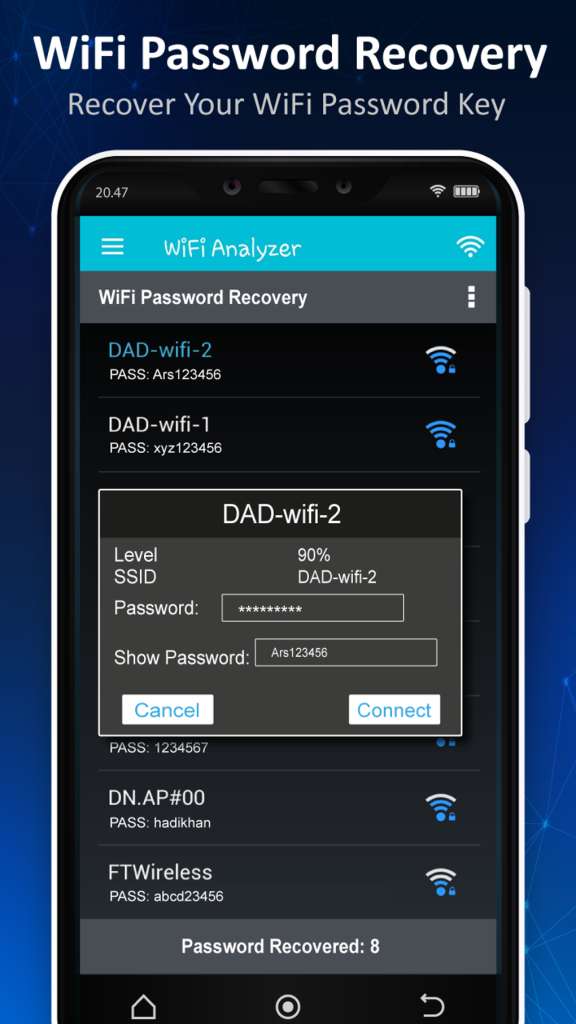
Once you see your network, tap or click to view the password. On Windows, right-click on the entry and select “Copy Password” to clipboard. On Mac, after entering your admin password, the password is displayed – you can copy it manually. On Android, most apps show a copy button or let you share via QR code. If your friend’s phone is nearby, using the QR share feature is super fast – that’s covered in our wifi password recovery with android qr share guide. For a more universal approach, the best free wifi password recovery software often includes export options.
Step 4: Save or Share the Password Securely
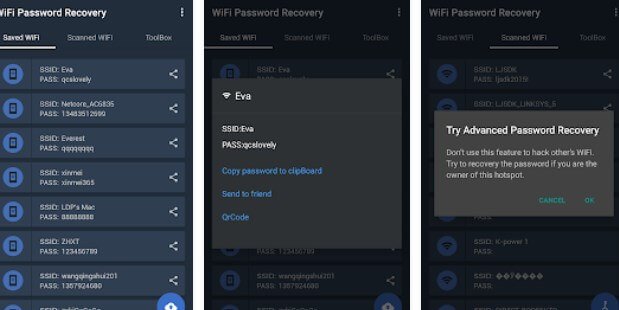
Now that you have the password, write it down in a safe place (like a password manager) or share it directly. On Android, you can generate a QR code that others can scan – no need to type. On Windows and Mac, consider saving the password in a secure note. If you need to recover the password on a device that never connected before, you might need to use a different method like looking at the router sticker or using a router backup. For that, see our article on wifi password recovery with android qr share. But often, the app method works even if you haven’t connected recently – as long as the profile is saved on your device.
Common Pitfalls
- 1. App requires root on older Android phones: Some older devices restrict password access. Use a built-in method like sharing from WiFi settings instead. If needed, our guide on recover wifi password on android phone covers alternatives.
- 2. Antivirus flags the tool: Portable keyloggers sometimes get false positives. Download only from official sources and whitelist the app temporarily.
- 3. Network not listed: The device must have successfully connected to the network before. If the profile was removed, you’ll need a different recovery method like resetting the router.
I used WirelessKeyView after a Windows update wiped my saved passwords – got them back in under a minute!
Happy user on Reddit
Where to Next
Now you’re a WiFi password recovery pro! If you ever need to recover a password on a Linux machine, check our wireless password recovery linux guide. Want more advanced tools? Browse our best free wifi password recovery software comparisons. And if you’re stuck after a system update, don’t miss the steps for recovering after Windows updates. Stay connected!



