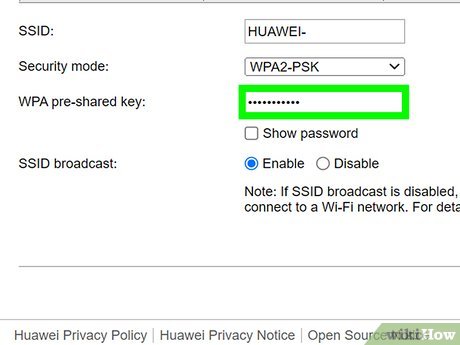
So you’ve forgotten the WiFi password on your Huawei phone or router — classic situation. Maybe a guest needs to connect, or you’re setting up a new device. The good news? You don’t need to call an IT guy or reset the whole network. Whether you own a Huawei Mate, P-series, or an old Honor, this guide will get you back online fast.
By the end of this tutorial, you’ll be able to view and share your saved WiFi password directly from your Huawei phone (no root required), or dig it out of your Huawei router’s admin panel. We’ll also cover free app options that work on any Android device. Let’s unlock that forgotten key.
What You’ll Need
- A Huawei smartphone (EMUI 10 or newer, Android 10+) or a computer
- Access to the Huawei router (physical access or admin credentials)
- A USB cable (if you prefer the PC method with HiSuite)
- WiFi connection to the network you want to recover (the phone must be connected)
- Optional: A QR code scanner app or a friend’s phone to scan
Step 1: Recover WiFi Password Directly on Your Huawei Phone (QR Code Method)
Huawei’s EMUI makes it super easy. If your phone is already connected to the WiFi network, you can generate a QR code that reveals the password. This is the fastest method and doesn’t require any third-party app.

- Open the **Settings** app on your Huawei phone.
- Tap **Wi‑Fi & Internet** (or just **Wi‑Fi** on older EMUI versions).
- Tap the gear icon (⚙️) next to the connected WiFi network name.
- Tap **Share** or the QR code icon (usually at the top right).
- Authenticate with your fingerprint, PIN, or pattern.
- The QR code appears. Ask your friend to scan it with their phone’s camera (or a QR scanner). The password is embedded in the code.
- To view the actual password: on some Huawei models (EMUI 11+), tap **Show password** below the QR code. Voilà — you can read it and type it in manually.
This method is essentially a form of wifi password recovery with android qr share. It works on any Android 10+ device, not just Huawei. For a broader guide, check out our article on free wifi password recovery for android.
Step 2: Use a Free WiFi Password Recovery App (No Root)
If the QR method doesn’t work (e.g., your Huawei is very old or the option is hidden), a free app can do the job. These apps read the stored WiFi credentials from your phone’s system files — but on modern Android, they usually require no root. We recommend apps like “WiFi Password Recovery” or “WiFi Key Recovery”. They are lightweight and safe.

- Open the Google Play Store on your Huawei phone.
- Search for “WiFi password recovery” (look for an app with good ratings).
- Install a trusted app such as “WiFi Password Recovery (Root)” or “WiFi Key Recovery”. Note: some claim root is needed, but many work on non-rooted EMUI if you grant a permission via ADB (see Step 3).
- Open the app and tap **Scan** or **Recover**.
- The app will list all saved WiFi networks with their passwords (asterisks will be revealed).
- Tap on the network you want, then copy or share the password.
If you’re wary about installing apps, we’ve reviewed several options in our guide on forgotten wifi password recovery app and wifi password recovery app free download. For Samsung users, similar steps apply — see wifi password recovery for samsung galaxy.
Step 3: Use ADB to Extract WiFi Passwords (Advanced, No Root)
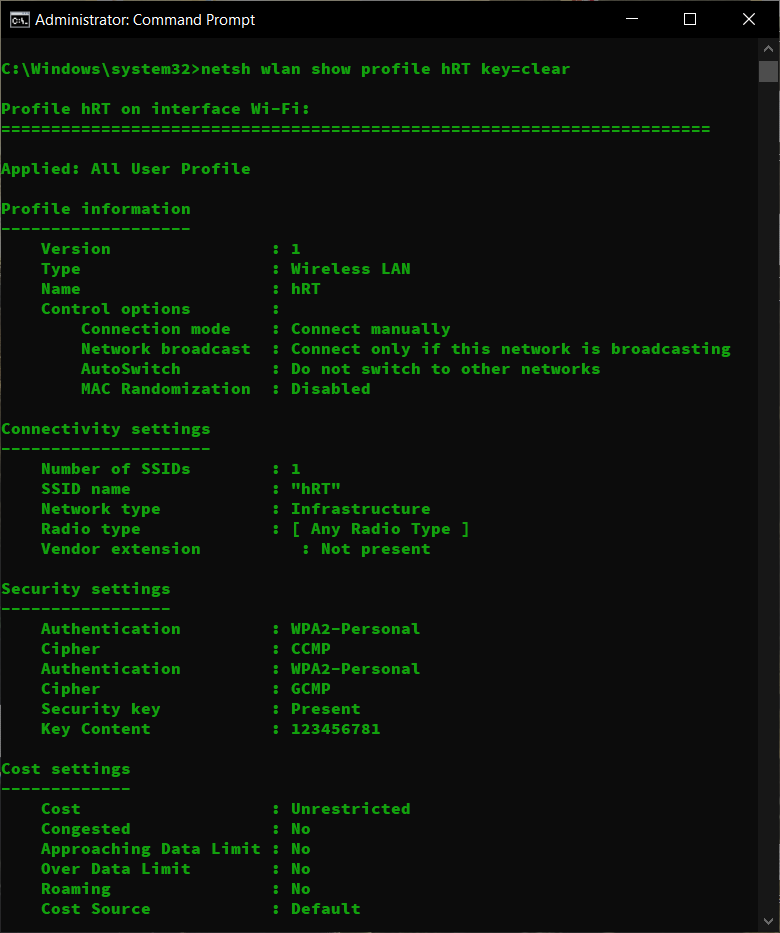
For those who prefer a PC-based method without installing apps, you can use Android Debug Bridge (ADB). This works on any Huawei phone with USB debugging enabled. It extracts the WiFi configuration file directly.
- On your Huawei phone, go to **Settings > About phone** and tap **Build number** 7 times to enable Developer options.
- Go to **Settings > Developer options** and enable **USB debugging**.
- Connect your phone to a computer via USB.
- On your PC, install ADB (download the Platform Tools from Google).
- Open a command prompt (Windows) or terminal (Mac/Linux) in the folder where adb.exe is.
- Type: `adb shell`
- Then type: `su` (if you have root, skip if not – many Huawei phones don’t have root). If you get a `$` prompt, type: `cat /data/misc/wifi/wpa_supplicant.conf`
- If you have root, the file path may be different; try: `cat /data/misc/wifi/WifiConfigStore.xml`
- The output will contain the SSID and the password (psk) in plain text.
This method is more technical, but it’s a surefire way to recover passwords without any app. It’s also a great addition to your personal wifi password recovery toolkit.
Step 4: Recover WiFi Password from Your Huawei Router
If you don’t have a connected device, or if you want to change the password, you can log into your Huawei router’s admin panel. The default gateway IP is usually 192.168.100.1 or 192.168.1.1.
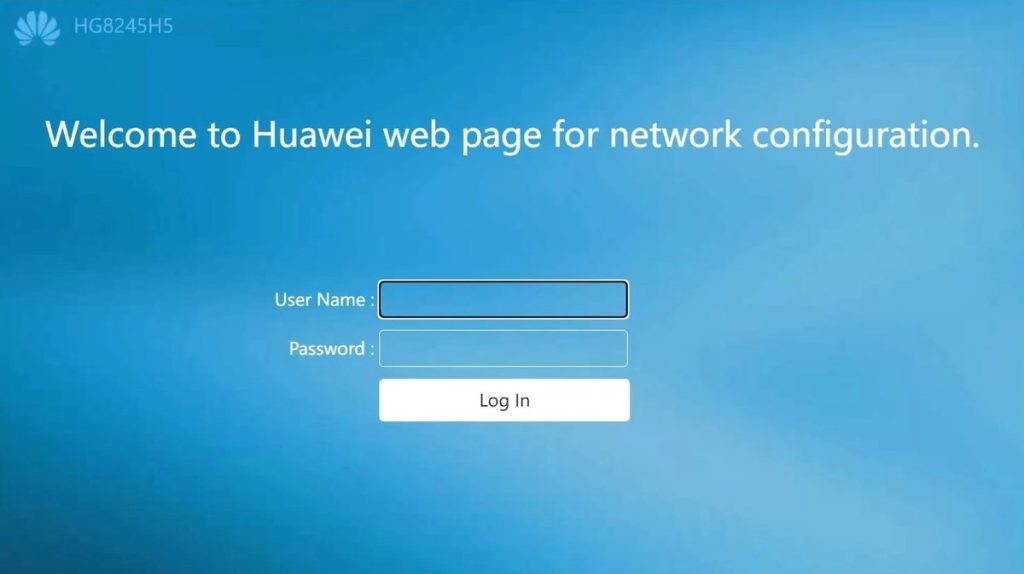
- Open a web browser and enter the router’s IP address (e.g., 192.168.100.1).
- Log in with the admin username and password (default is often “admin” for both, unless you changed it).
- Navigate to **Wi‑Fi Settings** or **WLAN**.
- Look for the current password in the **SSID** or **Pre‑Shared Key** field. It may be masked — click the eye icon to reveal it.
- Write it down or change it to something memorable.
If you’ve changed the admin password and forgotten it, you may need to reset the router to factory defaults using a paperclip on the reset button. That will erase all custom settings, so use it as a last resort.
Common Pitfalls
- **QR code not showing password:** On some older Huawei models (EMUI 9 or below), the QR code does not reveal the password text. You can still scan it with another phone, but if you need to type it, use the ADB method or an app.
- **App requires root:** Many WiFi password recovery apps in the Play Store need root access. If your Huawei is not rooted, the app won’t show passwords. Stick to the QR method or ADB instead.
- **Router admin password changed:** If you can’t log into the router because you forgot the admin password, you can’t recover the WiFi password that way. Factory reset the router (press and hold reset button for 10 seconds) — but that will also reset your whole network configuration.
Where to Next
You’re now equipped to recover any WiFi password from your Huawei phone or router. For more advanced scenarios, check out our ultimate guide on wifi password recovery. If you use a mesh system, see wifi password recovery on mesh wifi. And if you’re on Windows, our forgotten wifi password recovery command method is very handy. Stay connected!



