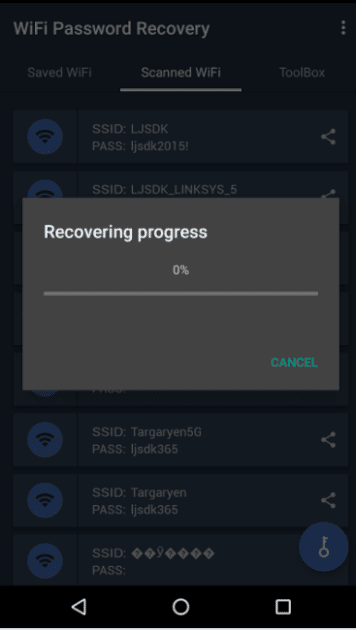
We’ve all been there: a friend asks for the WiFi password and your mind goes blank. Or you’re setting up a new device and the password sticker on the router is illegible. If you’ve got a device that’s already connected to the network, you can recover that password in seconds — no root access or sketchy apps required. This guide covers Windows, macOS, Linux, and even Android (without root), so you’ll be back online in no time.
By the end of this article, you’ll have the actual password text for your WiFi network, ready to type into any device. We’ll stick to built-in tools only – no downloads, no risks. Whether you’re a PC user, a Mac fan, or a Linux enthusiast, there’s a method for you.
What You’ll Need
- A computer (Windows, macOS, or Linux) that is already connected to the WiFi network you want the password for.
- OR an Android phone running Android 10 or later that is currently connected (for QR code sharing method).
- Administrator access on Windows (to run Command Prompt as admin) or your user password on macOS (to unlock Keychain).
- A few minutes of patience.
Step 1: Recover WiFi Password on Windows Using Settings
This is the friendliest method for Windows users. It works on Windows 10 and 11. Head to Settings > Network & Internet > Status > Network and Sharing Center (you can also search ‘Network and Sharing Center’ in the Start menu). Click on your WiFi network name (next to ‘Connections’). In the pop-up, click ‘Wireless Properties’, then go to the ‘Security’ tab. Check ‘Show characters’ and boom — your password appears.

Step 2: Windows – Use Command Prompt (Netsh Command)
If you prefer the command line or want to see all saved networks, open Command Prompt as Administrator (right-click Start > Command Prompt (Admin) or Windows Terminal (Admin)). Type: netsh wlan show profiles. Find the network name, then type: netsh wlan show profile name="YourNetworkName" key=clear. Look for ‘Key Content’ – that’s your password. This method is perfect for recovering multiple passwords, and you can even export profiles. For a deeper dive, check our guide on wifi password recovery with netsh command.

Step 3: macOS – Recover WiFi Password Using Keychain Access
On a Mac, open Keychain Access (via Applications > Utilities or Spotlight search). In the search bar, type your WiFi network name. Double-click the entry. Check the box ‘Show password’ and enter your Mac’s admin credentials. The password will be revealed. If you’re planning a system upgrade, you might want to backup wifi passwords before upgrade using this method.
Step 4: Linux – View Saved WiFi Password via Terminal
On most Linux distributions using NetworkManager, you can find passwords in the /etc/NetworkManager/system-connections/ directory. Open a terminal and run: sudo cat /etc/NetworkManager/system-connections/YourNetworkName. Look for the ‘psk=’ line. Alternatively, use nmcli: nmcli -s -g 802-11-wireless-security.psk connection show YourNetworkName. For more detail, check out our guide on view saved wifi password linux.

Step 5: Android (No Root) – Share WiFi via QR Code
Android 10 and above lets you share the WiFi password as a QR code without root. Go to Settings > Network & Internet > WiFi, tap the gear icon next to your connected network, then tap ‘Share’ (or ‘QR code’). A QR code appears – anyone can scan it with their phone’s camera to connect. If you need the text password, you can use a QR code reader app that extracts the text (the password is embedded as ‘S:yourpassword’). This works on most modern Android phones and is completely root-free.

Common Pitfalls
- Not running Command Prompt as Administrator on Windows – you’ll get an error. Always right-click and select ‘Run as administrator’.
- Forgotten macOS admin password – you need it to reveal the WiFi password in Keychain Access. If you’ve forgotten it, you may need to reset your Mac account password first.
- Android version too old – QR code sharing requires Android 10 or later. On older versions, you’ll need root or a third-party app. Alternatively, use a computer method.
Where to Next?
Now that you’ve recovered your WiFi password, you might want to explore more. Check out our wifi password recovery from pc guide for Windows-specific tips, or our wifi password recovery for windows users section if you need a refresher. For those who prefer a visual walkthrough, our step-by-step guide covers all platforms. And if you’re looking for methods that don’t require logging into your computer, see wifi password recovery no login required. Happy surfing!





