Have you ever stared at a new device, blankly wondering what your WiFi password is? You’ve definitely typed it into your iPhone before, but it’s buried somewhere in the settings. Good news: if you own a Mac and have iCloud Keychain turned on, you can pull that password out of the digital vault in about two minutes. This guide is for anyone who uses an iPhone and a Mac together and wants to recover a forgotten WiFi password without resetting the router or asking the neighbor. By the end, you’ll have the password in plain text, ready to share or type in.
The trick relies on Apple’s iCloud Keychain syncing your saved passwords across devices. Your iPhone stores the WiFi network credentials in its local keychain, and if iCloud Keychain is enabled, that data flows to your Mac automatically. Then you just need to open the Keychain Access app, search for the network, and reveal the password. It’s simple, secure, and doesn’t require any third-party software. Let’s get started.
What You’ll Need
- Your iPhone (any model with iOS 7 or later — virtually all modern iPhones)
- Your Mac (running macOS 10.9 Mavericks or later, which includes Keychain Access)
- iCloud Keychain enabled on both devices using the same Apple ID
- The admin password for your Mac (you need it to reveal saved passwords)
- The exact name (SSID) of the WiFi network you want the password for
Step 1: Verify iCloud Keychain Is Enabled
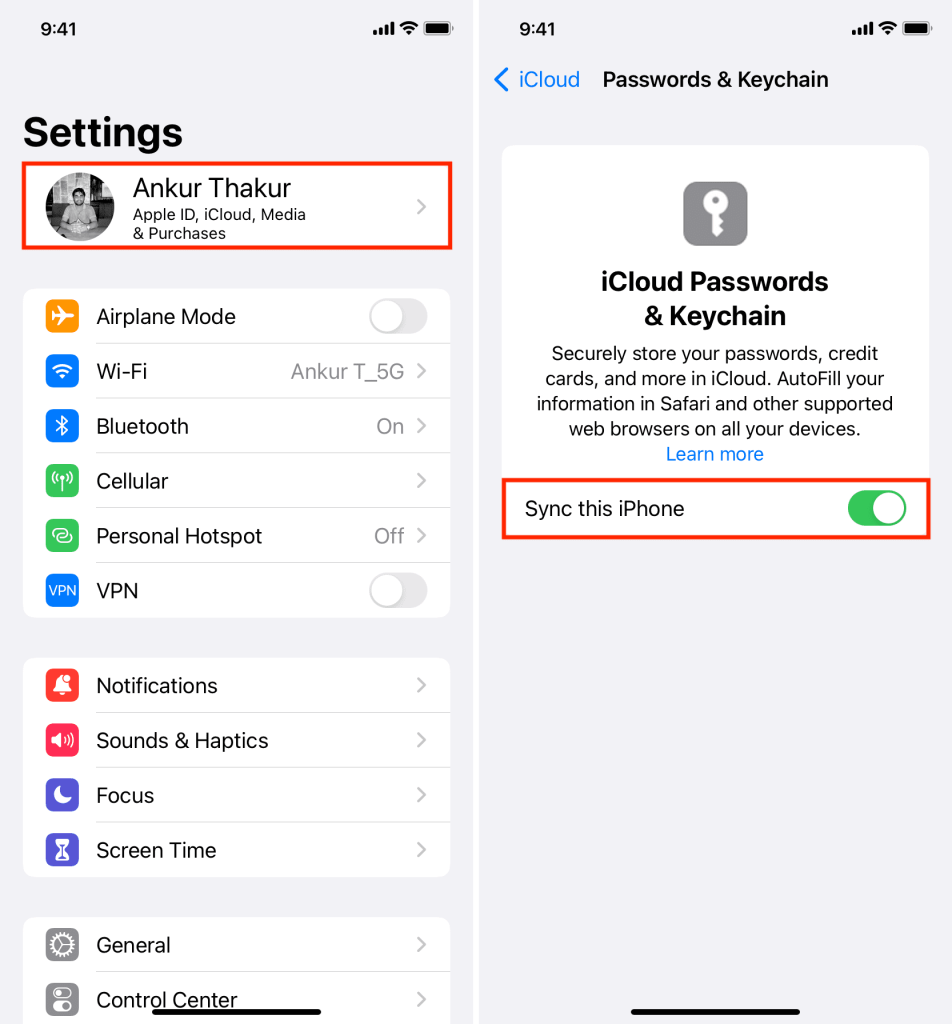
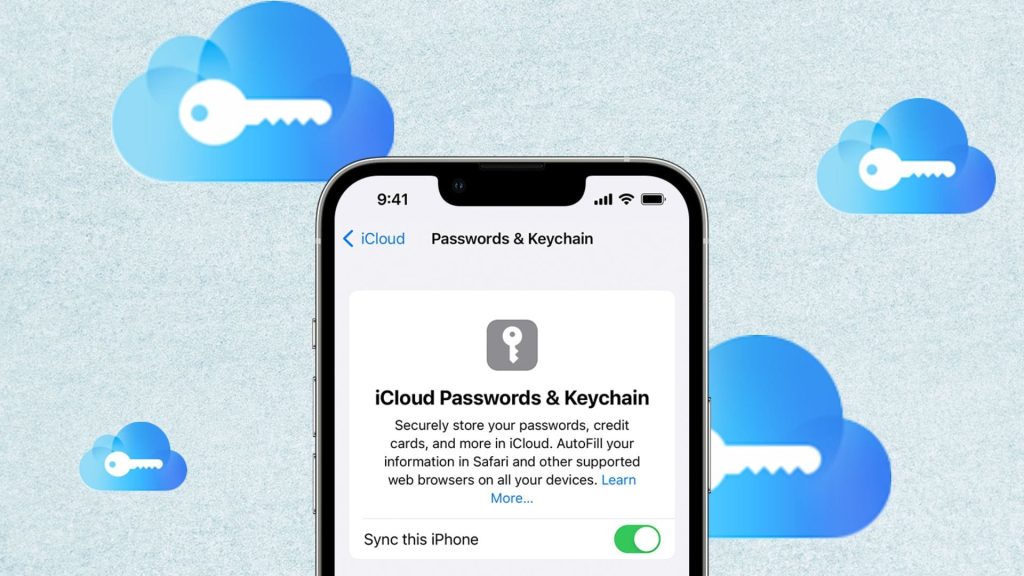
Before we dig into Keychain Access, make sure iCloud Keychain is turned on for both your iPhone and your Mac. On your iPhone, go to Settings > [your name] > iCloud > Passwords & Keychain, and toggle on ‘Sync this iPhone’. On your Mac, open System Settings (or System Preferences on older macOS) > Apple ID > iCloud > Passwords & Keychain, and turn on ‘Sync this Mac’. If it’s already on, you’re good. If you just enabled it, give it a minute to sync – grab a coffee.
Step 2: Open Keychain Access on Your Mac
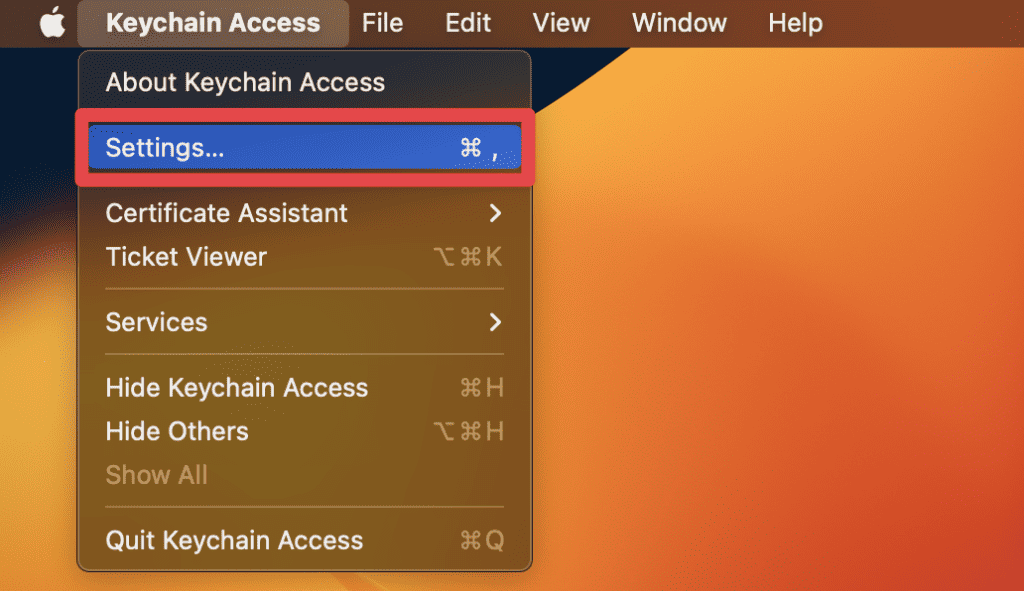
On your Mac, open the Keychain Access app. The fastest way: press Command + Space to open Spotlight, type ‘Keychain Access’, and hit Return. You can also find it in the Utilities folder inside Applications. The app shows a list of all your saved passwords, certificates, and secure notes. Don’t be intimidated – we’re only after one thing.
Step 3: Search for the WiFi Network Name
In the top-right search bar of Keychain Access, type the exact name (SSID) of your WiFi network. For example, if your network is called ‘HomeWiFi’, type that. Press Enter. The results should show an entry usually labeled with the network name and a type of ‘AirPort network password’. If you see multiple entries, pick the one that looks right. Double-click on it to open the details.
Step 4: Reveal the Password
In the pop-up window, check the box that says ‘Show password’. A dialog will ask for your Mac’s admin username and password. Enter them and click ‘Allow’. The password field will then display the plain text WiFi password. You can copy it by selecting the text and pressing Command + C, or simply write it down. Note: if the ‘Show password’ box is grayed out, make sure you selected the entry under ‘System’ keychain, not ‘iCloud’ – try switching keychains in the left sidebar.
Step 5: Copy or Share the Password
Now that you have the password, you can use it as needed. Paste it into a new device, share with a friend via AirDrop, or save it in a password manager. If you want to keep a backup for later, check out our wifi password recovery backup guide for safe storage tips. You’re done – that password is no longer lost.
Common Pitfalls
- iCloud Keychain not syncing: If you don’t see the network entry, your iPhone and Mac may not be synced properly. Go back to Step 1 and ensure both devices have the same Apple ID and that sync is enabled. Wait a few minutes or restart both devices.
- Wrong keychain selected: Keychain Access has multiple keychains (login, iCloud, system). The WiFi password usually resides in the System keychain. If you’re searching in iCloud keychain and it’s not there, switch to System in the left sidebar.
- Mac admin password forgotten: You need your Mac’s admin credentials to reveal the password. If you can’t remember them, you’ll need to reset your Mac password via Apple ID or recovery mode – that’s a separate process. Alternatively, you can try a third-party tool like the best wifi password recovery tool for mac we reviewed.
Where to Next
You’ve just retrieved a WiFi password from your iPhone’s keychain using your Mac. This method works for any network you’ve connected to on your iPhone. If you ever need to recover passwords on a different platform, check out our guides on wireless password recovery on mac, recovering passwords on an iMac, or even wifi password recovery without deleting profiles. Keep your passwords backed up so you’re never locked out again. Happy surfing!





