Forgot your WiFi password? Don’t panic. If you’re running Linux and have ever connected to that network before, the password is already saved on your system. This guide is for anyone — from Linux newbies to seasoned users — who wants to recover a WiFi password without installing extra software. By the end, you’ll be able to pull up the password for any saved network using just a few commands.
We’ll focus on the two most common methods: using the terminal with nmcli and reading the plain-text configuration files in /etc/NetworkManager/system-connections/. Both are safe, fast, and work on virtually any Linux distribution that uses NetworkManager (that includes Ubuntu, Fedora, Debian, Linux Mint, and many more). You don’t need any third-party tools — just a little confidence with the command line.
What You’ll Need
- A Linux computer with a saved WiFi network (one you’ve connected to before).
- Sudo access (you’ll need to run commands as root).
- Basic familiarity with the terminal — but don’t worry, I’ll walk you through every step.
Step 1 – Open Terminal and List Saved Connections
Fire up your terminal. On most distros you can press Ctrl+Alt+T. Once it’s open, run this command to see all saved WiFi connections:
nmcli connection show
You’ll see a list of connection names (they might be the SSID or a custom name). Note the exact name of the network whose password you want to recover. If you have many networks, grep can help — for example: nmcli connection show | grep -i mywifi. This method is similar to using a command line script on other operating systems, but here it’s built right in.

Step 2 – View the Password with nmcli
Now that you have the connection name, use the following command to display its details, including the password:
sudo nmcli -s connection show "YourConnectionName" | grep -i psk
Replace “YourConnectionName” with the actual name from Step 1. The -s flag shows secrets (like passwords). The output will contain a line like 802-11-wireless-security.psk: mySecretPassword. That’s your WiFi password! If you don’t see the psk field, try: sudo nmcli connection show "YourConnectionName" -s | grep 802-11-wireless-security.psk.
Step 3 – Alternative Method: Read the Configuration File
If nmcli isn’t available or you prefer a more direct approach, you can read the NetworkManager configuration files. They’re stored in /etc/NetworkManager/system-connections/. Navigate there:
cd /etc/NetworkManager/system-connections
List the files with ls. You’ll see one file per connection. Use sudo cat to view the file for your network:
sudo cat "YourNetworkName.nmconnection"
Look for the line that starts with psk= — that’s the password in plain text. This method works great if you need a backup guide for your wifi passwords; you can copy the entire file to a safe place.

Step 4 – Use GUI Tools (Optional)
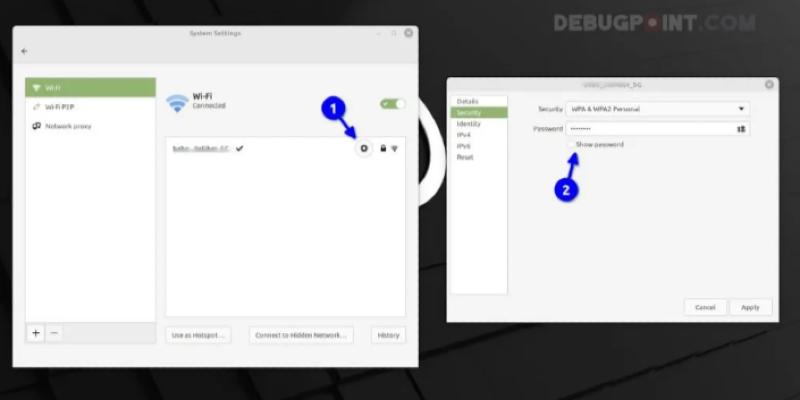
Not everyone loves the terminal. Many desktop environments let you view the WiFi password through the network settings. For example, in GNOME: go to Settings > Wi-Fi, click the gear icon next to your connected network, and look for the “Password” field. You may need to click a “Show password” checkbox or unlock with your user password. This method is especially handy on an office network managed by IT.

Common Pitfalls
- Forgetting sudo: Most commands require root privileges. If you get “permission denied” or “not authorized”, add
sudobefore the command. - Wrong connection name: The name used in
nmcli connection showmight be different from the SSID. Use the exact name as shown — case and spaces matter. If unsure, use tab completion or copy-paste. - Password stored in a keyring: Some distributions (like those using KDE) may store WiFi passwords in a wallet system like KDE Wallet. In that case, you’ll need to unlock the wallet with your master password before the plain text appears. The file method should still work, but the psk field might be encrypted.
Where to Next?
Now you can recover any saved WiFi password on Linux in seconds. If you need to do this on other devices, check out our guide to export wifi passwords with powershell on Windows. For a completely automated approach without touching the command line, see our list of free wifi password recovery without ads tools. And if you’re managing many networks, our wifi password recovery software roundup might save you time. Happy recovering!





