
So you forgot your WiFi password. No big deal — if you have a Windows laptop that’s already connected to that encrypted network, you can dig it out in minutes. This guide is for anyone who needs to recover a password from a network that uses WPA2 or WPA3 encryption. You don’t need any special tools, just a few commands.
By the end, you’ll have your password displayed on screen, ready to write down or share with another device. We’ll cover both Command Prompt and PowerShell methods, plus point you to some free software options if you prefer a graphical interface.
What You’ll Need
- A Windows PC (7, 8, 10, or 11) that is currently connected or has previously connected to the WiFi network.
- Administrator access on that PC.
- The name (SSID) of the network you want to recover.
Step 1: Open Command Prompt as Administrator
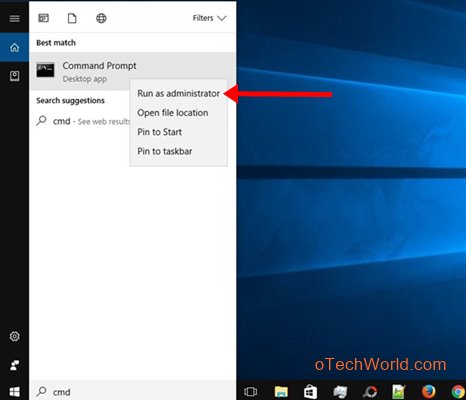
Click the Start button, type ‘cmd’, right-click ‘Command Prompt’, and select ‘Run as administrator’. If prompted by UAC, click ‘Yes’.
Step 2: List All WiFi Profiles
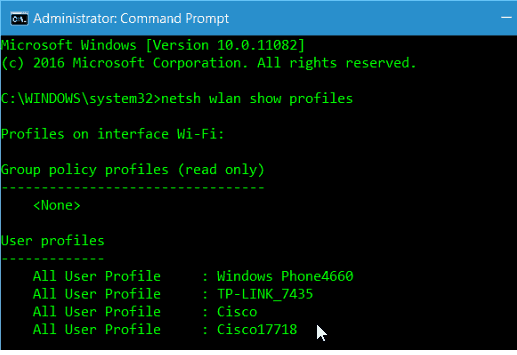
In the Command Prompt window, type the following command and press Enter: netsh wlan show profiles. This lists all WiFi networks your PC has ever connected to. Note the exact name of your network.
Step 3: Display the Password for Your Network
Now type: netsh wlan show profile name=”YOUR_SSID” key=clear (replace YOUR_SSID with your actual network name). Look for the line labeled ‘Key Content’ under ‘Security settings’ — that’s your password.
Alternatives: Using PowerShell or Third-Party Tools
If you prefer PowerShell, open it as Administrator and run: (netsh wlan show profile name=”SSID” key=clear | Select-String ‘Key Content’). Line.Trim() . Or use a dedicated tool like wifi password recovery software for a one-click solution. For more options, see our guide on export wifi passwords with powershell. If you need to recover all profiles at once, try wifi password recovery powershell all profiles.
Common Pitfalls
- Not running as administrator. If you skip this, you’ll get an error.
- Typing the SSID incorrectly. Use the exact name from the profile list.
- The network may not have saved the password (e.g., if you used a temporary login page). In that case, this method won’t work, but you can try wifi password recovery without formatting pc or other methods.
Where to Next
Now that you have your password, consider backing it up. Check out our guide on wifi password recovery command line script for automation, or free wifi password recovery without ads for a lightweight tool.





