
Ever needed to connect a new device to your WiFi but couldn’t remember the password? It’s a common frustration, especially if you typed it in years ago and it’s been auto-saving ever since. This guide is for Windows users who want to dig into their system’s saved network profiles and pull out that forgotten key using nothing but built-in tools. By the end, you’ll know exactly how to retrieve any WiFi password your Windows PC has ever connected to, either through a quick command line trick or by exploring the registry directly.
We’ll focus on the most reliable method using the `netsh` command, which exports the password in a readable XML file. Then we’ll show you where the same information lives in the registry for those who prefer a hands-on approach. No third-party software, no sketchy downloads—just your Windows machine and a few keystrokes.
What You’ll Need
- A Windows PC (Windows 7, 8, 10, or 11)
- Administrator account access
- The SSID (network name) of the WiFi you want to recover
- A text editor like Notepad (built-in)
Step 1: Open Command Prompt as Administrator

Click the Start button, type “cmd” or “Command Prompt”, right-click on the result, and select “Run as administrator”. If a User Account Control prompt appears, click “Yes”. This gives you the required permissions to access system network settings.
Step 2: List All Saved WiFi Profiles

In the command prompt, type the following command and press Enter:
netsh wlan show profiles
You’ll see a list of every WiFi network your PC has connected to. Find the SSID (network name) you need the password for and note it exactly, including any spaces or capitalization.
Step 3: Export the WiFi Profile

Now export that specific profile to an XML file. Type this command, replacing “YourNetworkName” with the actual SSID:
netsh wlan export profile name=”YourNetworkName” key=clear folder=C:UsersYourUsernameDesktop
The `key=clear` flag tells Windows to include the password in plain text. The folder path saves the file to your desktop for easy access. If you prefer a different location, change the path accordingly.
Step 4: Find the Password in the XML File

Navigate to the folder you specified (e.g., Desktop). You’ll see an XML file named after the WiFi network (e.g., “WiFi-YourNetworkName.xml”). Right-click it, open with Notepad, and look for a section called “. The password is right inside those tags, within a `protected` attribute or directly as the text. For example: `MyPassword123`. That’s your WiFi password!
Step 5: (Alternative) Direct Registry Access
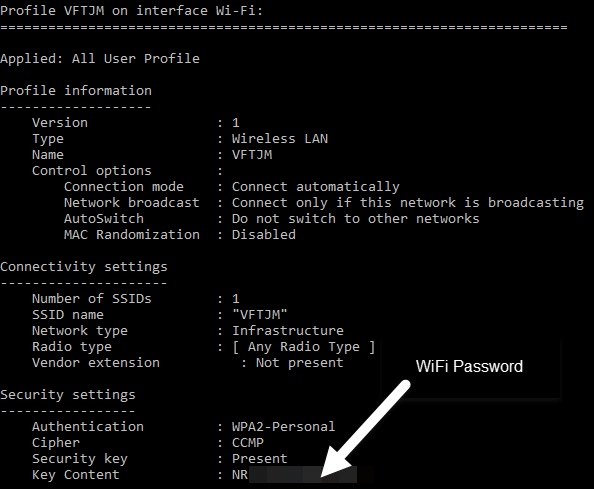
If you’re comfortable with the registry, the same information lives in `HKEY_LOCAL_MACHINESOFTWAREMicrosoftWindows NTCurrentVersionNetworkListProfiles`. But note: the password here is usually encrypted and not directly readable without special tools. For most users, the `netsh` export method above is much easier and faster. However, if you need to recover passwords from a system where `netsh` isn’t available (e.g., older Windows versions), the registry might hold the key in a binary blob. Decrypting that requires additional steps, so stick with the command line for simplicity.
Common Pitfalls
- The network hasn’t been saved. If the SSID doesn’t appear in `netsh wlan show profiles`, your PC never stored that password. You’ll need to enter it manually.
- Running without admin rights. If you get an “Access denied” error, you forgot to run Command Prompt as administrator. Close and reopen with the right privileges.
- The password appears as a long hex string or is missing. If you used `key=clear` and still see gibberish, your Windows version may store it differently. Try the registry method or use a dedicated tool like the ones in our wifi password recovery command line script guide.
Where to Next
Now that you’ve recovered a WiFi password, consider backing them all up with our wifi password recovery backup guide so you never lose them again. If you’re a PowerShell fan, learn how to export wifi passwords with powershell for automation. For situations where your PC is unbootable, check out wifi password recovery without formatting pc. And if you prefer a no-fuss GUI tool, try free wifi password recovery without ads. All these methods keep your passwords safe and accessible.





