Ever been in that awkward spot where you need to reconnect a guest laptop or your new phone to the office WiFi, but nobody wrote down the password? Or maybe you just got back from vacation and forgot the long random string your IT admin set. Don’t worry — this guide is for anyone who has ever connected to the office network before (or at least has a colleague who did) and needs to dig out that password without bugging IT. By the end, you’ll have the WiFi key in hand, whether you’re on Windows, macOS, or standing right next to the router.
We’ll cover the official methods built into your operating system, a quick trick via the router’s admin panel, and even how to do a wifi password recovery without admin rights if your IT locked down your machine. No weird third-party bloatware — just plain tools you already have.
What You’ll Need
- A computer currently connected to the office WiFi (or one that has connected before)
- Administrator access on Windows (not always required — we’ll show you a workaround)
- For macOS: your Mac login password (to unlock Keychain Access)
- For router method: the router’s admin login credentials (often printed on the sticker on the bottom or back of the router)
- A bit of patience — and permission from your office IT policy to do this
Step 1: Recover WiFi Password on Windows (GUI Method)
If your Windows PC is currently connected to the office WiFi, this is the fastest way. Go to the network icon in the system tray (bottom-right), right-click it, and select ‘Open Network & Internet Settings’. Then click ‘Status’ and under ‘Advanced network settings’, choose ‘Network and Sharing Center’. In the old-school window that pops up, click on your WiFi network name (the blue link next to ‘Connections’). A new window will appear — click ‘Wireless Properties’, then go to the ‘Security’ tab. Check the box that says ‘Show characters’, and boom — there’s your office WiFi password.

If you don’t have admin rights, don’t panic. You can try a command-line method that doesn’t require elevation — perfect for a wifi password recovery without admin rights. Open Command Prompt (not as administrator) and type netsh wlan show profile to list all saved networks. Then run netsh wlan show profile name="OfficeNetwork" key=clear (replace OfficeNetwork with your actual SSID). Look for the ‘Key Content’ line — that’s your password. This works on most Windows 10/11 machines even if your account is locked down.

For a more in-depth approach, you can also recover WiFi password using PowerShell. Open PowerShell and run (netsh wlan show profile) | Select-String ":(.+)$" | %{$name=$_.Matches.Groups[1].Value.Trim(); $_} | %{(netsh wlan show profile name="$name" key=clear)} | Select-String "Key Content". This dumps all saved passwords at once — handy if you need to backup your WiFi passwords later.

Step 2: Recover WiFi Password on macOS
On a Mac that’s already connected to the office WiFi, open ‘Keychain Access’ (you can find it via Spotlight or in Applications > Utilities). In the search bar, type your WiFi network name. You’ll see an entry with a lock icon — double-click it. Then check the box ‘Show password’. You’ll be prompted for your Mac login credentials (admin password). Enter it, and the WiFi password will be revealed. If you’re not an admin on the Mac, ask someone who is, or use the router method below.

Step 3: Recover WiFi Password via Router Admin Panel
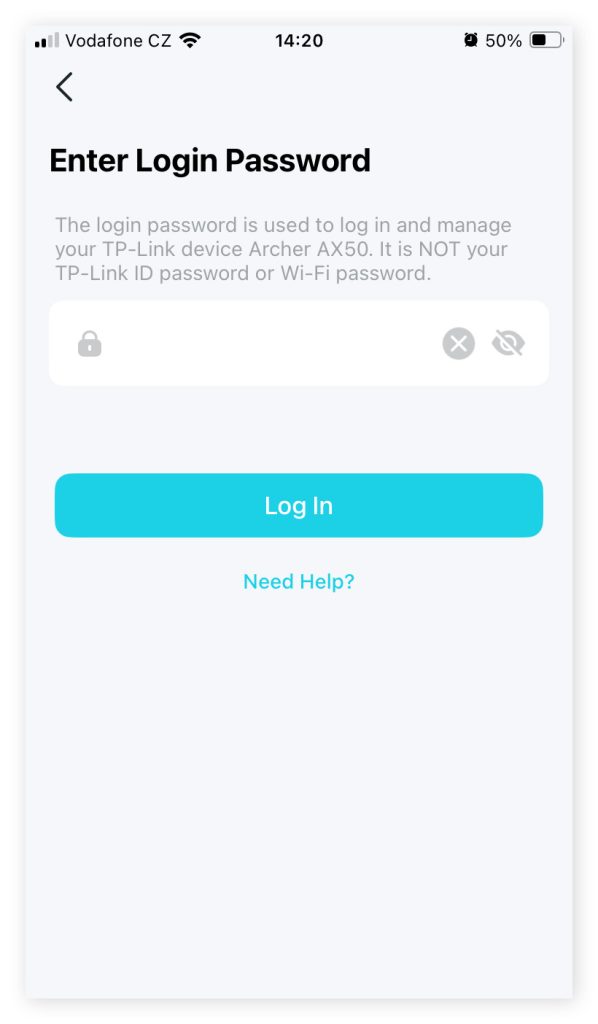
If you can’t access the password from your computer, walk over to the office router. On the back or bottom sticker you’ll usually find the admin username and password (something like admin/admin). Open a browser on any device connected to the network and type the router’s IP address (often 192.168.1.1 or 192.168.0.1 — check your network settings if unsure). Log in, then look for a tab like ‘Wireless’ or ‘WiFi Settings’. The password (passphrase) will be displayed there. This is the classic wifi password recovery via router. If the sticker doesn’t work, you’ll need to ask IT or check if they changed the defaults.
Step 4: Use a Previously Connected Device (Android or iOS)
On Android, if you have a phone that’s currently connected, go to Settings > Network & Internet > WiFi. Tap the gear icon next to the office network, then tap ‘Share’ (or a QR code icon). You may need to enter your phone’s PIN or pattern. The password will be shown below the QR code, or you can scan the QR with another device. On iOS, it’s trickier without jailbreak — check out our guide on wifi password recovery without jailbreak ios for alternative methods.
Common Pitfalls
- You don’t have admin rights on Windows: The netsh command with key=clear often works even without admin — try it before giving up. If it fails, the ‘Show characters’ box might be grayed out. Use the router method instead.
- The office network uses a captive portal or enterprise authentication (PEAP, TLS, etc.): In that case, the ‘password’ isn’t a simple string but a certificate or per-user credential. You’ll likely need to contact IT. This method works only for WPA2/3 personal networks.
- You can’t access the router admin panel: The default credentials may have been changed. Check with your IT department — they often disable router web access as a security measure. Alternatively, ask a colleague to share the password.
Where to Next
Now that you’ve recovered the office WiFi password, consider backing it up so you’ll never be stuck again. Check out our guide to backup your WiFi passwords — it works for both home and office networks. If you want to export all your saved WiFi passwords from Windows at once, there’s a script for that: export WiFi passwords with a simple script. And if you ever need to do this on a Mac without admin, we’ve got you covered with a wifi password recovery without formatting approach. Stay connected!



