
You’re on a road trip, go to connect your phone to your mobile hotspot, and—blank. You’ve completely forgotten the WiFi password. Don’t worry. This guide is for anyone who owns a portable hotspot (MiFi, Jetpack, or smartphone hotspot) and needs to dig that password out of the device’s settings. By the end, you’ll have the password in hand without resetting the device or losing any settings.
The beauty of this method is that it works on almost every hotspot device. You don’t need special software or hacking skills—just access to the admin panel through a browser. Let’s get started.
What You’ll Need
- Your hotspot device (charged and turned on).
- A computer, tablet, or phone with a web browser and Wi-Fi capability.
- The admin username and password (usually printed on the device sticker or in the manual).
- A few minutes of patience.
Step 1: Connect to Your Hotspot
Turn on your hotspot device. It will broadcast a Wi-Fi network (the SSID you see when scanning for networks). Use your computer or phone to connect to that network. If you’re already connected, you’re good. The admin panel is only reachable from inside the hotspot’s own network.

Step 2: Find the Gateway IP Address
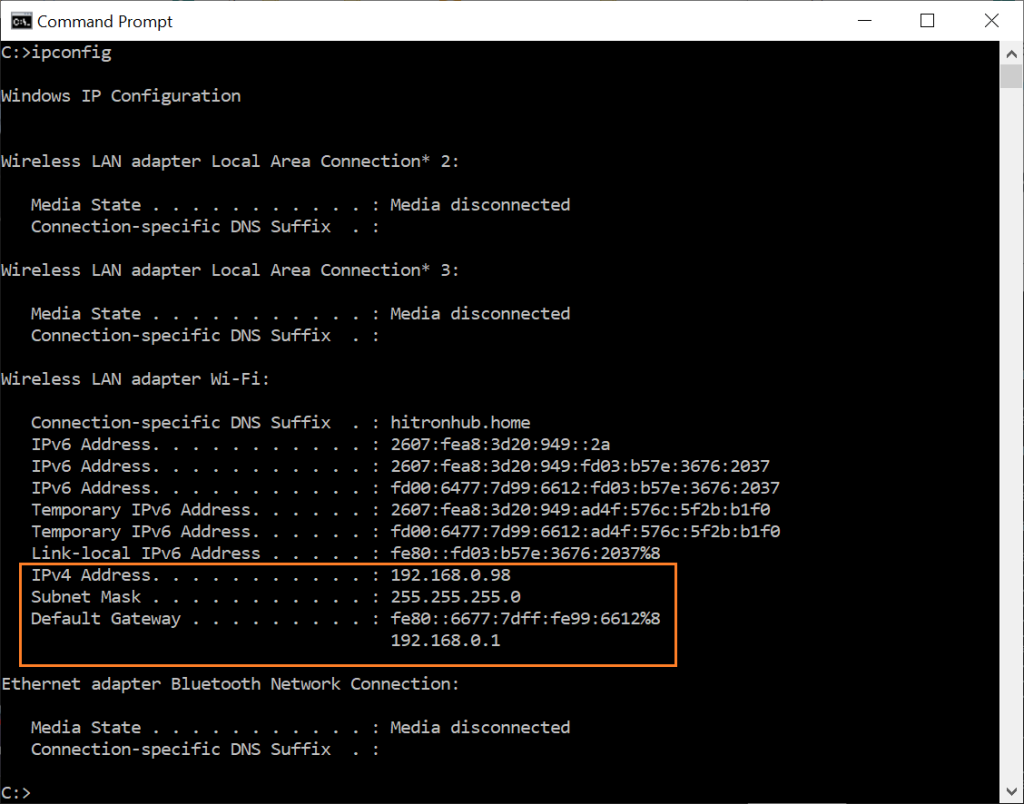
The admin panel lives at a specific IP address, usually something like 192.168.1.1 or 192.168.0.1. To find it on Windows, open Command Prompt and type “ipconfig” — look for “Default Gateway” under your active network adapter. On Mac, go to System Settings > Network, select your Wi-Fi connection, and find “Router.” On a phone, tap the network name in Wi-Fi settings and look for “Gateway” or “Router.” Write this IP down.
Step 3: Open the Admin Page
Open your preferred web browser and type the gateway IP into the address bar. Press Enter. You should see a login page. If nothing loads, double-check that you’re connected to the hotspot and that you typed the IP correctly.

Step 4: Log In
Enter the admin username and password. Many hotspots have the default credentials printed on a sticker underneath the device or in the box. Common combos are “admin/admin”, “admin/password”, or “admin/1234”. If you changed them and forgot, you may need to factory reset (more on that in pitfalls).

Step 5: Navigate to WiFi Settings
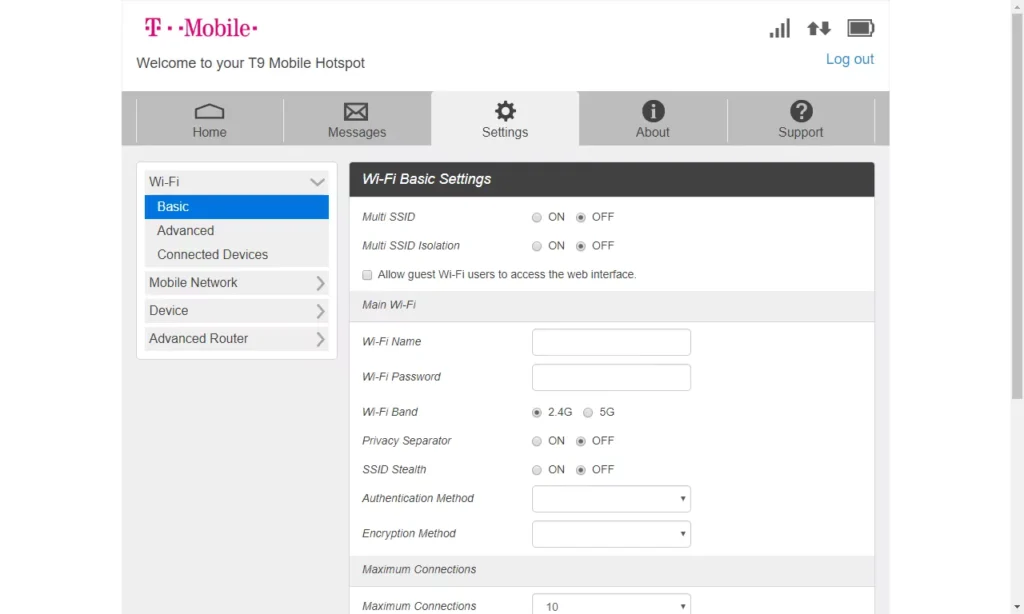
Once logged in, look for a menu item like “Wireless”, “Wi-Fi”, or “WLAN”. It might be under an “Advanced” tab. Click it to open the WiFi settings page. Here you’ll see the network name (SSID) and, crucially, a field labeled “Password”, “Pre-Shared Key”, or “Network Key“.
Step 6: Reveal the Password
Usually the password is hidden behind dots or asterisks. Look for a small eye icon, a “Show” checkbox, or a “Reveal” button next to the field. Click it—your password will display in plain text. Write it down or take a photo. If there’s no reveal option, you can change the password to something new (just make sure to save settings and reconnect your devices).
Common Pitfalls
- Wrong IP address: Some hotspots use 192.168.43.1 or 10.0.0.1. Check your device’s sticker or look up the model online.
- Forgot admin password: If the defaults don’t work and you haven’t changed them, the sticker is your best bet. Otherwise, a factory reset (usually a pinhole button) will erase all settings. After reset, reconnect and set a new admin password.
- Different menu layouts: Brands like Verizon, AT&T, and Netgear often customize their admin pages. If you can’t find WiFi settings, look for “Network”, “Security”, or “Basic Settings”. The manual (downloadable online) can help.
Where to Next
Now that you have the hotspot password, you might want to save it for later. Check out our router login guide for similar tricks on home routers. If you need to recover WiFi password on Windows after finding it, or show WiFi password on Mac, we’ve got you covered. For a broader overview, read the WiFi password recovery setup guide. And if you prefer a non-technical approach, try our WiFi password recovery without command line tutorial.



