
Ever been in that awkward situation where a friend asks for the WiFi password and you’ve completely forgotten it? If you’re on Android, you’re in luck — your phone stores every WiFi password you’ve ever connected to, and recovering them is easier than you think. No rooting required, no sketchy apps. By the end of this guide, you’ll be able to find any saved WiFi password on your Android device and share it with anyone.
This tutorial works for Android 10 and up, though I’ll also cover a method for older versions. Whether you want to recover a forgotten home network password or need to connect a new device without digging through old bills, these steps will save you time and frustration.
What You’ll Need
- An Android phone with an active WiFi connection you’ve used before
- A QR code scanner (most phones have this built-in, but you can also use Google Lens)
- Optional: A laptop/computer and a USB cable if your Android version is below 10
Step 1: Find the WiFi Network You Want to Recover
First, open your phone’s Settings app. Tap on ‘Network & Internet’ or ‘Connections’ (the name varies by manufacturer). Then select ‘WiFi’. You’ll see a list of available networks, but the one you’re currently connected to will be at the top. Tap on the gear icon next to the network you want to recover the password for.

Step 2: Use the QR Code to Reveal the Password
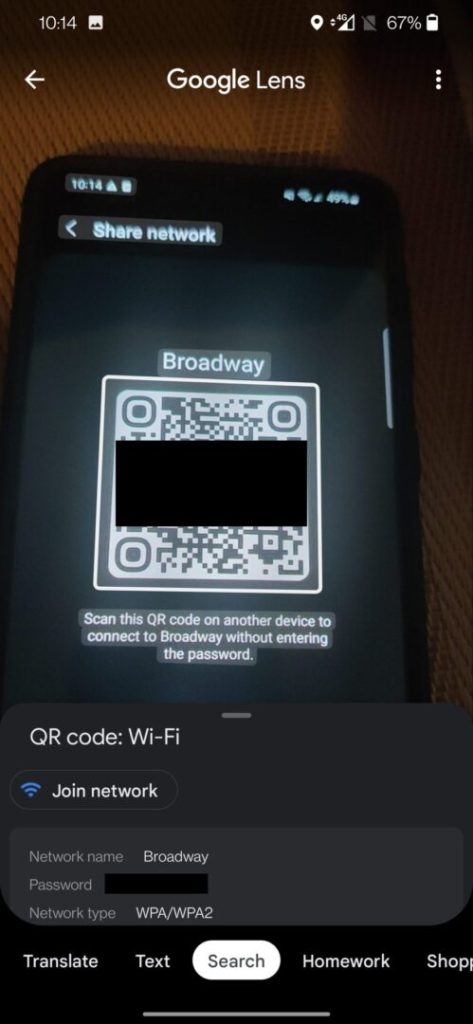
On most Android 10+ devices, you’ll see a ‘Share’ or ‘QR Code’ option. Tap it. A QR code will appear that contains the WiFi network name and password. But you can’t read a QR code with your eyes, right? Here’s the trick: take a screenshot of that QR code (press Power + Volume Down) or just look at it. Then open your camera app or Google Lens and point it at the QR code. A pop-up will show you the network name and password in plain text. Alternatively, you can use a third-party QR scanner app. Copy the password or write it down.
Step 3: For Older Android Versions (9 and Below) – Use ADB
If your phone is running Android 9 or earlier, the QR code trick might not be available. No worries — you can use ADB (Android Debug Bridge) from a computer. First, enable Developer Options on your phone: go to Settings > About Phone and tap ‘Build Number’ seven times. Then go to Settings > Developer Options and enable USB Debugging. Connect your phone to a computer with a USB cable. Download and install ADB on your computer if you don’t have it. Open a command prompt or terminal and type:
adb shell
Then run:
su
If your device is rooted. Otherwise, skip ‘su’ and try:
adb shell cat /data/misc/wifi/wpa_supplicant.conf
This will output a list of all saved WiFi networks with their passwords in plain text (look for the ‘psk’ field). Note: This requires root access. If your device isn’t rooted, you can still use ADB but must be connected to the network and have the phone unlocked — try:
adb shell cmd wifi list-networks
Then get details with:
adb shell cmd wifi get-network
This is more complex, so I recommend using the QR code method if your Android version supports it.

Step 4: Use a Third-Party App (Alternative)
There are apps on the Play Store that can show saved WiFi passwords without root, but they often require you to jump through hoops. For example, ‘WiFi Key Recovery’ (no root) uses a workaround by generating a QR code. My advice: stick with the built-in method first. If you absolutely need an app, look for one that doesn’t ask for unnecessary permissions and has good reviews.

Common Pitfalls
- The QR code method says ‘No internet’ or ‘Couldn’t load’ – This usually means you’re not connected to that network right now. The QR code only appears for currently connected networks. Reconnect to the network first.
- ADB says ‘device not found’ – Make sure USB debugging is enabled and your computer has the proper drivers. Try a different USB cable or port.
- The password shows as dots or asterisks – On some older Android versions, the password is hidden. That’s why we use the QR code or ADB method. Don’t rely on the ‘show password’ checkbox in WiFi settings; it often doesn’t work for saved networks.
Where to Next
Now that you’ve mastered wireless password recovery android, you might want to recover passwords from other devices. Check out our guide to recover wifi password windows 10 using built-in tools, or if you have an iPhone, see our wifi password recovery tutorial iphone. For a more comprehensive approach, our complete wifi password recovery solutions covers all platforms. And if you’re looking for a no-root method specifically, we have a dedicated wifi password recovery no root android guide.



