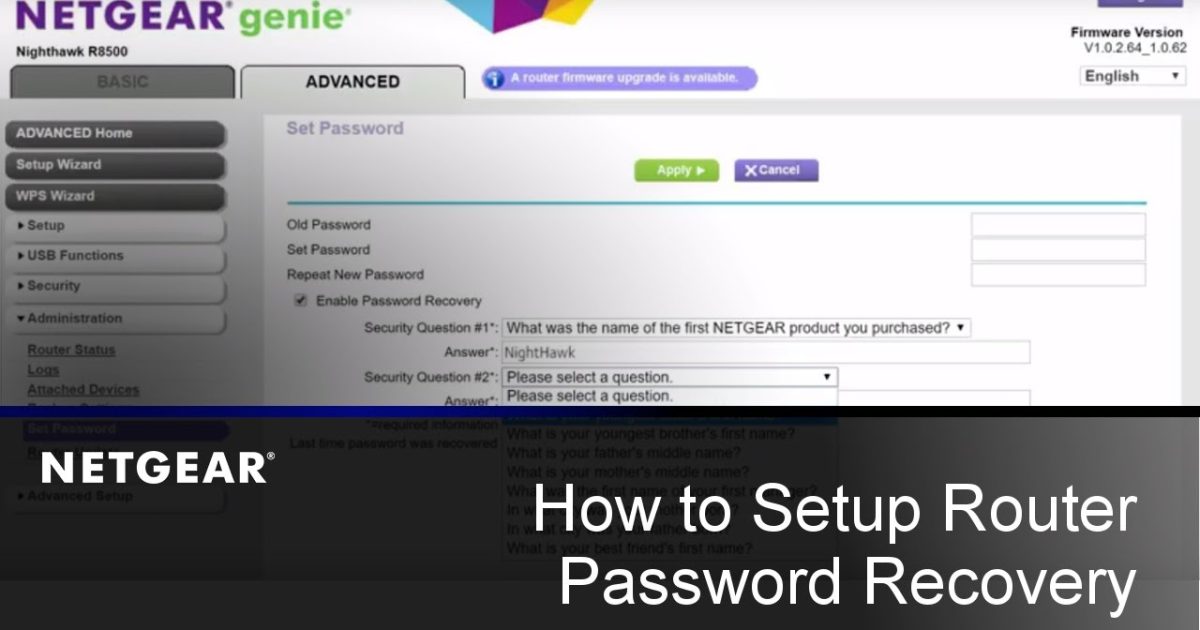
So you’ve forgotten your Netgear WiFi password — it happens to the best of us. Maybe you just got a new device, or a friend is over and needs to hop on your network. No biggie. This guide is for anyone with a Netgear router who wants to get back online without calling their ISP. By the end, you’ll have your WiFi password in hand, whether it’s displayed on a sticker, hidden in the router settings, or recoverable via a quick factory reset.
The methods here are beginner-friendly and don’t require any special software. You’ll just need a computer or phone that’s currently connected to your network (or at least can connect via Ethernet). If you’ve ever changed your router’s admin password, dig that out too — otherwise, we’ll cover default logins and even how to recover your forgotten WiFi password from your router through physical access. Let’s dive in.
What You’ll Need
- A computer, tablet, or smartphone that can connect to your Netgear router (WiFi or Ethernet)
- Your router’s IP address (usually 192.168.1.1 or 192.168.0.1)
- Your router’s admin username and password (if you changed it from the default)
- Physical access to the router (to see the sticker or press the reset button)
If you don’t have any device connected via WiFi, using an Ethernet cable between your computer and the router works perfectly. Don’t worry if you’ve never done this before — these steps are as straightforward as they come.
Step 1: Find Your Router’s IP Address
First up, you need to know the IP address of your Netgear router. This is the key to accessing the admin panel. On Windows, open Command Prompt (search “cmd”) and type ipconfig. Look for “Default Gateway” under your active network connection — that’s your router’s IP. On Mac, go to System Settings > Network, click your connection, then find “Router”. On mobile, check your WiFi settings for “Gateway” or “Router”. For most Netgear routers, it’s usually 192.168.1.1 or 192.168.0.1.
If you already know your router’s IP, skip ahead. Otherwise, write it down — you’ll type this into your browser’s address bar next. This is a common technique for wifi password recovery using your IP address, and it works on nearly any router brand.
Step 2: Log Into Your Netgear Router
Open a web browser (Chrome, Safari, Edge — anything works) and type your router’s IP address into the address bar. Press Enter. You should see a login page for your Netgear router. Enter the admin username and password. If you’ve never changed them, the default is usually admin for both fields (or username admin and password password). Check the sticker on your router if you’re unsure.

If you can’t log in because you changed the admin password and forgot it, don’t panic. You can perform a factory reset (Step 5) or use easy wifi password recovery software that might help. But first, let’s assume you’re in — once logged in, the WiFi password is just a few clicks away.
Step 3: Navigate to Wireless Settings
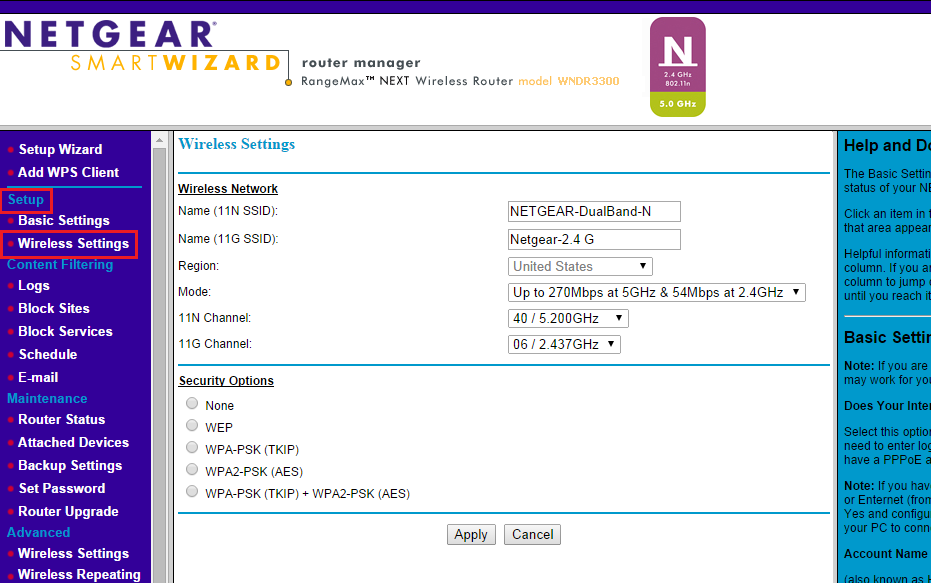
After logging in, you’ll see the router’s dashboard. Look for a menu item like “Wireless”, “WiFi”, or “Settings”. On most Netgear routers, it’s under “Basic” or “Advanced” — often labeled “Wireless Settings” or “WiFi Settings”. Click it. You should see your network name (SSID) and a field for the password or passphrase. It might be hidden behind asterisks, but there’s usually a checkbox or button to reveal it.

Write down the password exactly as shown (case-sensitive). If you want to change it, you can type a new one here — just make sure to click “Apply” or “Save” at the bottom. And that’s it! You now have your WiFi password. If you’d like to export wifi passwords windows for other networks, check out our dedicated guide, but for Netgear this is the simplest route.
Step 4: Use the Default Sticker on Your Router
No access to the admin panel? No problem. Flip your Netgear router over and look for a sticker. It usually lists the default WiFi network name (SSID) and password (often called “Network Key” or “Password”). This sticker applies unless you’ve changed the WiFi password in the past. If you haven’t changed it, you can use those credentials right now.
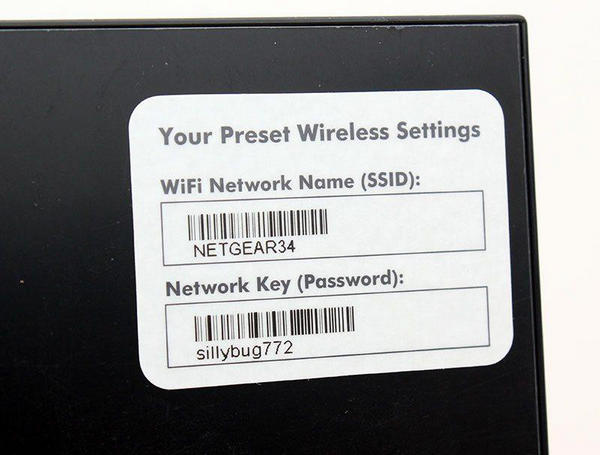
This method is super quick — just grab your phone, scan the sticker, and connect. It’s one of the most reliable modern wifi password recovery methods because it doesn’t require any tech skills. If the sticker is worn out or missing, proceed to Step 5.
Step 5: Factory Reset Your Netgear Router (Last Resort)
If you’re locked out of both the admin panel and the sticker is no help, a factory reset will wipe all custom settings, including your WiFi password. But it also resets the admin login to default, so you can set a new password. Locate the small reset button on your router — it’s usually recessed and requires a paperclip or pin. Press and hold it for about 10 seconds while the router is powered on. The lights will flash, and the router will reboot.

After resetting, follow Step 2 using the default admin credentials, then go to Wireless Settings to set a new WiFi password. Note that this will disconnect all your devices, so you’ll need to reconnect them later. If you need to recover wifi password on macbook after a reset, our guide on that can help re-sync your saved networks.
Common Pitfalls
- **Wrong IP address**: If you can’t reach the login page, double-check the IP with
ipconfigor look at your router’s manual. Some Netgear models use 192.168.0.1 or even 10.0.0.1. - **Forgot admin password and no sticker**: The only way out is a factory reset. But be aware that some old Netgear routers have default passwords printed on the bottom — check for a tiny label near the reset button.
- **Changes not saving**: After updating the WiFi password in the admin panel, you must click “Apply” or “Save” before leaving the page. If you navigate away, changes are lost.
I had a Netgear router for years and always thought I’d need a technician to recover the password. This guide made it so easy — found the sticker and was online in 2 minutes.
— Happy user
Where to Next
Now that you’re back online, consider backing up your router settings so this doesn’t happen again. If you’re curious about other ways to retrieve lost credentials, check out our guides on easy wifi password recovery software and modern wifi password recovery methods. You can also recover wifi password on macbook if you use Apple devices. Stay connected!



