
Got a Linksys router but can’t remember the WiFi password? No worries—this guide is for anyone who’s ever typed in a password once and then promptly forgot it. By the end, you’ll have your WiFi key in hand, whether you dig it out of the router’s settings or spot it on the sticker. We’ll keep it simple: no extra software, just you and your router.
What You’ll Need
- A Linksys router (the one you’re trying to recover the password from)
- A computer or phone connected to that router’s network (via WiFi or Ethernet)
- A web browser (Chrome, Firefox, Safari, Edge—pick your poison)
- The router’s admin username and password (if you changed it, you’ll need that; the default is usually ‘admin’ for both username and password, unless it’s labeled differently)
- A few minutes of your time
Step 1: Find Your Router’s IP Address
To log into your Linksys router, you’ll need its IP address. The most common ones are 192.168.1.1 or 192.168.0.1, but if those don’t work, here’s how to find the exact one. On Windows, open Command Prompt, type ‘ipconfig’, and look for ‘Default Gateway’. On Mac, go to System Settings > Network > Wi-Fi > Details, and it’ll be listed under Router. On phone, you can usually find it in the Wi-Fi settings under ‘Gateway’ or ‘Router’.

Step 2: Log Into the Router’s Web Interface
Open your web browser and type the IP address you found into the address bar. Hit Enter and you’ll see a login page. Enter your router’s admin username and password. If you never changed them, the default is usually ‘admin’ for both fields. If that doesn’t work, check the sticker on the router itself—it often has the default credentials.

Step 3: Navigate to Wireless Settings
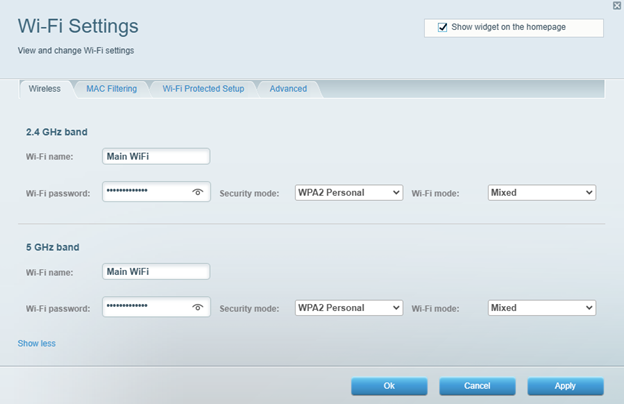
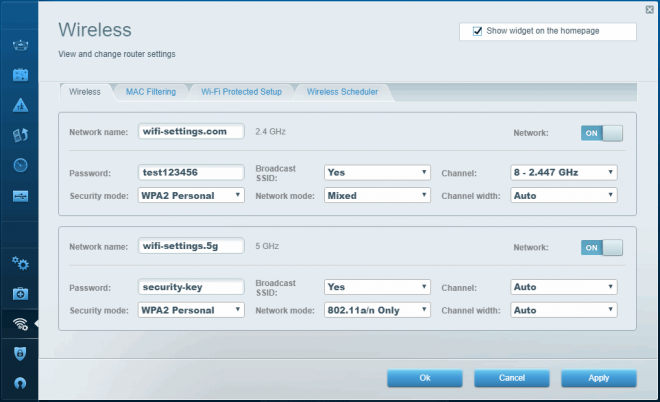
Once logged in, you’ll see the router’s dashboard. Look for a tab or menu item called ‘Wireless’, ‘Wi-Fi’, or ‘Network’. Click on it. Then find ‘Wireless Security’, ‘Security’, or ‘Settings’—the exact name depends on your model. You’re almost there.
Step 4: Locate the WiFi Password (Security Key)
In the security section, you’ll see a field labeled ‘Passphrase’, ‘WiFi Key’, ‘Network Key’, or ‘Pre-Shared Key’. The password will be shown in plain text (sometimes dotted out, but there should be a ‘show’ checkbox). Write it down or take a photo. That’s your WiFi password! If you see a ‘Security Mode’ dropdown, make sure it’s set to something like WPA2 or WPA3.
Step 5: Alternatively, Check the Router Label
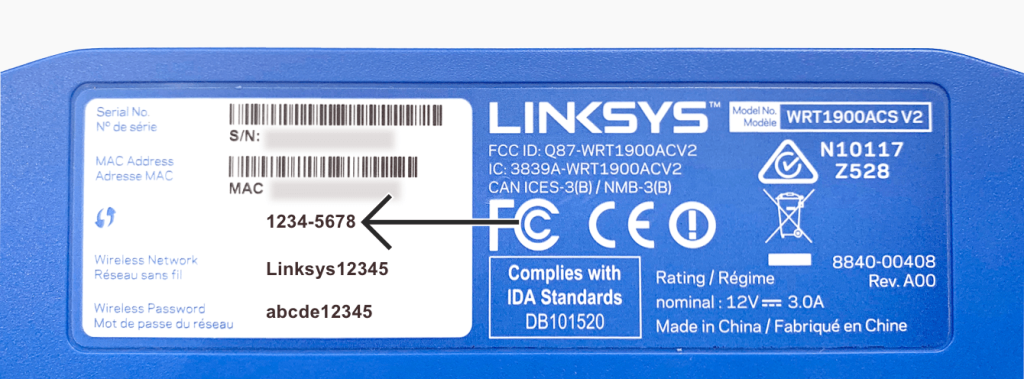
If you never changed the password, just flip your Linksys router over. There’s usually a sticker on the bottom or back that lists the default SSID (network name) and password. This is the fastest method—no logging in required. Keep in mind, if you or someone else changed the password, the sticker won’t help.
Common Pitfalls
- Forgot the admin login too? Some Linksys routers have a reset button on the back. Press and hold it with a paperclip for 10 seconds to restore factory defaults (this erases all custom settings, but you’ll get back in). After reset, use the default admin credentials from the sticker and set up your WiFi again.
- The IP address isn’t loading? Make sure your device is connected to the router (even if it says ‘No Internet’, you can still reach the router’s local IP). Also check you’re typing the IP exactly—no https:// or www, just numbers and dots.
- Password field is empty or grayed out? Your router might have an older security mode like WEP. In that case, the password might be a hexadecimal key (letters and numbers) that you can still copy. Or the field might be read-only—just note the characters shown.
Where to Next
Now that you’ve got your Linksys WiFi password, you’re all set. If this method didn’t work for you (maybe you couldn’t log in), check out our wifi password recovery from pc guide for a different approach. For a more general overview, see our step-by-step guide for beginners. If you have a different brand like D-Link, we’ve got a dedicated post to recover wifi password from d link router. And if you prefer using your computer’s stored passwords without touching the router, try our wifi password recovery process at home or wifi password recovery without root methods. Finally, for Windows users, our wifi password recovery via control panel might be just what you need.



