If you’ve ever typed in your WiFi password on a new device and instantly forgotten it, you’re not alone. Asus routers are super reliable, but their default passwords can be tricky to remember—and if you changed it, it’s even easier to lose track. This guide is for anyone who needs to recover their Asus WiFi password without resetting the router and reconfiguring everything from scratch. By the end, you’ll have your network key in hand, either by accessing the router’s admin panel or by pulling it from a computer that’s already connected.
We’ll cover two main methods: the router admin route (works for any device with a browser) and the Windows saved-network trick. Both are simple and don’t require any special tools. So grab your laptop or phone, and let’s get started.
What You’ll Need
- An Asus router (any model works)
- A device that can connect to the router via Ethernet or WiFi (if you’re still connected)
- The router’s admin username and password (usually ‘admin’ / ‘admin’ unless you changed it)
- A web browser (Chrome, Firefox, Safari, etc.)
- (Optional) A Windows PC that’s already connected to the Asus WiFi
If you don’t have the admin credentials, don’t panic—we’ll mention a workaround in the pitfalls section. Also, if you’ve never set up the router yourself, check the sticker on the back or bottom for the default admin login info.
Step 1: Access the Asus Router Admin Page
First, make sure your device is connected to the Asus router (either via Ethernet or WiFi). Open your browser and type in the router’s IP address. For most Asus routers, it’s either 192.168.1.1 or 192.168.0.1. You can also try router.asus.com. Hit Enter.
Step 2: Log In with Admin Credentials
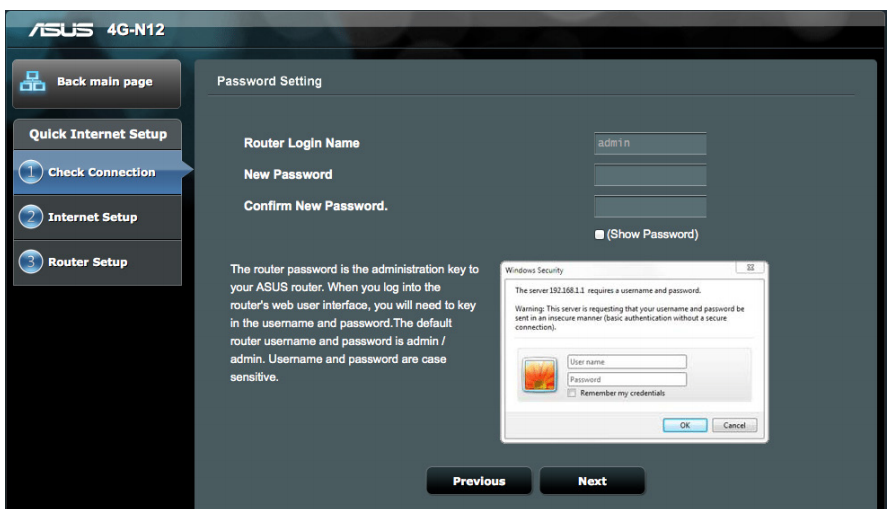
You’ll see a login screen. Enter the router’s admin username and password. If you never changed them, the defaults are usually ‘admin’ for both fields. Click ‘Sign In.’ If you get an error, try common passwords like ‘password’ or check the sticker on the router. For a full walkthrough on logging in, check out how to log into your router.
Step 3: Navigate to Wireless Settings
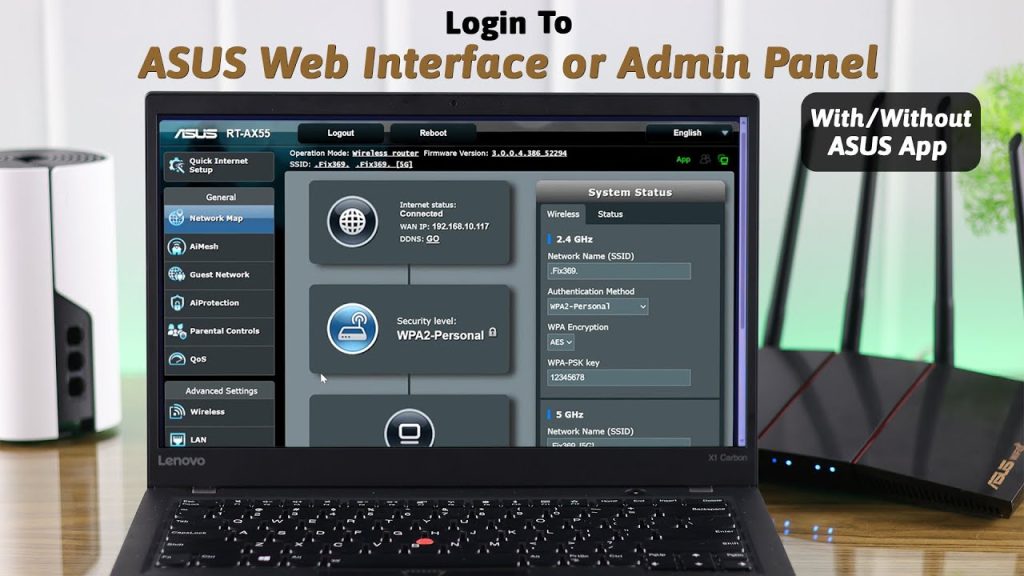
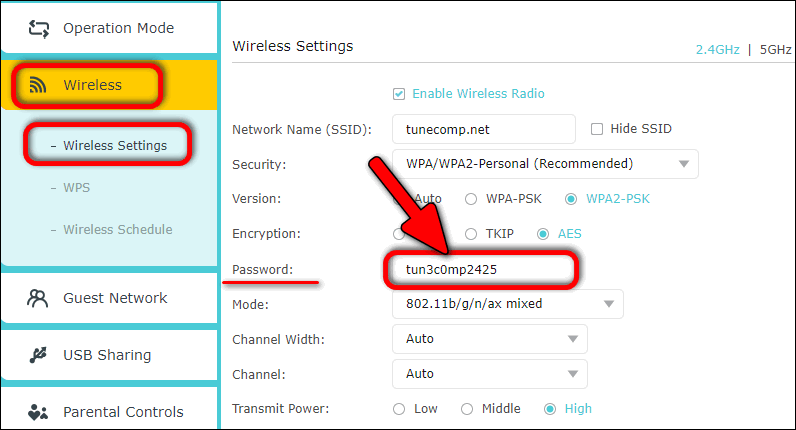
Once logged in, look for a menu on the left. Click ‘Wireless’ or ‘Advanced Settings’ > ‘Wireless.’ On some models, it’s under ‘Network’ or ‘WiFi.’ The exact wording may vary, but you’re looking for the section that controls your WiFi networks (2.4GHz and 5GHz).
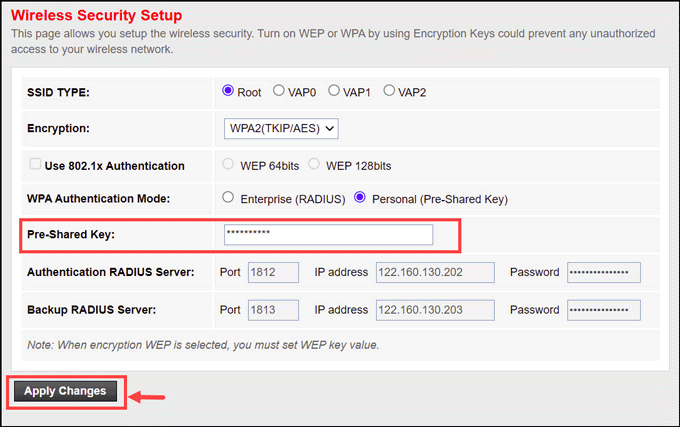
Step 4: Find the WiFi Password (Pre-Shared Key)
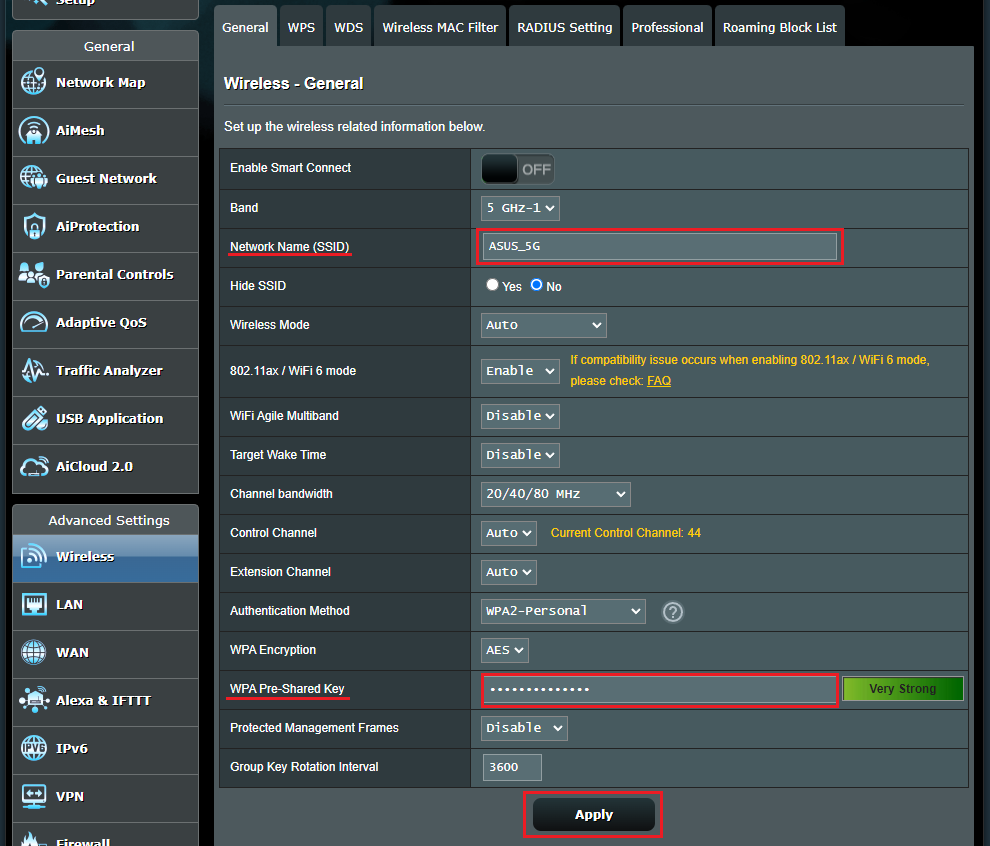
In the Wireless settings, scroll to the ‘Security’ or ‘Authentication’ section. Look for a field labeled ‘WPA Pre-Shared Key,’ ‘Pre-Shared Key,’ or simply ‘Key.’ That’s your WiFi password. It’s usually hidden behind asterisks—click the eye icon or ‘Show’ button next to it to reveal the characters. Write it down or snap a photo.
Step 5 (Alternative): Recover WiFi Password from a Connected Windows PC
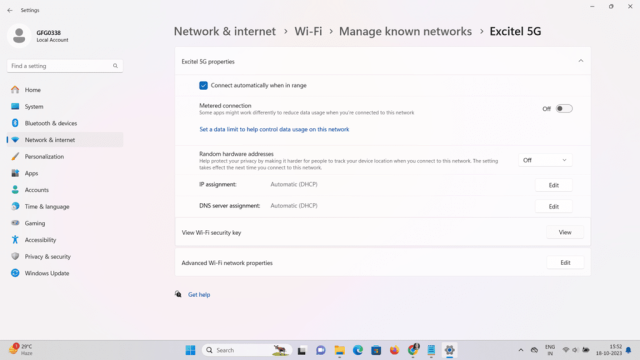
If you can’t access the router admin page (maybe you forgot the admin password), you can recover the WiFi password from a Windows computer that’s already connected to the Asus network. This method works for any WiFi network, not just Asus. Open Control Panel > Network and Sharing Center > click on the WiFi network name > Wireless Properties > Security tab > check ‘Show characters.’ The password will appear in the ‘Network security key’ box. For more details, see how to recover WiFi passwords on Windows.
Common Pitfalls
- Forgot the router admin password: If you changed the admin login and can’t remember it, you’ll need to factory reset the router by holding the reset button for 10 seconds. That wipes all settings, so use it as a last resort. After reset, you can recover your WiFi password after a router reset and reconfigure.
- Wrong IP address: Some Asus routers use 192.168.50.1 or other IPs. If 192.168.1.1 doesn’t work, open Command Prompt and type ‘ipconfig’ to find your default gateway. Or just use ‘router.asus.com’ which usually works.
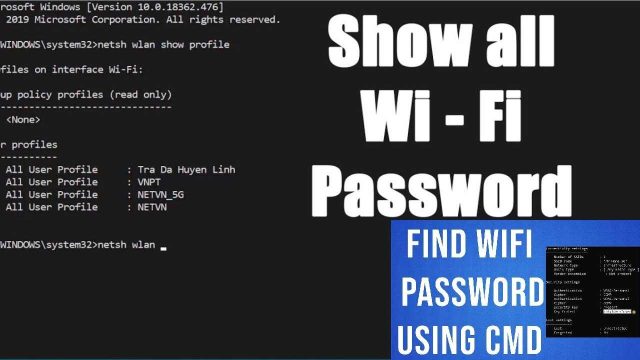
- Password hidden behind asterisks with no show button: In rare cases, the web interface may not have an eye icon. You can view saved WiFi passwords using Command Prompt on a connected Windows PC as another workaround.
Where to Next
Now that you’ve got your WiFi password back, consider saving it in a secure password manager to avoid future lockouts. If you run into other network issues, our WiFi password recovery setup guide has tips for organizing your network credentials. And if you ever need to recover a forgotten WiFi password on a desktop or another device, we’ve got you covered.