So you’ve forgotten your WiFi password. Don’t worry—it happens to the best of us. Whether you need to connect a new device or share access with a friend, you don’t have to reset your router or call your ISP. This tutorial walks you through every practical method to recover a saved wireless password on Windows, Mac, Android, and even directly from your router’s admin panel. By the end, you’ll have your password in hand, no matter which device you’re using.
We’ll keep things casual and step-by-step. No jargon overload, just real solutions. Most methods require zero extra software, and I’ll point you to a few trusted utilities if you prefer a tool. Let’s get that password back.
What You’ll Need
- A computer already connected to the WiFi network (Windows, Mac, or Linux)
- Optional: Router admin username and password (usually printed on the router label)
- Optional: Android phone with the WiFi network saved and USB debugging enabled (for advanced methods)
- Patience—most steps take less than 5 minutes
Step 1: Recover WiFi Password on Windows via Network Settings
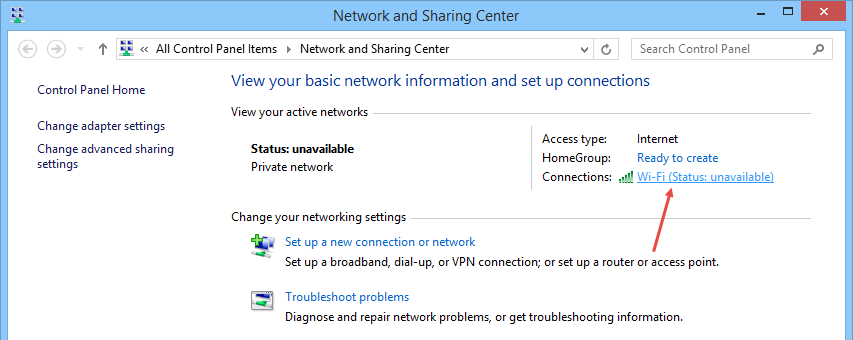
This is the easiest method if you’re on a Windows PC that’s already connected to the network. Head to Settings > Network & Internet > Status > Network and Sharing Center. Click on your WiFi network name, then select Wireless Properties. Under the Security tab, check the box that says “Show characters.” Boom—your password is right there. For a deeper dive, check out our guide on wifi password recovery via control panel.
Step 2: Find Saved WiFi Password on Mac using Keychain Access
On a Mac, open Keychain Access (find it via Spotlight or in Utilities). Search for your network’s name under “System” or “Login.” Double-click the network entry, then check the box “Show password.” You’ll need to enter your Mac’s admin username and password to reveal it. For terminal lovers, we also have a guide to view saved wifi password using terminal.
Step 3: Recover WiFi Password on Android (Non-Root)
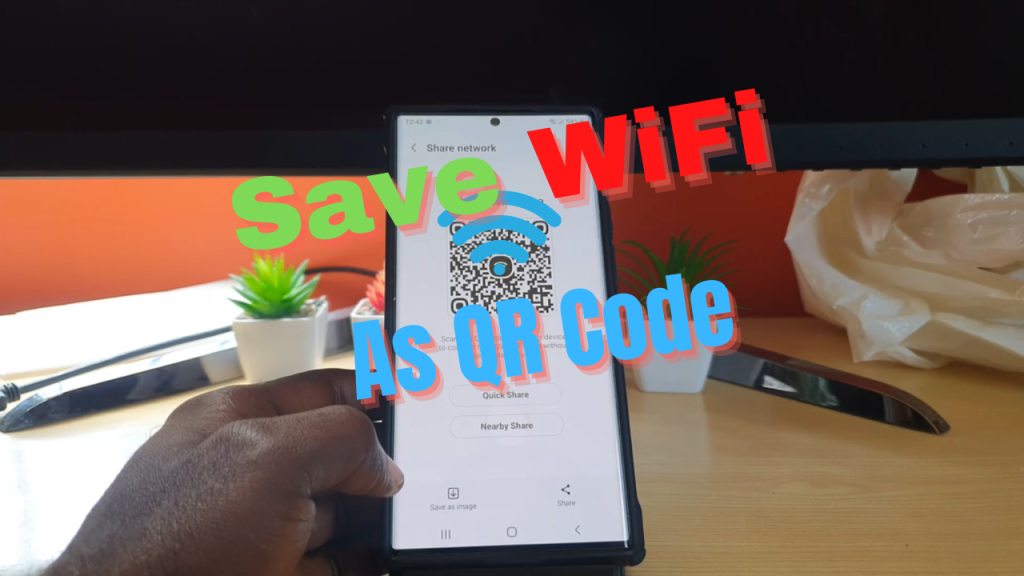
Android 10 and later let you see the password without root. Go to Settings > Network & Internet > WiFi. Tap the gear icon next to your connected network, then select “Share” or “QR code.” A QR code will appear—take a screenshot and scan it with another phone. The password is usually embedded after the semicolon in the QR code text. For older devices, you might need a wifi password recovery app free download, but try this first.
Step 4: Get WiFi Password from Router Admin Page
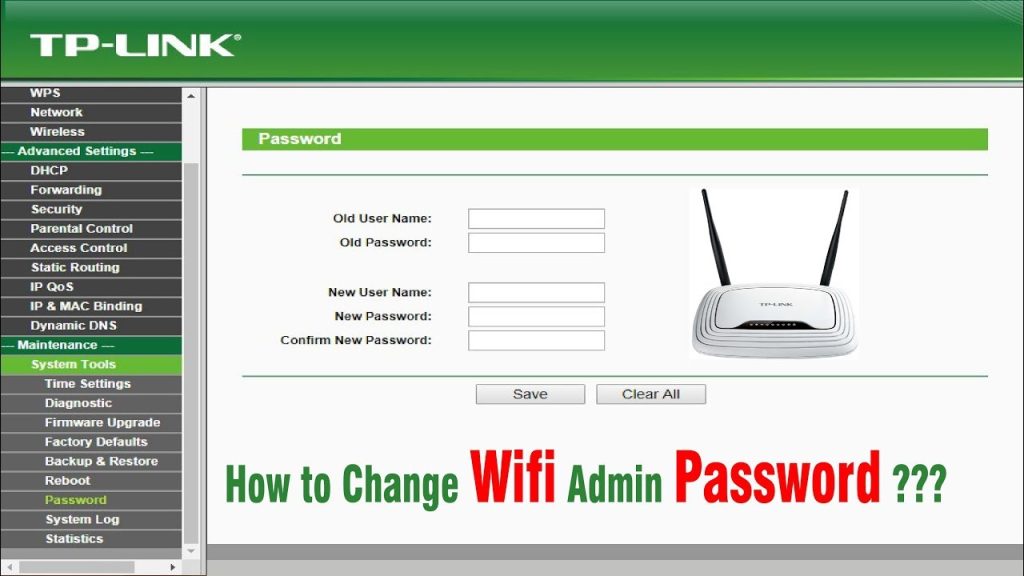
If you have access to the router’s admin dashboard, you can find the password there. Open a browser and enter your router’s IP (usually 192.168.1.1 or 192.168.0.1). Log in with the admin credentials (often found on a sticker on the router). Look for a section like “Wireless” or “WiFi Settings.” The password is shown as a pre-shared key or passphrase. For a detailed walkthrough, see how to recover wifi password from router admin.
Step 5: Use Command Line (Advanced)
Prefer a quick command? On Windows, open Command Prompt as admin and run: netsh wlan show profile name=”YourNetworkName” key=clear. The password appears under “Key Content.” On Mac, the terminal command is: security find-generic-password -wa “YourNetworkName”. This method is fast but requires some typing. It’s considered one of the best wifi password recovery utility approaches for power users.
Common Pitfalls
- **No admin rights on Windows or Mac**: If you’re using a work or school computer, you may not be able to see the password. Try the router method or ask your IT admin.
- **Router password changed or unknown**: If you don’t have the router admin password, you can still reset the router to factory defaults (but that wipes all settings). Check the router’s reset button.
- **Android not showing QR code**: Some manufacturers hide the share option. In that case, consider using a dedicated app or backing up first. Always backup wifi passwords before upgrade to avoid future lockouts.
Pro tip: Once you recover your password, write it down or save it in a password manager. That way you’ll never have to hunt for it again.
The WiFi Recovery Team
Where to Next?
You’ve got your password back—nice work! Now that you have it, consider taking a few minutes to backup your WiFi passwords so you’re prepared for the next time. If you run into issues with any of these methods, check out our expert guide on recovering any saved password, or explore the full list of recovery techniques on our site.





