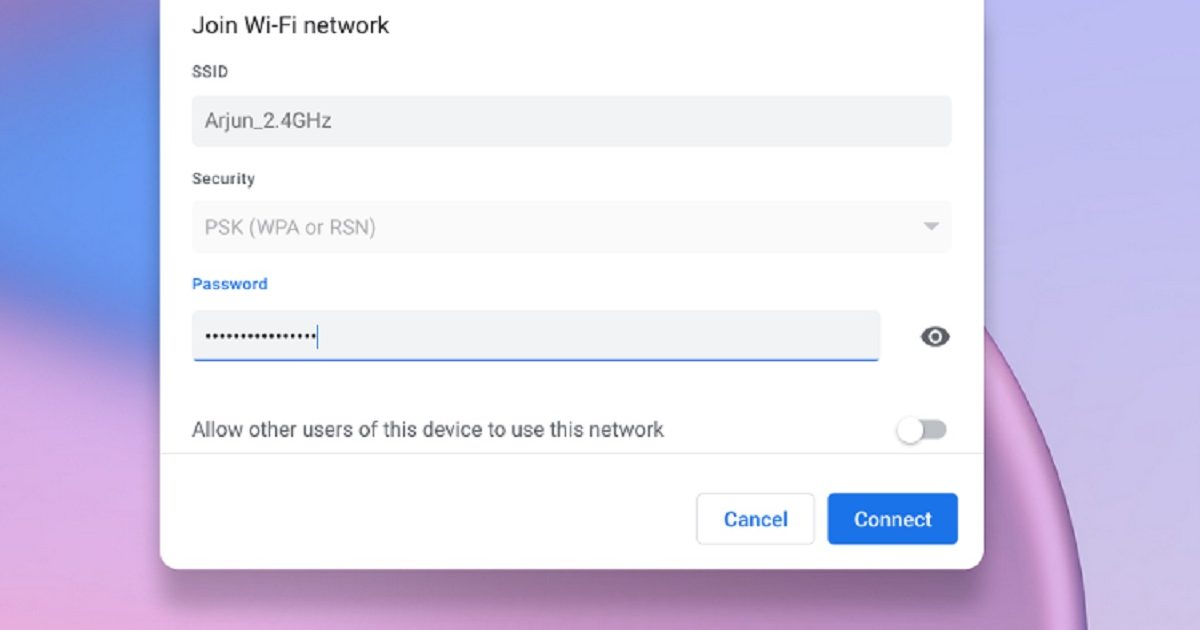
If you’re reading this, you’ve probably forgotten the WiFi password for a network your Chromebook connects to automatically. Don’t worry — Chrome OS stores that password, and you can dig it out in just a few clicks. This guide is for anyone using a Chromebook (or any Chrome OS device) who needs to recover a saved WiFi password, whether you’re setting up a new device, sharing access with a guest, or just want to write it down before you forget again. By the end, you’ll have the plain-text password in hand, no extra software required.
We’ll cover three reliable methods: the straightforward Settings route, a hidden Chrome flag that unlocks password viewing, and a last-resort Crosh (terminal) command for advanced users. All of them work on any modern Chromebook (including Chromeboxes and Chromebooks from Acer, HP, Lenovo, Samsung, etc.). If you’ve tried other platforms before, the process here is simpler than recovering WiFi passwords on Windows or Mac, but it does have a few Chrome OS–specific quirks we’ll walk through.
What You’ll Need
- Your Chromebook (obviously) – make sure it’s charged or plugged in.
- The WiFi network you want the password for must be currently saved and the Chromebook must have connected to it at least once.
- Administrator (owner) access – if it’s a managed school or work Chromebook, some settings may be locked. In that case, contact your IT admin.
- Optional: A physical notebook or a password manager to store the recovered password.
Step 1: Recover Password via Chrome OS Settings
The easiest method doesn’t require any flags or commands — it’s built right into the Settings app. Here’s how:
- Click the time in the bottom‑right corner of your screen (the shelf) to open the quick settings panel.
- Click the gear icon ⚙️ to open the full Settings window.
- In the left sidebar, click “Network”.
- Under “Wi‑Fi”, you’ll see a list of known networks. Click the name of the network whose password you want to recover.
- In the network details window that pops up, click the “Network” tab at the top.
- Look for the “Password” field. Next to it there’s an eye icon 👁️. Click that icon to reveal the saved password in plain text.
- Write it down or copy it to your clipboard.
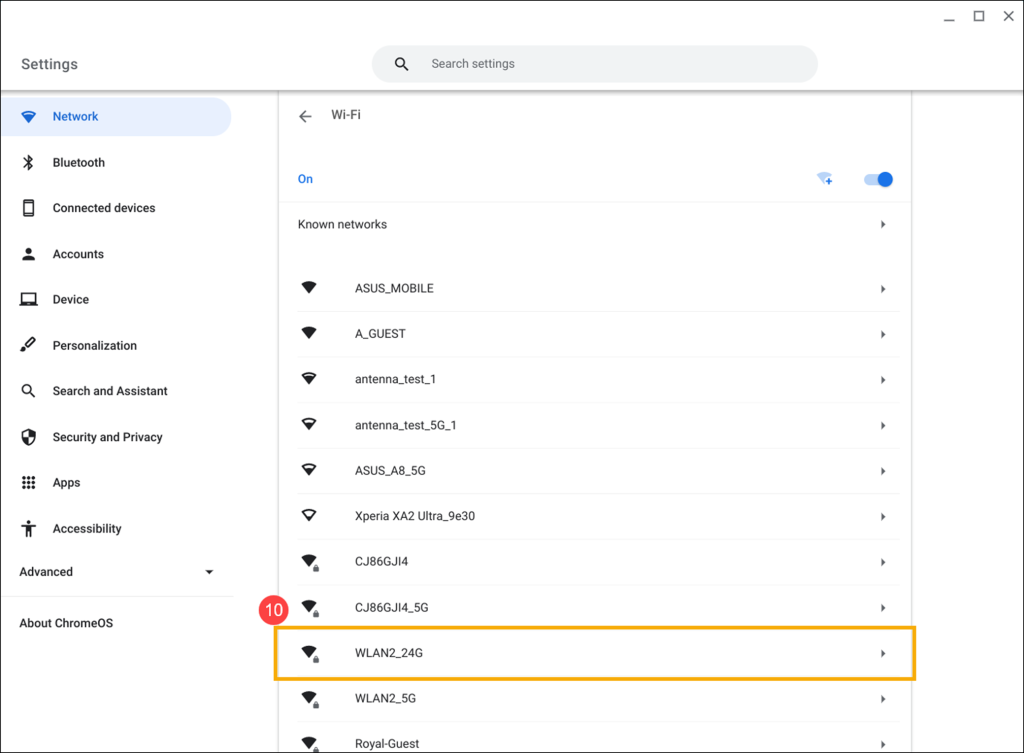
That’s it! If you see the password immediately, you’re done. If the eye icon is grayed out or missing, don’t panic — move on to Step 2. This can happen if your Chromebook is managed by an organization or if the password was saved via a QR code (Chrome OS sometimes hides the text in that case).
Step 2: Enable the “Show Saved Passwords” Flag
Chrome OS has a hidden experimental flag that adds a dedicated “Passwords” section to your Settings, similar to what you’d see in a desktop browser. Enabling this flag gives you another way to view your WiFi credentials.
- Open a new Chrome tab and type chrome://flags in the address bar, then press Enter.
- In the search box on the flags page, type “show saved passwords”.
- Find the flag called “Show saved passwords in settings” (it may appear as #show-saved-passwords).
- Click the dropdown next to it and select “Enabled”.
- A blue button will appear at the bottom — click “Relaunch” to restart your Chromebook with the flag active.
- After the restart, go back to Settings (gear icon).
- In the left sidebar, click “Privacy and security”, then click “Passwords”.
- On the Passwords page, you’ll see a list of saved logins. Scroll down past the website entries — there’s a section called “Saved networks”. Click on the WiFi network you need.
- Click the eye icon next to the password to reveal it.
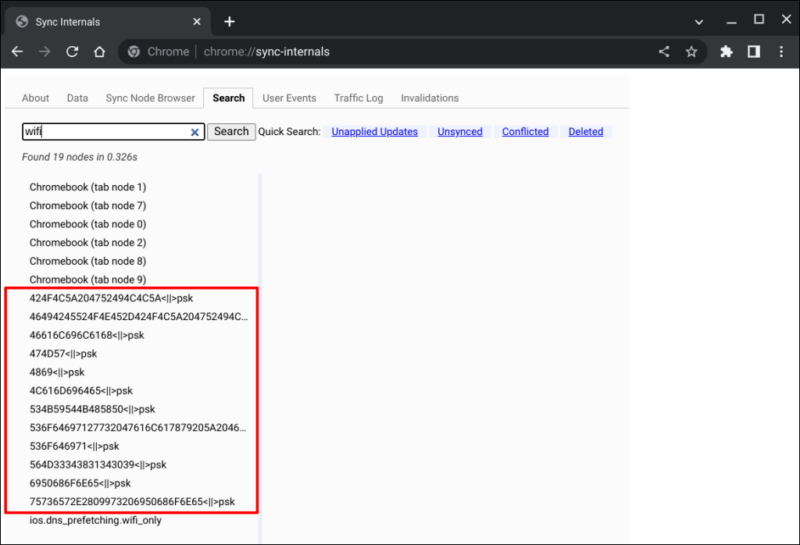
This method works even when the network details in Step 1 don’t show the password. It pulls the password directly from Chrome’s credential store. If you still can’t see it, the network might be a hidden SSID or your Chromebook may have joined via a QR code that didn’t save the password as text. In that case, try Step 3.
Step 3: Retrieve Password Using the Chrome Shell (Crosh)
For the adventurous user, you can dig into Chrome OS’s underlying Linux tools via Crosh (a terminal-like interface). This method requires a bit of typing but it’s still safe and doesn’t need Developer Mode.
- Press Ctrl + Alt + T on your keyboard to open the Crosh shell.
- Type the following command and press Enter: network_diag –wifi
- Wait a few seconds — a long text dump will appear. Look for a section titled “Saved WiFi Networks” or “Credentials”.
- Find the network name (SSID) you’re interested in. Below it should be a line “psk” or “password” followed by the plain-text password.
- If the output is too long, you can copy it by right-clicking (or two-finger tap) and pasting into a text editor. Then search for your SSID.
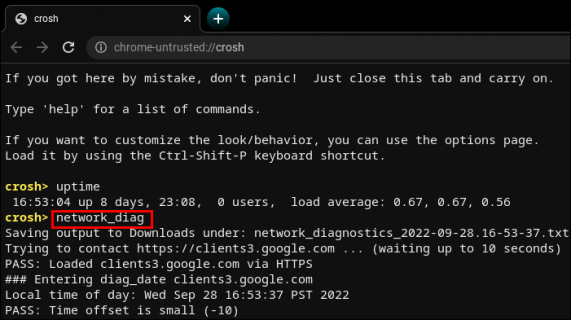
Note: The Crosh output may not always include passwords for networks saved via enterprise policies or those that use certificate-based authentication. For personal networks, it almost always works.
Common Pitfalls
- Managed Chromebooks: If your Chromebook is issued by a school or employer, many settings (including password viewing) may be blocked. The flags in Step 2 might not be available, and Crosh commands can be restricted. In that case, contact your IT administrator — or use a general lost WiFi password recovery guide that covers router admin panel access.
- Password saved via QR code: When you joined a network by scanning a QR code, Chrome OS sometimes stores only the QR image, not the plain text. None of the methods above will reveal the password; you’ll need to ask the network owner or scan the QR again.
- Hidden network: If the network SSID is hidden (not broadcast), it may not appear in the saved networks list. Before trying to recover, ensure your Chromebook is actually connected to that network. If it’s connected but missing from the list, try reconnecting manually and saving the password again.
Where to Next
Now that you’ve got your WiFi password back, consider saving it in a password manager so you never lose it again. If you’re interested in recovering WiFi passwords on other devices, check out our guides on recovering WiFi passwords on Windows or Mac and viewing saved WiFi passwords on Linux. For more advanced techniques, our forgotten WiFi password recovery tools article offers alternative methods. And if you ever need to recover a password after a system reinstall, our post on recovering a WiFi password after a system reinstall has you covered.



