Have you ever needed to connect a new device to your WiFi but completely blanked on the password? Or maybe you wrote it down somewhere but can’t find that sticky note. Don’t worry — if you’ve got a device that’s already connected (or access to your router), you can dig it out in just a few minutes. This guide is for absolute beginners: no command line, no hacking, just point-and-click steps to recover your WiFi password.
By the end of this tutorial, you’ll know how to find your WiFi password on Windows, macOS, and Android, and even from your router’s admin panel. I’ll also share what to do if something goes wrong. This is essentially the same as our WiFi password recovery at home process, just broken down super simply.
What You’ll Need
- A computer or phone that is currently connected to the WiFi network (or has connected before and saved the password).
- If using the router method: a web browser and the router’s IP address (usually 192.168.1.1 or 192.168.0.1) plus its admin login credentials (often printed on the router sticker).
- Patience — only a few minutes.
Step 1: Recover from Windows (the Easiest Way)
If you’re on a Windows PC that’s already connected to the WiFi, this is the quickest method. Click the WiFi icon in the system tray (bottom-right), then click “Network & Internet settings.” Next, click “Status” (if not already there), then scroll down and click “Network and Sharing Center.” In the window that pops up, click the name of your WiFi network next to “Connections.” Then click “Wireless Properties,” go to the “Security” tab, and check the box that says “Show characters.” Boom — your password appears in the “Network security key” field.

Step 2: Recover from macOS (Keychain Access)
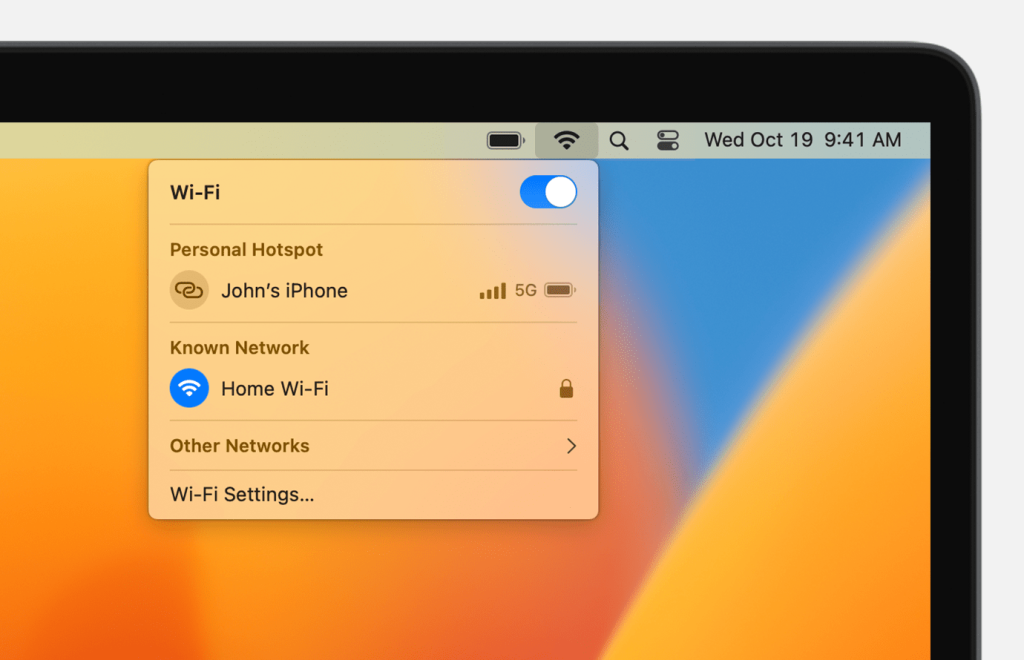
On a Mac, open the “Keychain Access” app (you can find it using Spotlight with Cmd+Space, then type “Keychain Access”). In the search box at the top-right, type the name of your WiFi network. Double-click the entry that appears. A window will pop up — check the box next to “Show password.” It will ask for your Mac’s admin username and password. Enter that, and the WiFi password will be revealed. If you’re running Linux, the process is different — check our guide to view saved WiFi passwords on Linux.
Step 3: Recover from Android (QR Code or Saved Networks)
On most modern Android phones (Android 10+), go to Settings > Network & Internet > WiFi. Tap the gear icon next to your connected network. You’ll see a “Share” button or a QR code icon. Tap it — you may need to verify with your PIN or fingerprint. A QR code appears, and directly below it you’ll see the password in plain text. If you don’t see the text, you can scan the QR code with another phone to connect automatically. Some older Androids hide the password, but you can use a third-party app — though the best WiFi password recovery utility is usually the built-in method.

Step 4: Recover from Your Router (No Device Connection Needed)
If you have no device connected but can still reach the router, this works great. Open a web browser on any device (even a wired connection) and type your router’s IP address into the address bar. Common ones are 192.168.1.1, 192.168.0.1, or 192.168.1.254. Enter the router admin username and password (often “admin” / “admin” or “admin” / “password” — check the sticker on the router). Once logged in, look for “Wireless” or “WiFi” settings. There should be a field called “Wireless Security,” “Passphrase,” or “Network Key.” That’s your password. For detailed steps, see our guide to recover WiFi password from router admin.

Common Pitfalls
- Not currently connected: If your device isn’t connected to the WiFi, you won’t see the saved password in network settings. Try connecting via Ethernet to your router, or use the router admin method.
- Forgot the router admin password: This happens a lot. Check the router sticker for default credentials. If you changed them and forgot, you may need to reset the router to factory settings (press the tiny reset button with a paperclip for 10 seconds). That will also reset all custom settings, including your WiFi password.
- Can’t find the security tab: On Windows, if you don’t see “Wireless Properties,” you might be looking at the wrong network. Make sure you click the network name in the Network and Sharing Center, not just the icon.
Where to Next?
Now that you’ve recovered your password, consider writing it down in a safe place — or better yet, backup WiFi passwords before upgrade so you never lose them again. If you’re planning a system upgrade, check out how to restore WiFi passwords after upgrade. And if you ever get stuck, don’t forget to revisit this guide or try a different method from our collection.



