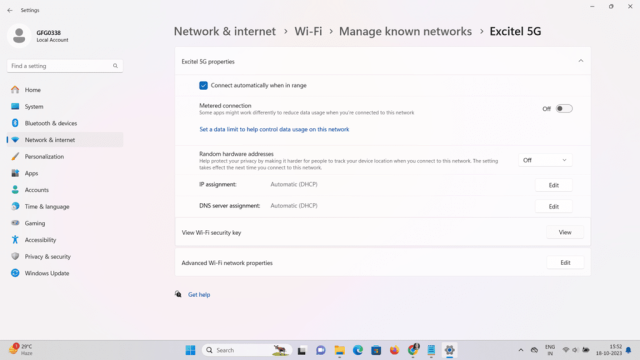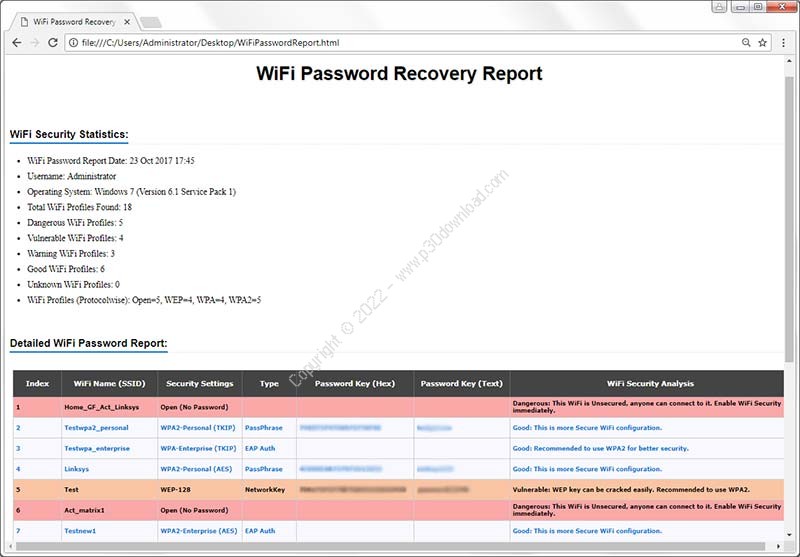
We’ve all been there: you need the WiFi password for a network you’ve connected to before, but it’s nowhere to be found. Maybe you got a new device, or you’re helping a friend connect. Instead of resetting your router (and breaking every other device), you can use dedicated WiFi password recovery software to pull those saved passwords from your computer or phone. This guide is for anyone who wants a simple, reliable tool to recover forgotten WiFi passwords without digging through router admin panels.
By the end of this review, you’ll know the top three recovery tools for Windows, macOS, and Android, and you’ll have a step-by-step walkthrough for each. I’ll also cover common pitfalls so you can avoid wasting time on software that doesn’t work. Let’s dive in!
What You’ll Need
- A computer running Windows, macOS, or a rooted Android device (for full access).
- Admin privileges on the device (or root access for Android).
- A USB cable if you plan to use the software to pull passwords from a router.
- The name of the network you want to recover (SSID) – not essential but helpful.
- One of the software tools listed below.
Step 1: Choose the Right Recovery Software
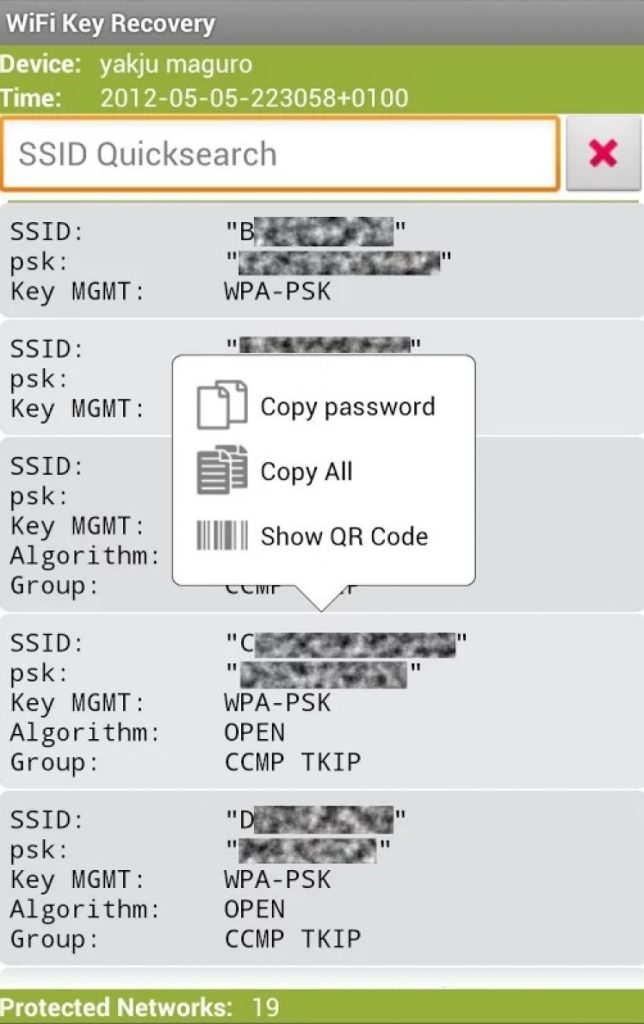
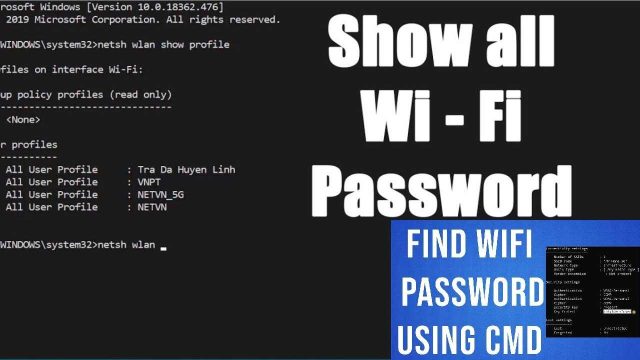
Not all recovery tools are created equal. For Windows, I recommend WirelessKeyView (free, portable) or the built-in netsh command. On macOS, the Keychain Access app does the job without extra software. For Android, look for WiFi Key Recovery or similar apps that require root. For a detailed walkthrough of the basic wifi password recovery process at home, see that guide. Also, if you need to view saved wifi password linux, that’s covered in another tutorial.
- WirelessKeyView (Windows) – free, no install required.
- Keychain Access (macOS) – built-in, no extra software.
- WiFi Key Recovery (Android) – requires root, free on Play Store.
Step 2: Download and Run the Software
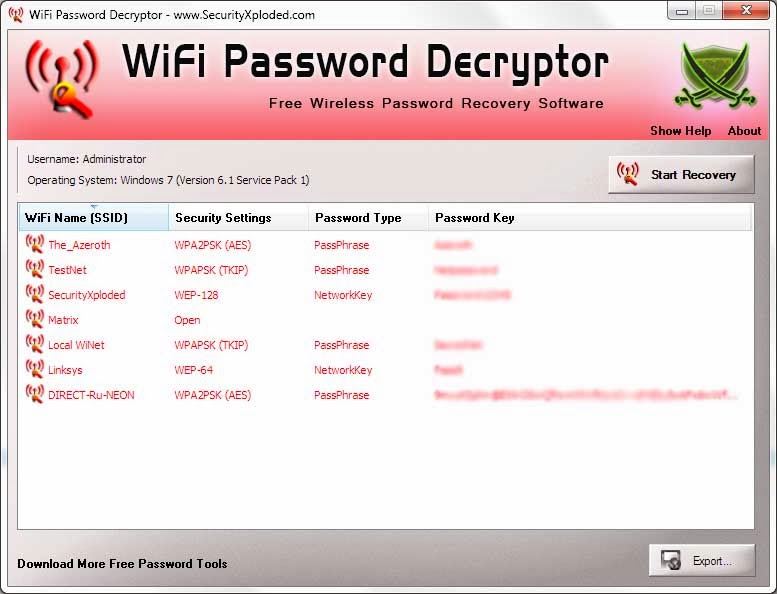
For Windows, download WirelessKeyView from the NirSoft website. It’s a single .exe file – no installation needed. Simply run it as administrator. For macOS, open Keychain Access from Applications > Utilities. For Android, install the WiFi Key Recovery app from the Play Store. Make sure to enable ‘Unknown sources’ if needed, but it’s a standard app.
Step 3: Scan for Saved Networks
When you launch WirelessKeyView, it will automatically scan your system for stored WiFi profiles and display them in a table with SSID, key type, and password in plain text. On macOS, search for the network name in Keychain Access, double-click it, and check ‘Show password’ (enter your Mac admin credentials). On Android, the app will list all saved networks; tap one to reveal the password. If you prefer a command-line approach, check out the wifi password recovery command export profiles method.
Step 4: Export or View the Passwords
WirelessKeyView lets you export all passwords as a .txt or .csv file. Go to File > Save Selected Items. For macOS, you can copy the password from Keychain Access. On Android, you can screenshot or manually note it. If you need to recover wifi password from router admin as a backup method, that’s also an option. And before you upgrade your OS, it’s smart to backup wifi passwords before upgrade so you don’t lose them.
Common Pitfalls
- Running the tool without administrator privileges – WirelessKeyView will show empty results. Always right-click and run as admin.
- Assuming all Android apps work without root – most require root. If your device isn’t rooted, you’ll need to use a different method like the wireless password recovery tutorial for non-rooted devices.
- Not checking the correct network – sometimes Windows stores both 2.4GHz and 5GHz profiles. Make sure you’re looking at the right one.
Where to Next
Now that you’ve recovered your WiFi password, consider writing it down or storing it in a password manager. If you own the router, you can also log into the admin panel to change the password to something you’ll remember. For more advanced recovery methods, check out the full guide on recover wifi password from router admin. And if you switch operating systems often, the backup wifi passwords before upgrade article will save you headaches.