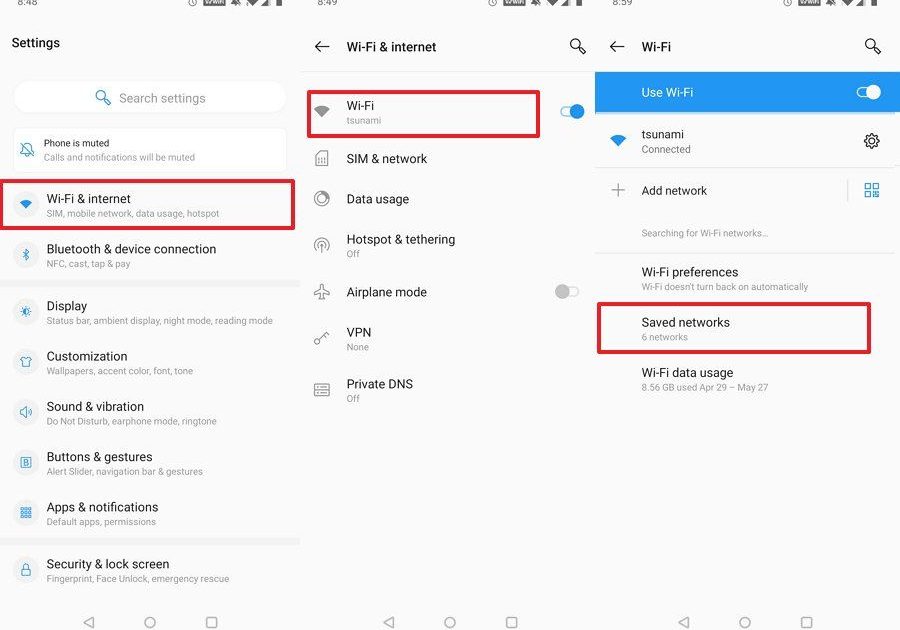
Ever needed to move your saved WiFi networks to a new phone? Maybe you’re switching devices or just want a backup. You’re not alone. By the end of this guide, you’ll have all your WiFi passwords exported to a file you can use anywhere—no root required (well, almost). We’ll cover two methods: the simple QR code share for individual networks, and the more powerful ADB trick that dumps every saved password at once.
This guide is for anyone with a modern Android phone (Android 8.0 or later). Whether you’re a tech newbie or a seasoned geek, you’ll find a method that works. If you prefer a no-computer solution, the QR code method is perfect. For a complete export, grab a USB cable and follow along.
What You’ll Need
- An Android phone (Android 8.0+)
- A USB cable (for ADB method)
- A Windows, Mac, or Linux computer (for ADB method)
- Optional: a third-party app like WiFi Key Recovery (if you have root)
- Text editor to view the exported file
Step 1: Enable Developer Options and USB Debugging
First, we need to turn on Developer Options. Go to Settings > About Phone > tap ‘Build Number’ seven times. You’ll see a toast saying ‘You are now a developer!’ Then go back to Settings > System > Developer Options, and toggle on ‘USB Debugging’.
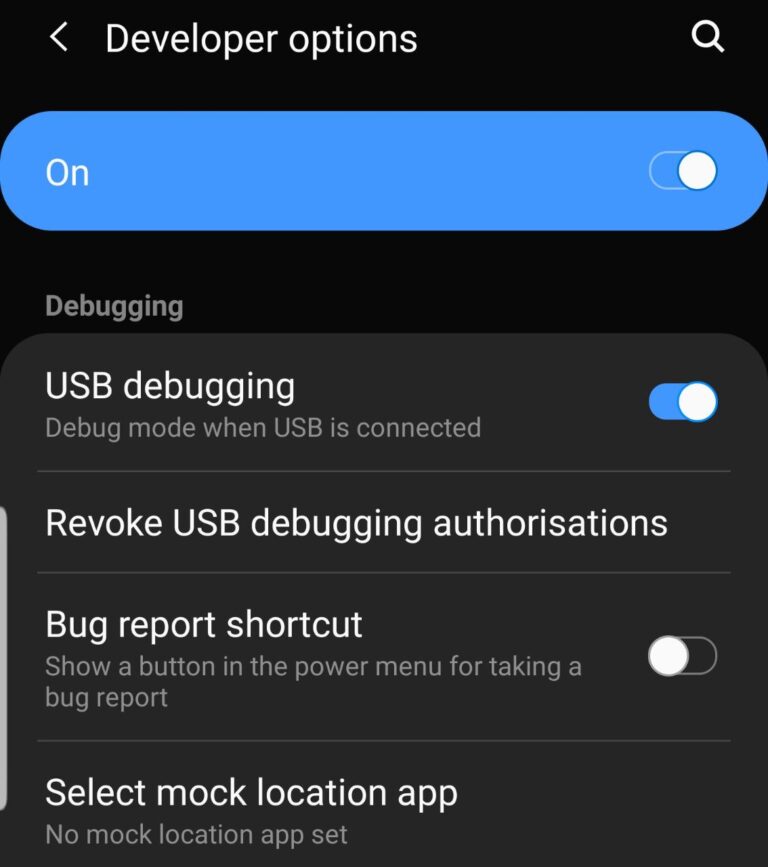
If you’ve ever used ADB before, you might have this already. If not, don’t worry—it’s just a one-time setup.
Step 2: Install ADB on Your Computer
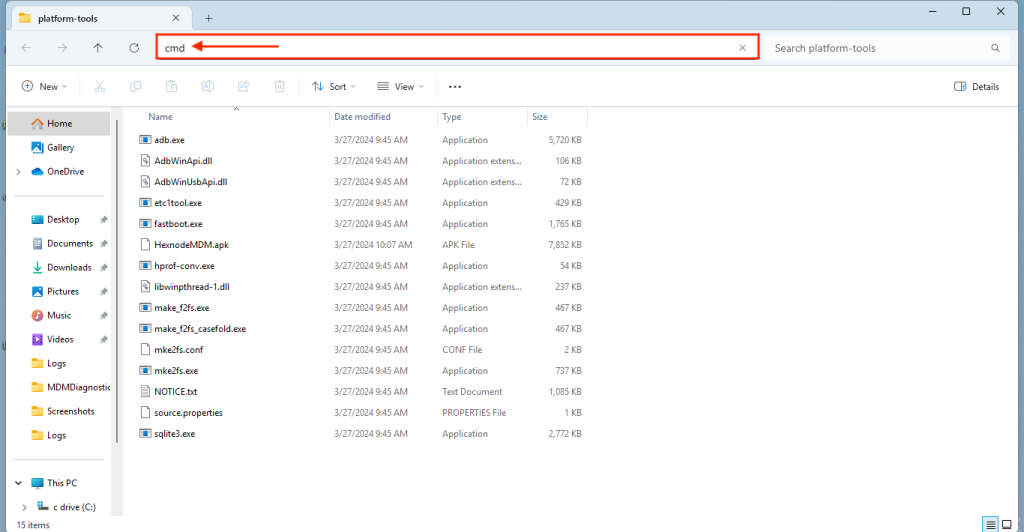
On your computer, download the ADB platform tools from the official Android developer site. Extract the ZIP to a folder (e.g., C:adb). Open a command prompt or terminal in that folder. On Windows, hold Shift + right-click and choose ‘Open PowerShell window here’. On Mac/Linux, open Terminal and navigate to the folder with ‘cd’.
Step 3: Connect Your Phone and Authorize
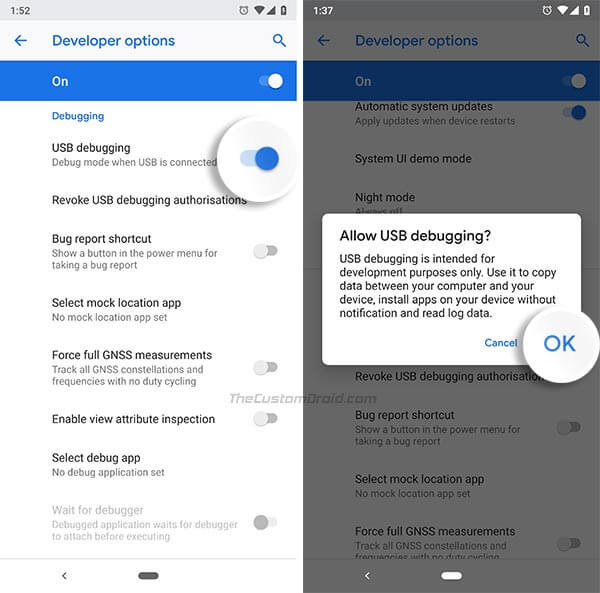
Plug your phone into the computer via USB. On your phone, you’ll see a prompt asking to allow USB debugging. Check ‘Always allow from this computer’ and tap OK. Back on the computer, type ‘adb devices’ and hit Enter. You should see your device listed as ‘device’. If you see ‘unauthorized’, check your phone and accept again.
Step 4: Pull the WiFi Configuration File
Now the magic happens. Run the following command: ‘adb pull /data/misc/wifi/wpa_supplicant.conf’. This copies the file to your current directory on the computer. If you get a permission error (which happens on Android 10+), try ‘adb shell cat /data/misc/wifi/wpa_supplicant.conf > wpa_supplicant.txt’ instead. This reads the file without needing root.

Once done, you’ll see a file named wpa_supplicant.conf (or wpa_supplicant.txt) in your folder. Open it with any text editor. You’ll see entries like: network={ ssid=”MyWiFi” psk=”password123″ } — that’s your saved WiFi networks with passwords in plain text!

Alternative: Share QR Code for One Network
If you only need to share one network, use the built-in QR code. Go to Settings > Network & Internet > WiFi > tap the gear icon next to the network name > tap Share. Authenticate with your PIN or biometrics, and a QR code appears. Others can scan it to join instantly. This is great for guests but not for bulk export.
Common Pitfalls
- USB Debugging not enabled: Double-check Developer Options. If you can’t find ‘Build Number’, your phone may have it hidden—search online for your model.
- ADB ‘device unauthorized’: Make sure you accepted the prompt on your phone. Unplug and replug if needed. On some phones, you must also enable ‘File Transfer’ mode.
- Permission denied on newer Android: Android 10+ restricts access to /data/misc/wifi/. Use the ‘adb shell cat’ workaround above. If that fails, you may need root or a different method like wifi password recovery without root.
Where to Next?
Now you have your WiFi passwords exported. You can transfer them to another device or keep them as backup. If you’re moving to a new Android phone, you can import the file using a root app or manually. For other platforms, check out our guides on wifi password recovery without root, wireless password recovery tutorial, recover wifi password from pc, or restore wifi passwords linux. Happy surfing!



