If you’re a student who’s already connected your laptop or phone to the university WiFi but forgot the password, don’t worry—you can retrieve it directly from your device. This guide is for anyone who needs to share the network with a roommate, set up a new gadget, or just wants a backup. By the end, you’ll have the password copied and ready to use.
University networks often use WPA2-Enterprise with unique credentials or a shared PSK. The methods below work for the common PSK setup, though you might need admin rights on managed devices. We’ll cover Windows, macOS, Android, and iPhone—plus a few tips for locked-down campus computers.
What You’ll Need
- A laptop or phone already connected to the university WiFi network.
- Admin access on your device (standard user may be enough on some systems).
- Basic comfort with command line or system settings.
Step 1: Check Your Device’s Saved Networks
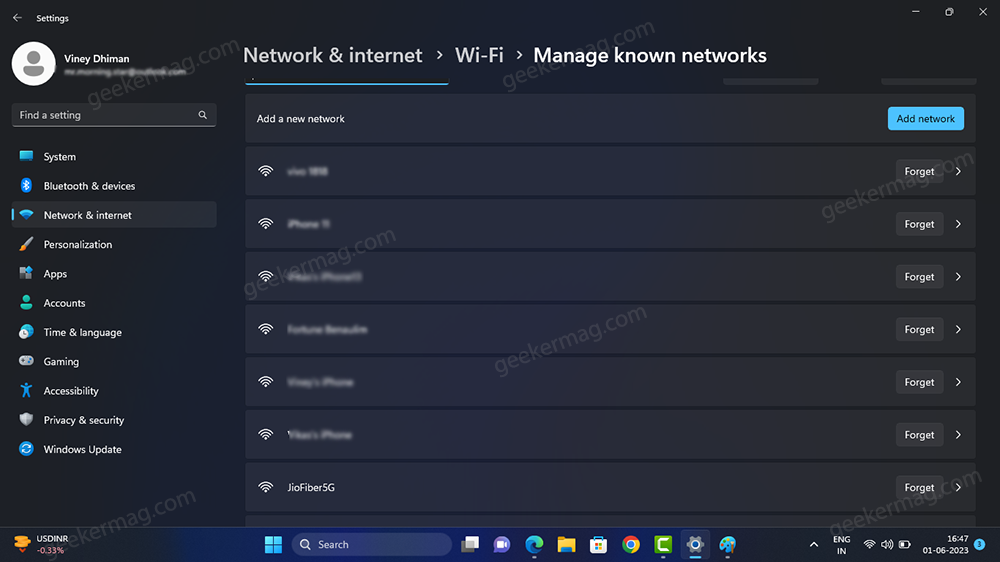
Most devices store the WiFi password securely after you connect. Before diving into advanced tricks, look in your network settings. On Windows, go to Settings > Network & internet > WiFi > Manage known networks. On macOS, open System Settings > Network > WiFi > Advanced. You’ll see the network name, but not always the password—that’s where the next steps come in. For a broader overview, check out this saved wifi password recovery tutorial.
Step 2: Use Command Line on Windows
Windows has a built-in netsh command that exports all saved WiFi profiles. Open Command Prompt as administrator (or even without admin, you can see your own profile). Type: netsh wlan show profile name="UniversityWiFi" key=clear. Look for the ‘Key Content’ line—that’s your password. If you need the full syntax, the wifi password recovery command for windows guide has all the details.
Step 3: Find the Password on macOS
Mac users can open Keychain Access (from Applications > Utilities). Search for your university network name, double-click it, and check ‘Show password’. You’ll be prompted for your Mac login password. This method is part of the wifi password recovery using network settings approach but uses the Keychain app. Once revealed, copy it to share.
Step 4: On Android (Saved Networks)
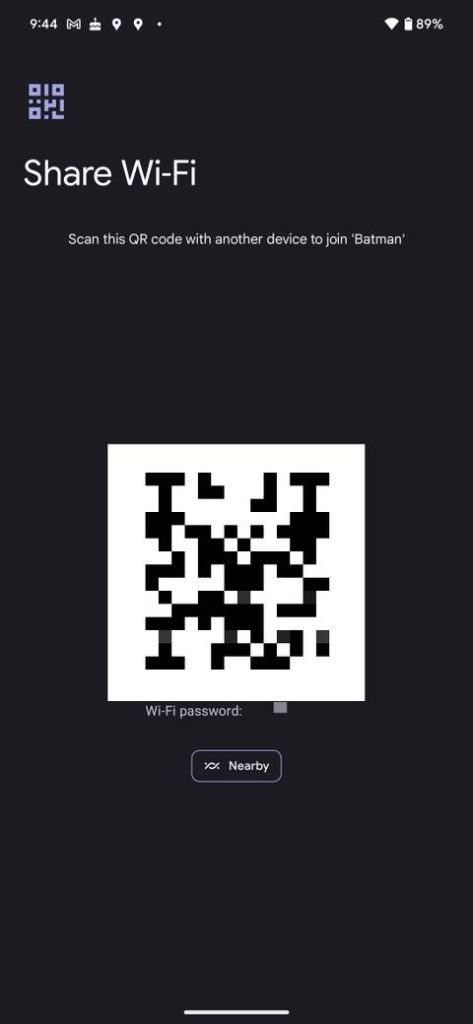
On Android 10+ without root, go to Settings > Network & internet > Internet and tap the gear icon next to your connected university SSID. Tap ‘Share’ and verify your PIN or pattern—a QR code appears, and the password is shown below it. On older Android versions or with root, you can read the wpa_supplicant.conf file. For iPhones, skip to Step 5.
Step 5: On iPhone (iOS 16+)
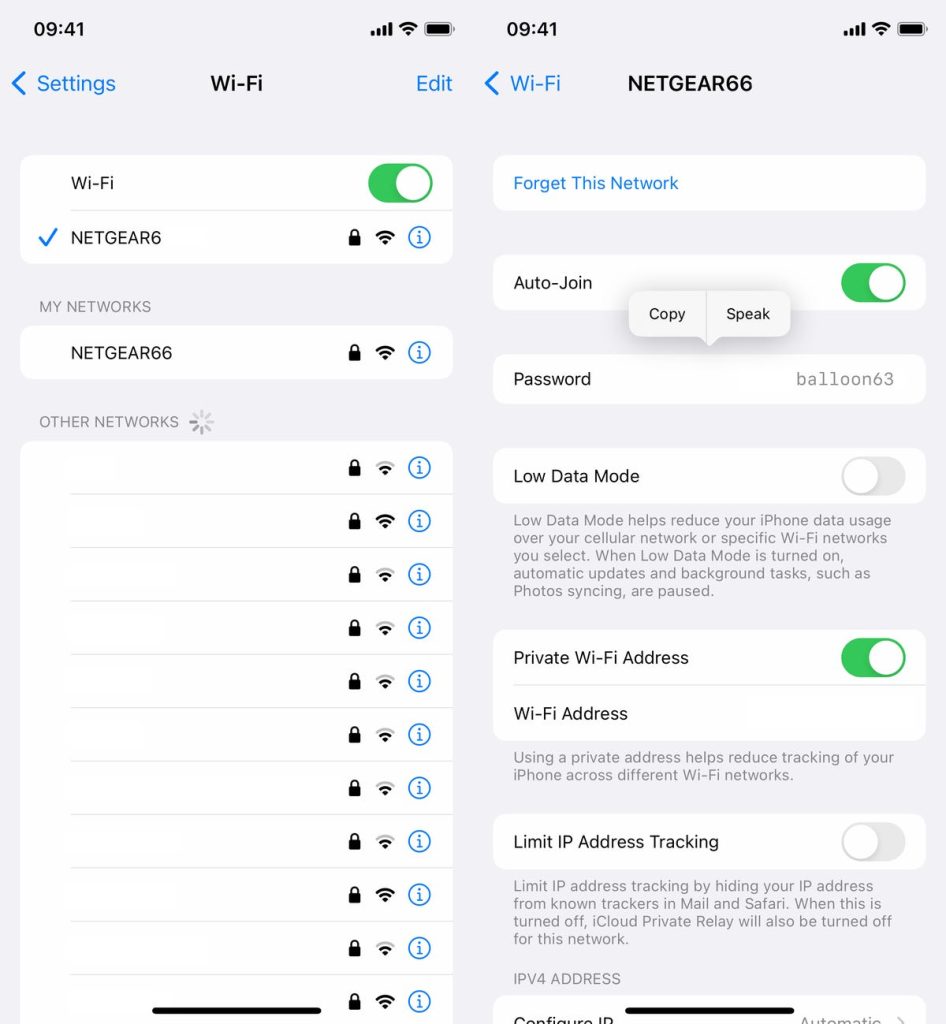
Apple made it easy on iOS 16 and later. Open Settings > WiFi, tap the ‘i’ icon next to your university network, then tap the password field and authenticate with Face ID or Touch ID. The password is revealed and you can copy it. This is exactly how to find saved wifi password iphone—simple and fast.
Common Pitfalls
- University-managed devices may block password viewing or require IT permission. If you can’t run netsh as admin, try on a personal device.
- Captive portal networks use a login page, not a traditional PSK, so these methods won’t work—save that URL instead.
- Network passwords change each semester. If the password you recover doesn’t work, the network may have been updated.
Where to Next
If you ran into issues, the wifi password recovery troubleshooting guide covers common errors like ‘profile not found’ or ‘access denied’. For a complete walkthrough on all devices, revisit the saved wifi password recovery tutorial. And if your university uses a specific setup, check out the wifi password recovery tutorial windows 11 guide for the latest OS quirks.



