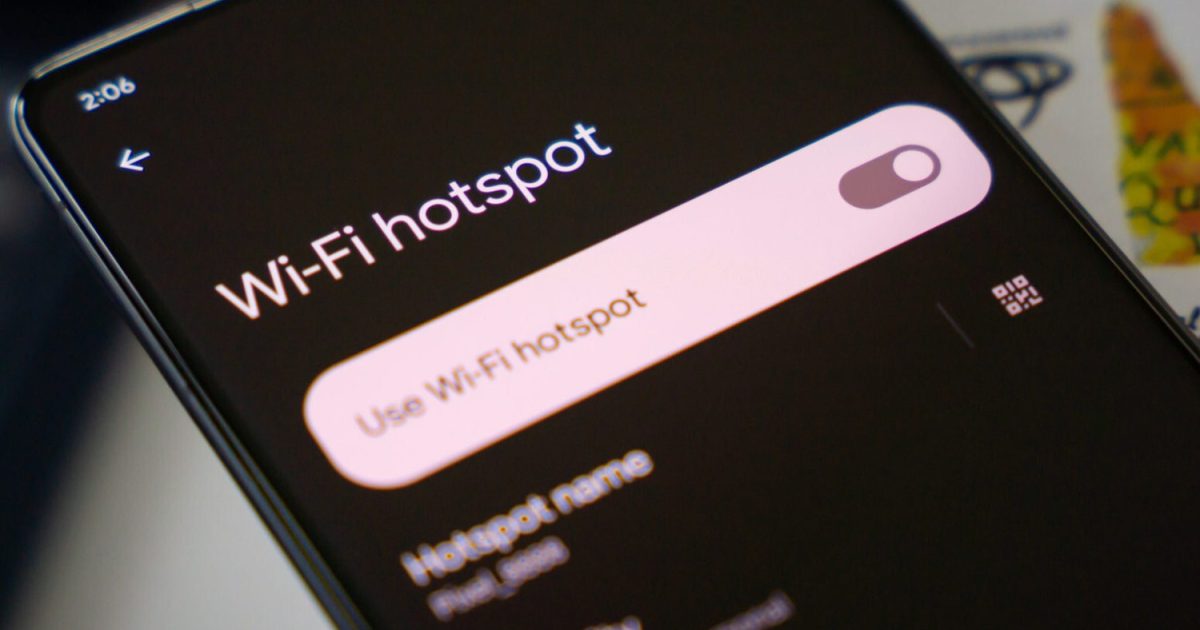
Ever connected to a coffee shop or hotel Wi-Fi, then needed the password again for another device but couldn’t find it? You’re not alone. Public hotspots often display their password on a sign or receipt, but if you didn’t save it, you’re stuck. This guide is for travelers, remote workers, and anyone who’s ever fumbled for a hotspot password. By the end, you’ll know how to retrieve saved Wi-Fi passwords from your Windows laptop, MacBook, or Android phone — no rooting or jailbreaking required.
We’ll cover the most common platforms: Windows, macOS, and Android. For each, I’ll show you the built-in tools that store network credentials. You’ll be able to recover a password in under a minute, whether you’re in a café, airport lounge, or hotel room. Let’s dive in.
What You’ll Need
- A device that has previously connected to the public hotspot (Windows, Mac, or Android).
- Administrator access on Windows (to view saved passwords).
- Your macOS login password (to unlock Keychain Access).
- Android 10 or higher (for the QR code method) or a file manager app (for older versions).
- Optional: a USB cable to transfer saved passwords from Android to a computer.
We’ll also reference a best wifi password recovery app for Android if the built-in method doesn’t work for you.
Step 1: Recover on Windows via Network Settings
Windows stores every Wi-Fi password you’ve ever connected to. To extract it for a public hotspot:
- Open Settings > Network & Internet > Wi-Fi > Manage known networks.
- Find the hotspot’s name (SSID) and click on it.
- Select ‘Properties’ and then look for ‘View network security key’ under the Wi-Fi password section.
- Click the checkbox or button to reveal the password.
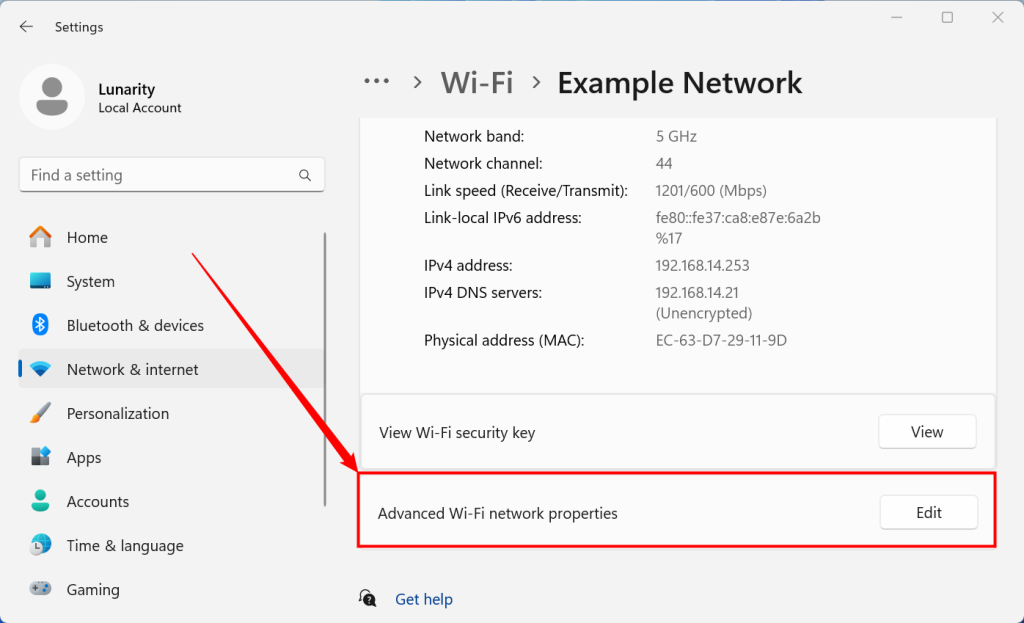
This is the simplest method for how to recover wifi password on windows. If you prefer a command-line approach, jump to Step 4.
Step 2: Recover on macOS Using Keychain Access
Macs store Wi-Fi passwords in the Keychain app. Here’s how to pull one out:
- Open Keychain Access from Applications > Utilities.
- In the search bar, type the name of the public hotspot (or just ‘AirPort’).
- Double-click the network entry. A dialog box appears.
- Check the box ‘Show password’ and enter your Mac’s admin password.
- The Wi-Fi password will be revealed.

This works for any hotspot you’ve joined before, from hotel networks to airport lounges. For a deeper dive, check our wifi password recovery for macbook pro guide.
Step 3: Recover on Android (No Root)
Android 10 and later come with a built-in QR code feature. For older versions, we’ll use a file explorer.
Method A: QR Code (Android 10+)
- Go to Settings > Network & Internet > Wi-Fi.
- Tap the gear icon next to the connected hotspot’s name (or a saved network).
- Select ‘Share’ or ‘QR code’. Authenticate with your PIN or biometric.
- Screenshot the QR code – you can scan it later to join, or read the password text below the code (on some devices).

Method B: File Explorer (Android 9 and below)
- Install a file manager with root access simulation (or use ADB if comfortable).
- Navigate to /data/misc/wifi/ and open wpa_supplicant.conf.
- Look for the network block of the hotspot: the password is in the psk field.
If these methods seem tricky, a best wifi password recovery app from the Play Store can simplify the process. For travelers on the go, our wifi password recovery for travelers post has more tips.
Step 4: Advanced Recovery with PowerShell (Windows)
Want to extract all saved Wi-Fi passwords at once? PowerShell is your friend.
- Open PowerShell as Administrator.
- Run: netsh wlan show profiles
- For each profile, run: netsh wlan show profile name=”PROFILE NAME” key=clear
- Look for the ‘Key Content’ line – that’s the password.
This method is perfect for batch export. For a full walkthrough, see our wifi password recovery tutorial powershell guide.
Common Pitfalls
- Captive portals: Many public hotspots (hotels, airports) require a web login or acceptance of terms – the Wi-Fi password alone won’t connect you. You’ll need to open a browser after connecting to the network.
- Lack of admin rights: On Windows, you must be an administrator to view saved passwords. If you’re on a work computer, you may be locked out.
- Android fragmentation: The QR code method varies by manufacturer. Some phones hide the ‘Share’ button. Check your device’s support page.
For more on these issues, our wifi password recovery for travelers guide covers captive portal workarounds.
Where to Next?
Want to recover passwords for other platforms? Check out our wifi password recovery linux guide for Linux users, or explore wifi password recovery for macbook pro for more macOS tips. If you’re dealing with your home network, our wifi password recovery for travelers page has universal advice. Happy connecting!



