
Ever walked into the office and realized your phone or laptop dropped the WiFi – and you can’t remember the password? You’re not alone. This guide is for anyone who needs to recover the office WiFi password but doesn’t want to bother the IT desk. By the end, you’ll have the key in hand, whether you’re on Windows, Mac, or need to dive into the router settings.
We’ll cover multiple methods: from checking your existing connected devices to poking around the router admin page. Plus, we’ll point you to our beginner WiFi password recovery tutorial if you need a refresher on the basics. No special tools required – just a little patience.
What You’ll Need
- A computer (Windows or Mac) that is already connected to the office network.
- Administrator access to the office router (username and password) – optional but helpful.
- The network name (SSID) – usually visible on a sticker or in the office.
- Basic familiarity with your operating system’s settings.
Step 1: Recover the Password on Windows
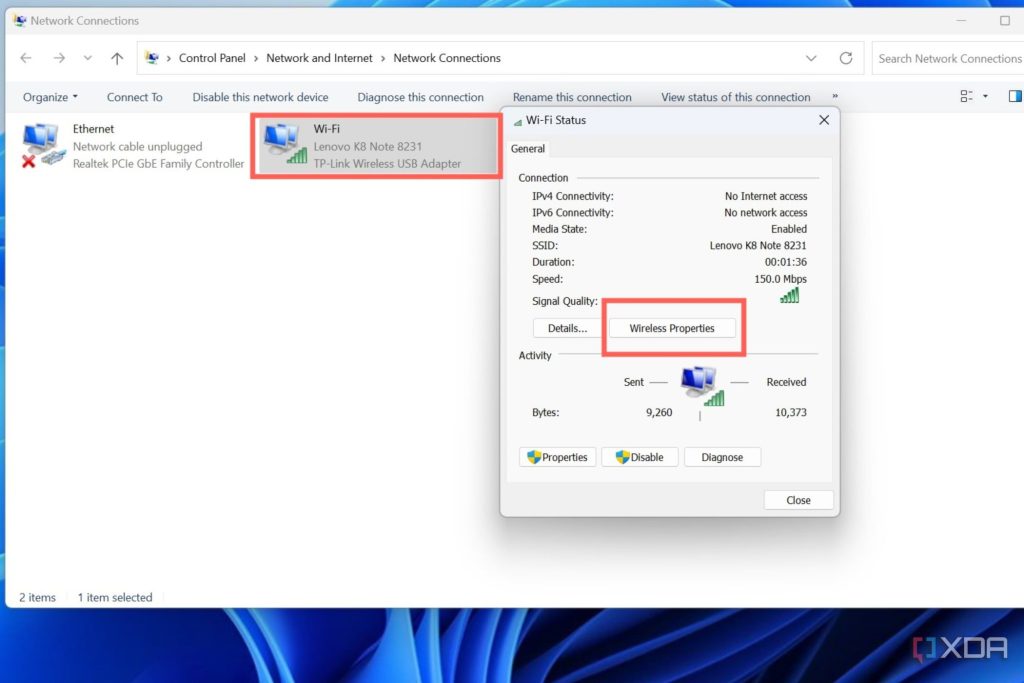
If you have a Windows PC that’s already connected to the office WiFi, this is the easiest method. Go to Settings > Network & Internet > Status > Network and Sharing Center. Click on your WiFi network name (the blue link next to Connections). In the pop-up, click Wireless Properties, then the Security tab. Check the box that says Show characters to reveal the password. This is exactly what we cover in our guide on how to view saved WiFi password on your laptop.
Step 2: Recover the Password on Mac
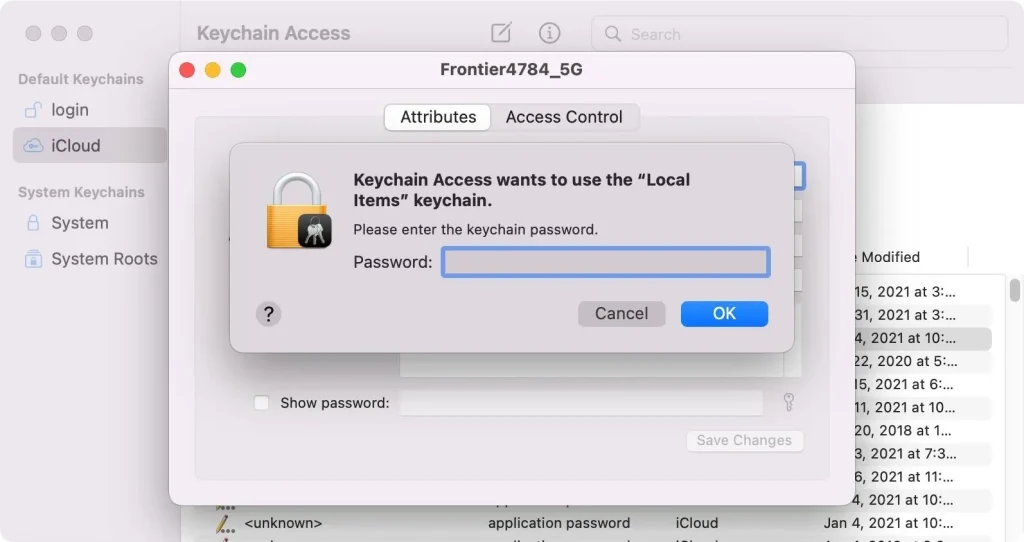
On a Mac that’s already connected, open Keychain Access (find it via Spotlight or in Applications/Utilities). In the search bar, type the office network name (SSID). Double-click the entry, then check the box Show password. You’ll need to enter your Mac’s administrator username and password. The password will appear. This method is also detailed in our WiFi password recovery via Settings article for Mac users.
Step 3: Recover via Router Admin Interface
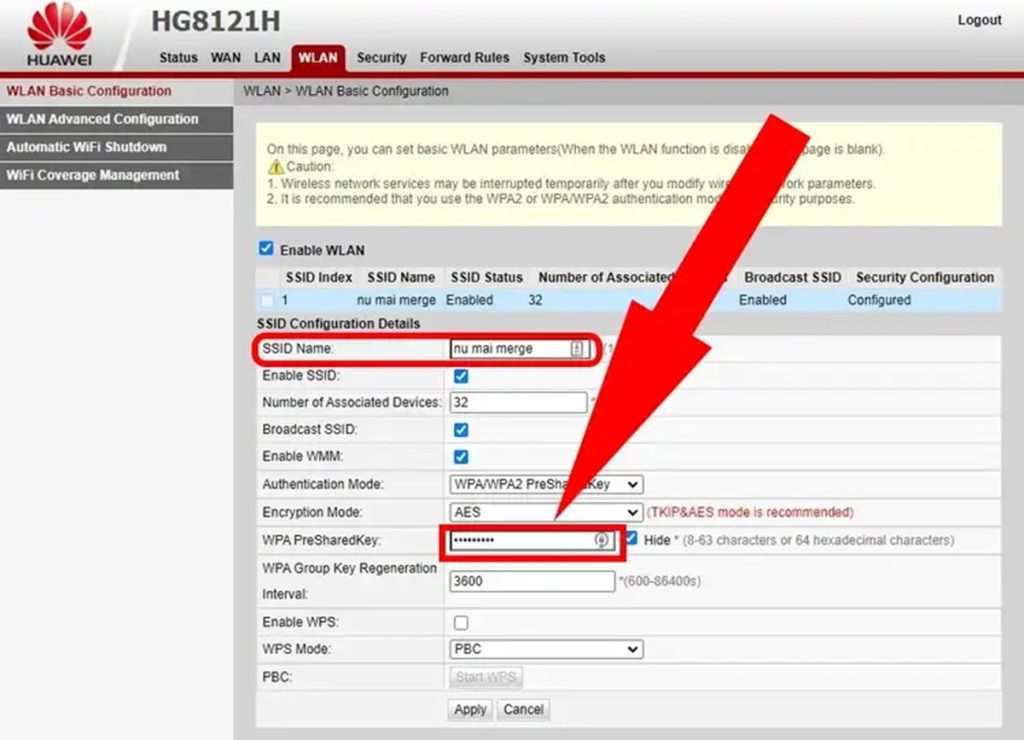
If you have the router’s admin credentials (often printed on the router or provided by IT), you can log into the router’s web interface. Open a browser and enter the router’s IP address (usually 192.168.0.1 or 192.168.1.1). Log in, then look for a section like Wireless or WiFi Settings. The password is typically shown as a pre-shared key or security key. You may need to click a show/hide button. For routers with default credentials, see our how to recover WiFi password without root guide – though that’s aimed at devices, the principle is similar.
Step 4: Using PowerShell (Windows Advanced)
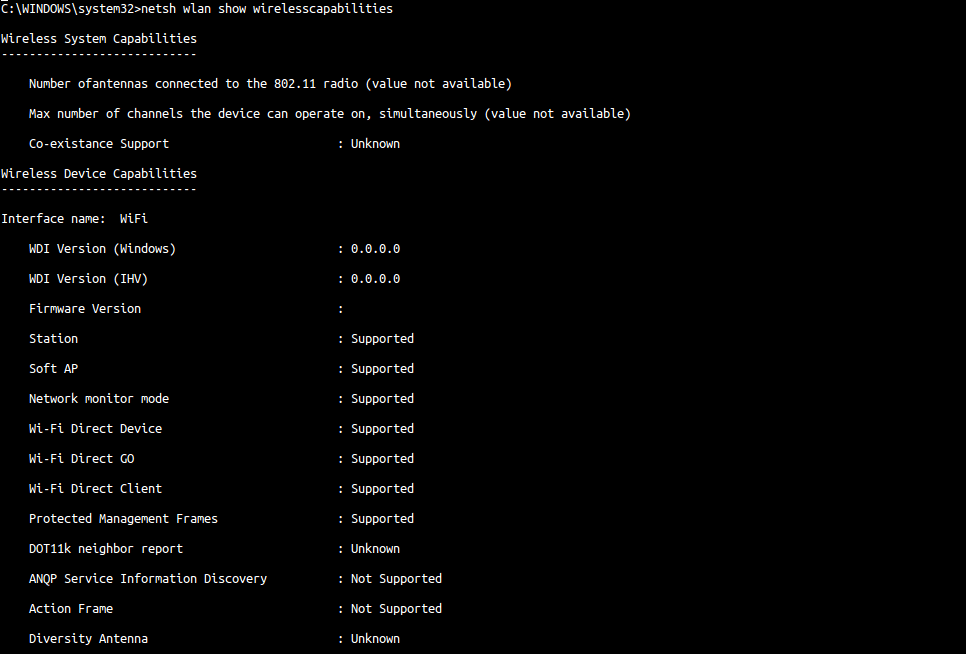
For tech-savvy users, PowerShell can extract all saved WiFi profiles and their passwords. Open PowerShell as Administrator, then run the command netsh wlan show profiles to list networks. For the office network, run netsh wlan show profile name="OfficeNetworkName" key=clear. Look for Key Content – that’s your password. This is a faster way if you need to view saved WiFi password using PowerShell for multiple networks.
Common Pitfalls
- The router admin password was changed from the default and nobody remembers it – this blocks Step 3. Try checking the router sticker or asking IT.
- The network profile was deleted from your device – you won’t see it in Keychain or Network Settings. In that case, you’ll need to ask someone else for the password or reset the router.
- You’re looking at the guest network instead of the main office WiFi. Guest networks often have different passwords. Double-check the SSID matches your office network.
Where to Next?
Now that you’ve recovered the password, save it somewhere safe. If you need to recover passwords on other devices, check our WiFi password recovery for lost password guide. For a deeper dive into the basics, our beginner WiFi password recovery tutorial covers all the fundamentals. And if you’re managing multiple office networks, the PowerShell method is a lifesaver.



